Guide 9 · Control
Approvals
Where you approve every order: Chat previews, the order form, Agents, bots, the inbox and options.
What you get
In Reactor no order is sent without your approval. This guide shows exactly where you give it: in Chat, in the order form, for Agents, for bots, in the notifications inbox and for options.
Every example was captured on a Bybit Demo account.
The rule
•
Preview first. Reactor builds the exact order (account, symbol, side, quantity, price, leverage, TP and SL) and shows it before anything is sent.
•
You approve. An analysis or a recommendation is not approval.
•
Check the result. "Accepted" means the broker received the order, not that it filled. Check Orders and Positions.
Step 1 — A preview in Chat
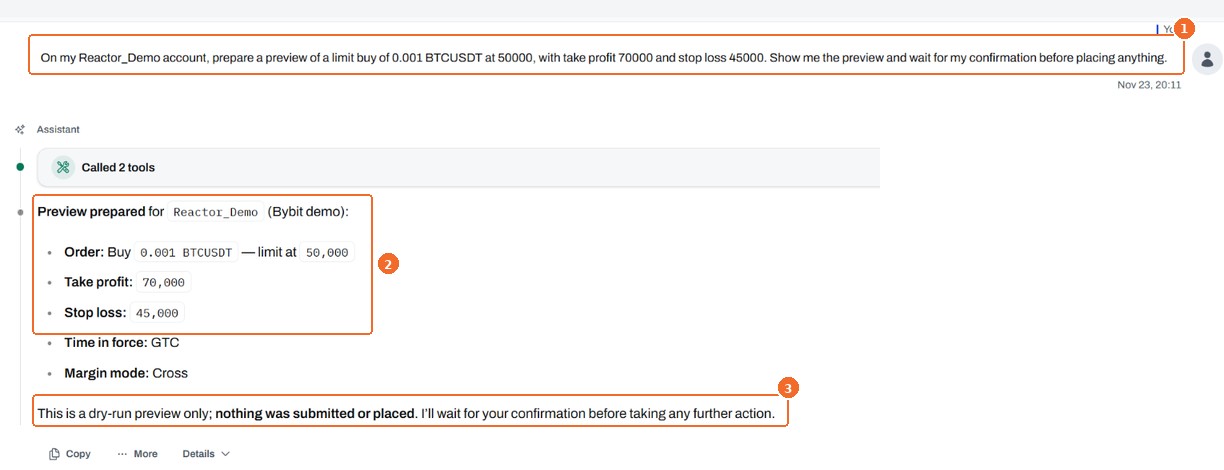
In AI Chat, ask Reactor to prepare an order and wait for your approval.
1
The request — account, symbol, side, quantity, price, TP and SL, and a request to wait for approval.
2
Preview prepared — the exact order that would be sent.
3
nothing was submitted or placed — a preview only. Nothing went to the broker.
Step 2 — Approve and check
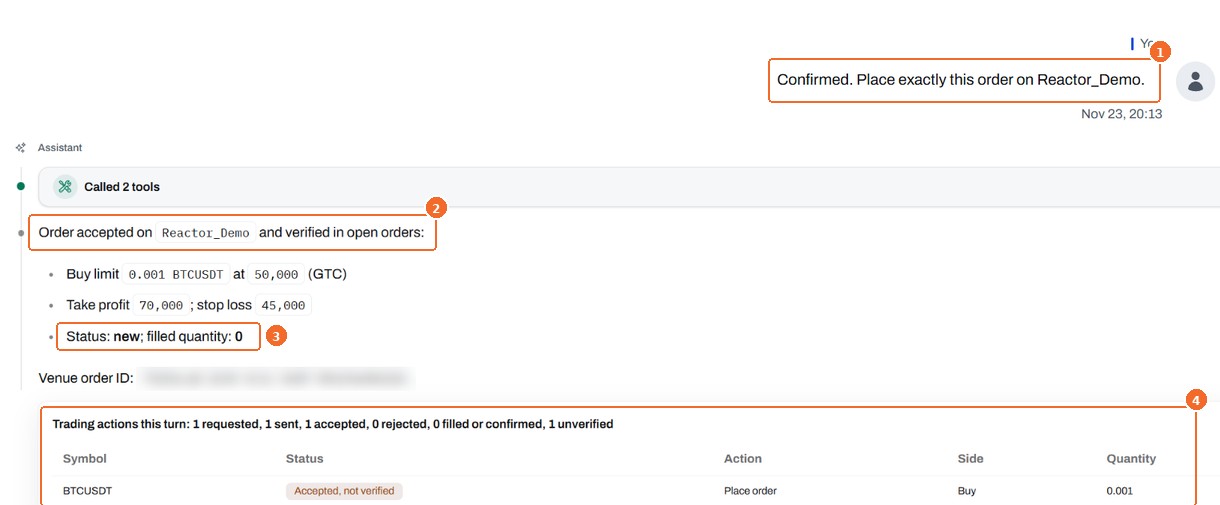
If everything is right, write an explicit approval.
1
Your approval — approve exactly the order that was shown.
2
Order accepted — the broker received the order, and Reactor checked it appears in open orders.
3
Status: new; filled quantity: 0 — the order is waiting and hasn't filled.
4
Trading actions this turn — a summary of every trading action in this turn: sent, accepted, rejected and filled.
Chat places, cancels or changes an order only when you clearly ask for that exact action, or confirm the preview it showed you.
Step 3 — The order form
In the New order form (Guide 7), your approval is the click on Submit order, number 6 in the image. The order goes to your broker immediately, with no extra confirmation step.
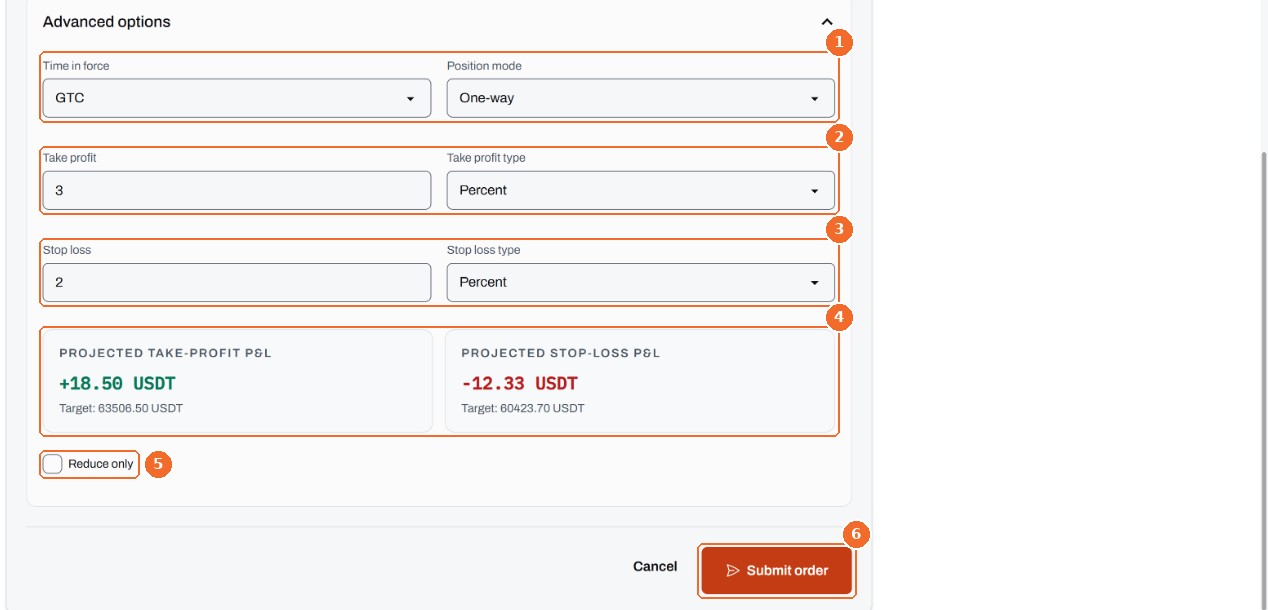
Before you click, check the account name at the top of the form, side, quantity, price, leverage, TP and SL.
Step 4 — Agents: Preview or Live
An Agent acts without asking you each time only in Live mode, only on the accounts you allowed (Allowed accounts), and only within the rules in its prompt (Guide 8).
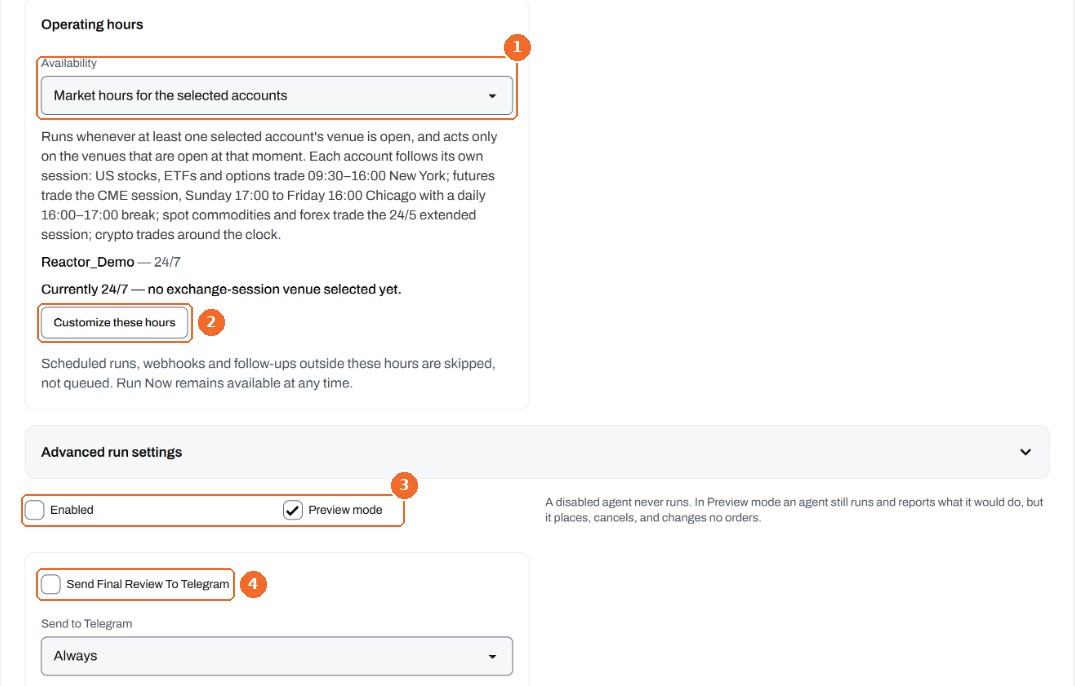
Number 3 in the image: in Preview mode the Agent runs and reports what it would do, without placing, cancelling or changing orders. Test every new Agent in Preview or on a Demo account before Live.
Step 5 — Bot permissions: Bot access
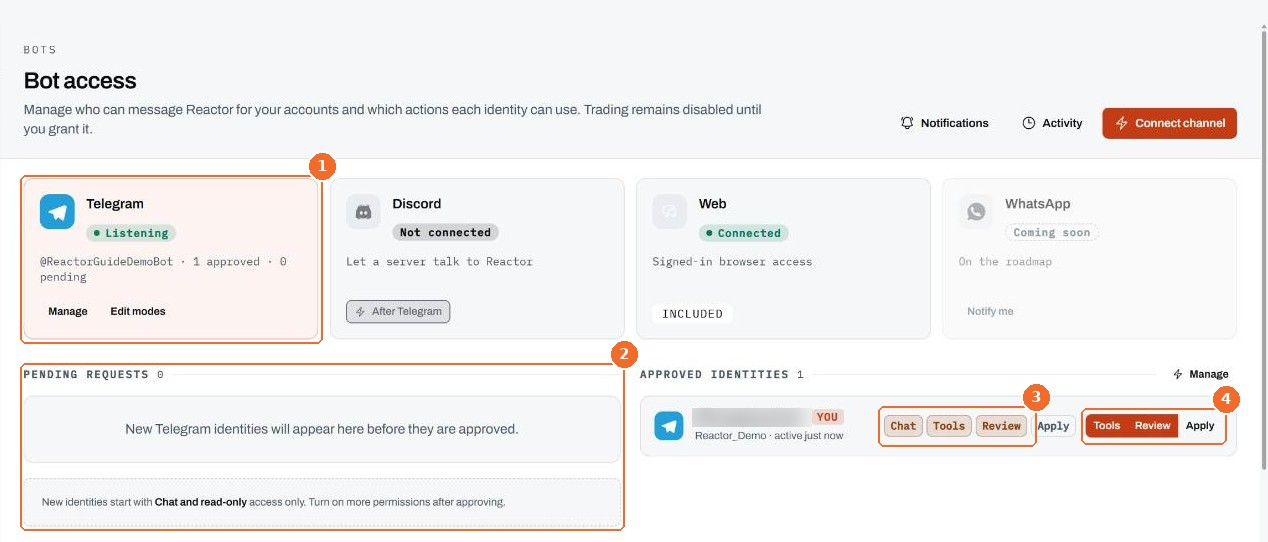
In the sidebar: Comms → Bots. This is where you decide who can message Reactor through Telegram, and what each identity may do.
1
The channel — your connected Telegram bot (Guide 5), with approved and pending identities.
2
Pending requests — a new Telegram identity appears here for approval. New identities start with Chat and read-only access only.
3
Chat, Tools, Review, Apply — the permissions the identity has now.
4
The toggles — Tools: run Reactor commands and tools. Review: open and review recommended plans. Apply: apply recommended plans to your accounts. Trading stays off until you turn it on.
Step 6 — The notifications inbox
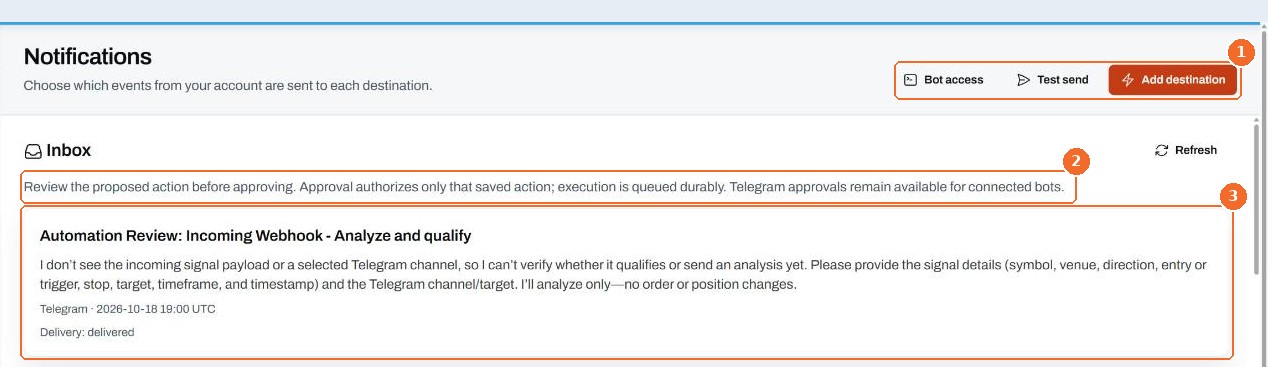
In the sidebar: Comms → Notifications.
1
Bot access, Test send, Add destination — bot permissions, a test message, and a new destination for notifications.
2
The rule — review the proposed action before approving. Approval authorizes only that saved action. You can also approve from your Telegram bot.
3
A message — an Agent run summary, with the channel, time and delivery status.
Step 7 — Stock options (tastytrade)
Chat and AI tools can prepare an option order preview, but they can't send it. Only you can open the preview page, check every leg, the net price and the fees, and click Approve and submit this exact order.
•
To cancel: Cancel order.
•
To change the price: Change price, enter the new net limit price, choose Preview replacement only, then approve the replacement on the same page.
•
Refresh status shows the broker's final status.
Before any trading action, check
•
The account, and whether it's Demo/Paper or Live.
•
Symbol, side, quantity and order type.
•
Price, leverage, Take Profit and Stop Loss.
•
When the plan should stop and do nothing.
Keep in mind
•
Trading can lose money. Orders may be delayed, rejected, partly filled, or filled before a cancellation reaches the broker.
•
An AI explanation is not a trade receipt. Check Orders and Positions, or your broker.
•
Turning off an Agent, disconnecting an account or closing Reactor doesn't cancel orders or close positions.
•
For anything urgent, use your broker's app or website. Support can't carry out urgent trading instructions.
Next guide
Guide 10: Risk, stops and Profit Guard
Size positions by risk, set stops and targets, let Profit Guard manage stops, and take over by hand.