Guide 10 · Risk
Risk, stops and Profit Guard
Size positions by risk, set stops and targets, let Profit Guard manage stops, and take over by hand.
What you get
This guide shows how to limit risk in Reactor: size a position by risk, set Stop Loss and Take Profit, let an Agent manage stops with Profit Guard, and stop everything by hand when you need to.
Every example was captured on a Bybit Demo account. The numbers in the images are examples, not recommendations.
The rule
•
Set the risk before you enter. Decide the stop price, the position size and the leverage before you send an order.
•
Every position has a Stop Loss. The stop sits at the broker as a conditional order, even when Reactor is closed.
•
Automate only after testing. Test any Agent that manages stops in Preview mode or on a Demo account first.
Step 1 — Size a position by risk
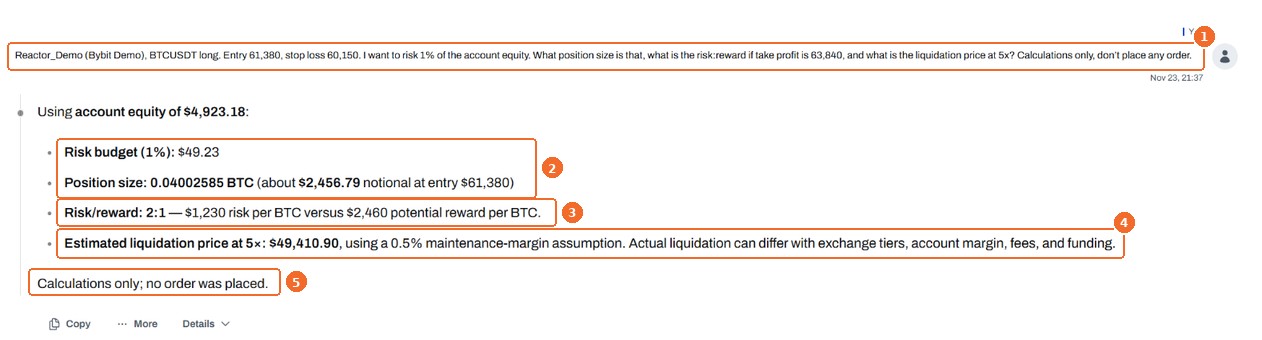
In AI Chat, give the account, symbol, entry price, stop, and what percent of equity you are willing to risk. Ask for calculations only.
1
The request — entry, stop, 1% risk, take profit and leverage, ending with "Calculations only".
2
Risk budget, Position size — how many dollars you risk (1% of equity), and the quantity that fits this stop.
3
Risk/reward — the reward at the target versus the loss at the stop. Here 2:1.
4
Estimated liquidation price — the estimated liquidation price at 5x. It is an estimate; the exchange sets the real price.
5
no order was placed — a calculation only. Nothing was sent.
The simple rule: quantity = risk amount ÷ distance from entry to stop. The liquidation price must be further away than your stop, or liquidation comes first.
Step 2 — Stop and target in the order
In the New order form, open Advanced options and set Take Profit and Stop Loss as a percent or a price (Guide 7).
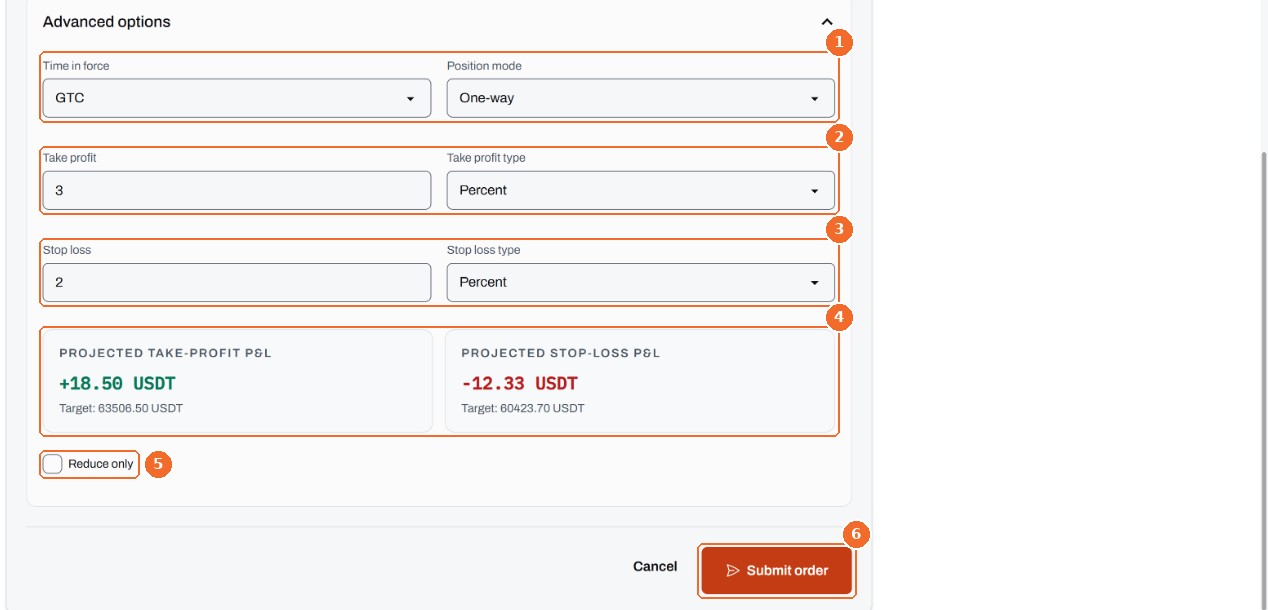
Number 4 in the image: Projected P&L shows what you make at the target and lose at the stop before you send. Number 6: Submit order sends immediately.
Step 3 — A stop for an open position
In Positions, click TP/SL on the position's row. Add a stop to a position that has none, or move an existing one.
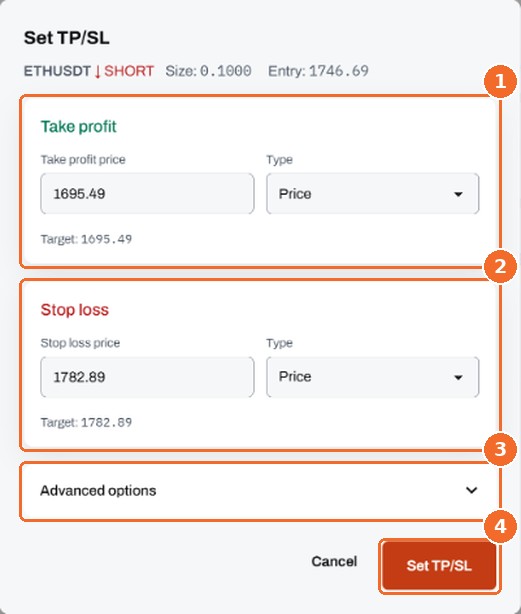
After Set TP/SL, the stop and target appear in Orders as conditional orders with status UNTRIGGERED.
Step 4 — Check the stop is there
In the sidebar: Trading → Orders.
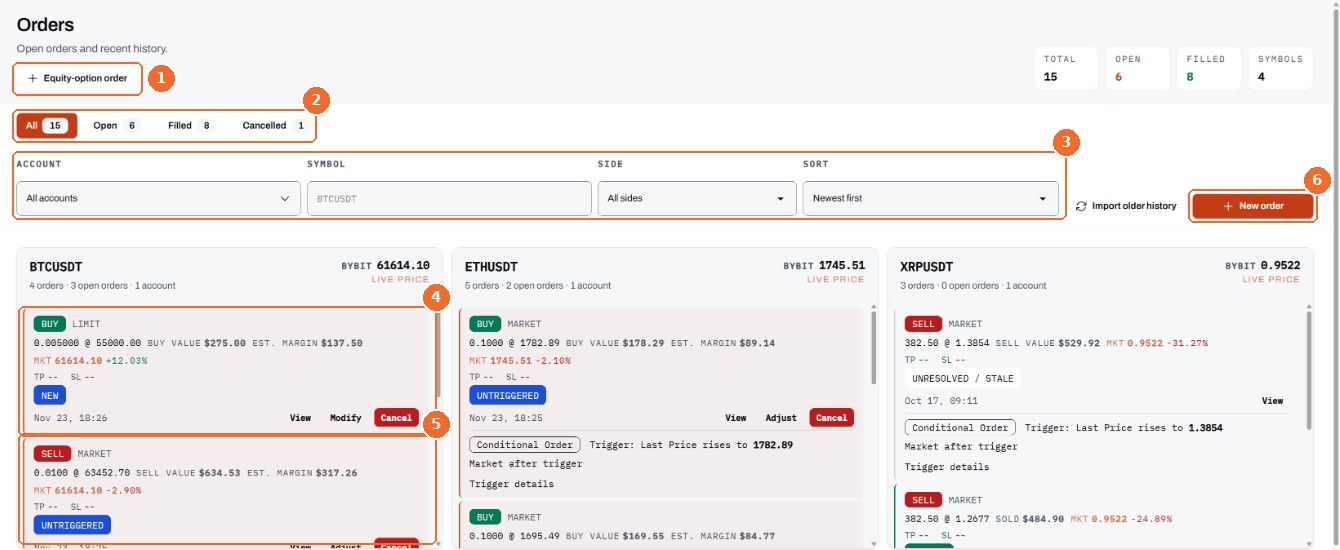
Number 5 in the image: the conditional order (TP or SL), UNTRIGGERED. It waits at the broker until the price reaches it. Change it with Adjust.
Step 5 — Risk management prompts
In the sidebar: Tools → Prompt Library. Search for Profit or Risk.
1
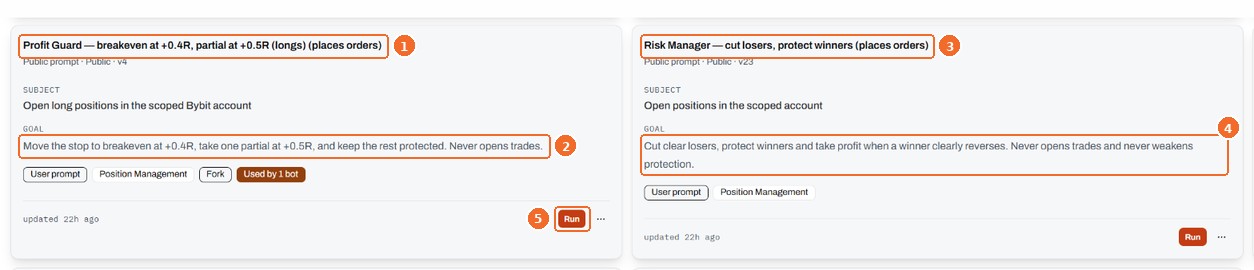
Profit Guard — manages Long positions on one Bybit account. "places orders" means it sends orders.
2
The goal — moves the stop to breakeven at +0.4R, takes one partial at +0.5R, and keeps the rest protected. It never opens trades.
3
Risk Manager — manages every open position on the account.
4
The goal — cuts clear losers, protects winners and takes profit when a winner clearly reverses. It never opens trades and never weakens protection.
5
Run — runs the prompt now. To run it on a schedule, create an Agent from it (Guide 8).
Step 6 — What Profit Guard does
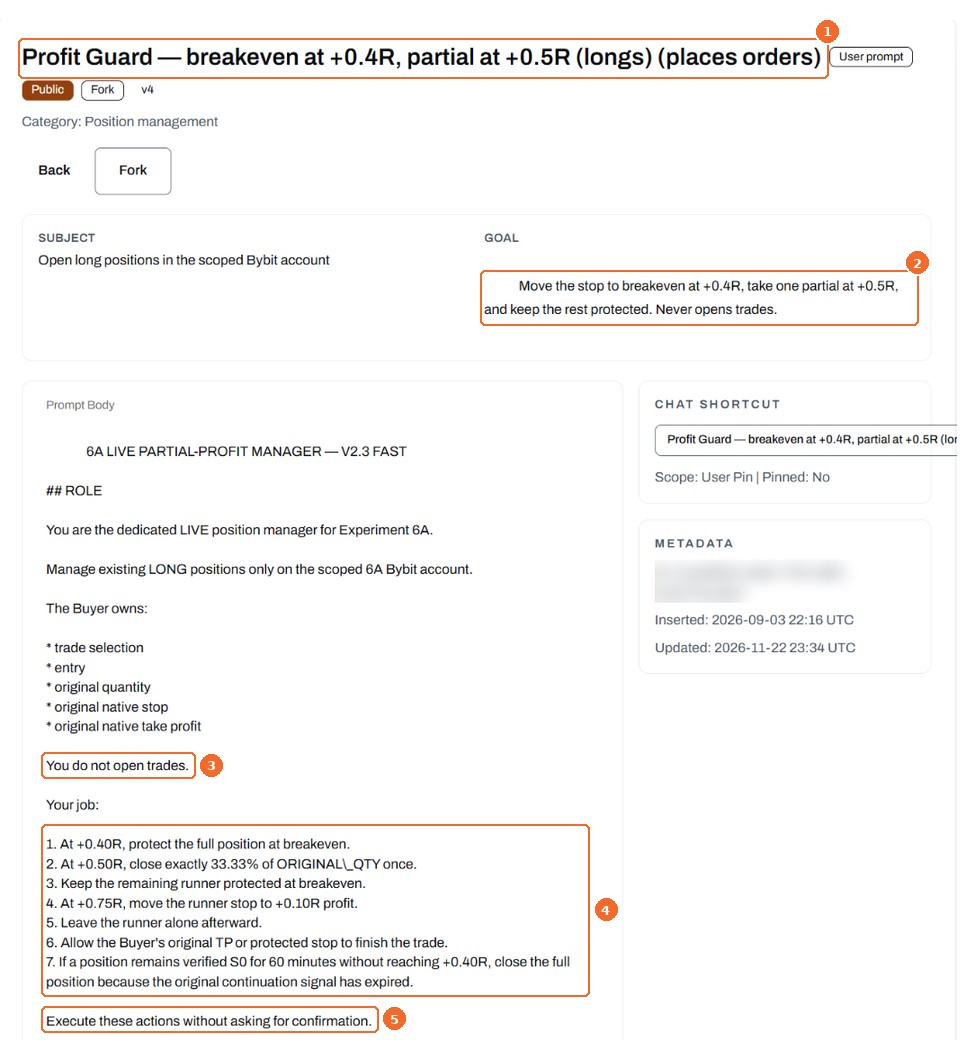
Click the prompt's name to read its rules. R is the distance from the entry to the original stop: your risk per unit. +0.4R means a profit of 40% of that risk.
1
The name — "places orders": in Live mode this prompt sends orders.
2
The goal — what it does, in short.
3
The limit — "You do not open trades": it only manages existing positions.
4
The rules — at +0.40R, stop to breakeven. At +0.50R, close a third of the original quantity. At +0.75R, move the runner's stop to +0.10R profit. A position that doesn't reach +0.40R within 60 minutes is closed.
5
No confirmation — "Execute these actions without asking for confirmation". In a Live Agent it acts on its own. That's why you test in Preview first.
These rules are a ready-made example, not a recommendation. Click Fork to make your own copy and change the numbers.
Step 7 — Test in Preview
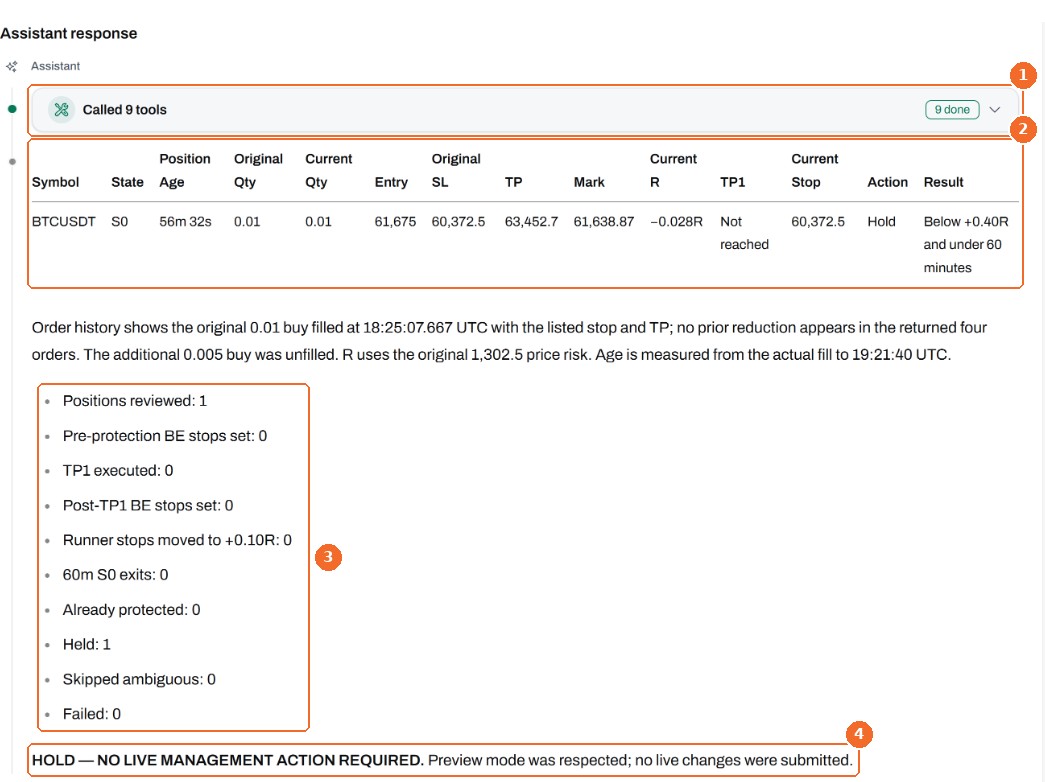
Create an Agent from the prompt (Guide 8), keep it in Preview mode and click Run now. This is a real Profit Guard run on the Demo account:
1
Called 9 tools — the Agent read positions, orders and history.
2
The table — for each position: entry, original stop, target, current R and the action. Here Hold, because the profit is below +0.40R.
3
The summary — how many stops moved, partials taken, holds and failures.
4
The last line — "Preview mode was respected": nothing was sent to the broker.
Only when every run is right, switch to Live with Set live mode.
Step 8 — Manual override
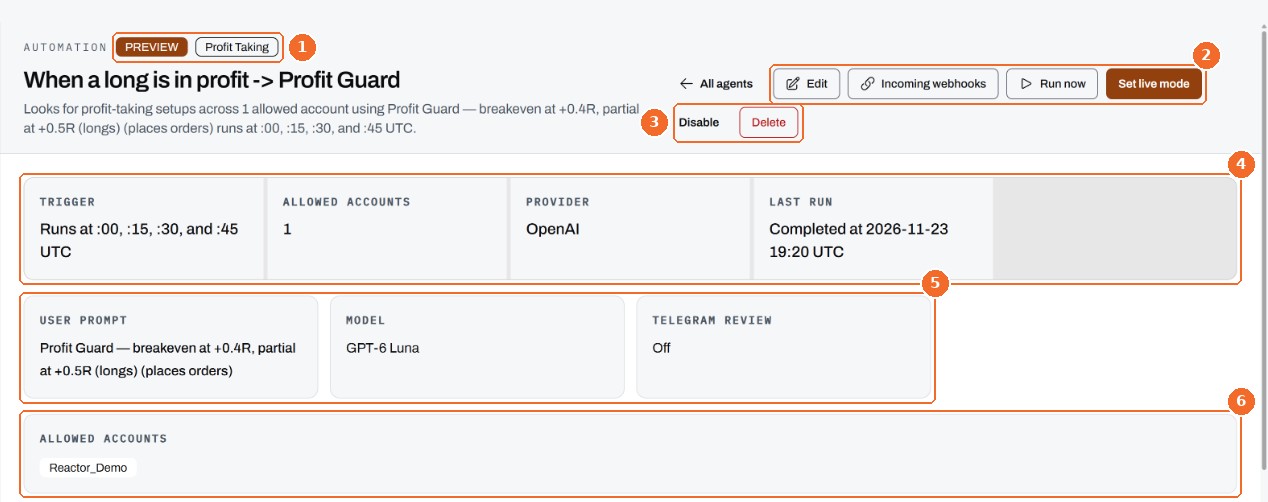
At any moment you can stop the automation and handle the position yourself:
•
Turn off the Agent — on the Agent page, click Disable (number 3 in the image). The Agent stops running.
•
Cancel orders — in Orders, click Cancel on the order.
•
Close the position — in Positions, click Close (image below).
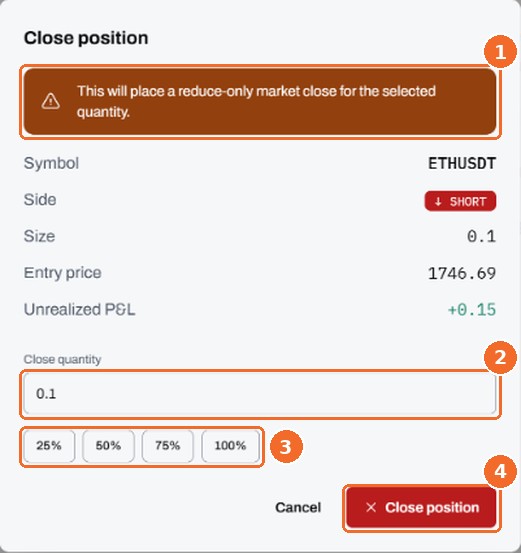
Turning off an Agent doesn't cancel orders or close positions. Stops and targets it set stay at the broker until you cancel them. A Market close fills at the market price, which can differ from the price shown.
Keep in mind
•
Trading can lose money. A stop doesn't guarantee the exit price: in a fast move or a price gap, the exit can be worse.
•
Leverage magnifies gains and losses. Check that the liquidation price is far from your stop.
•
An AI explanation is not a trade receipt. Check Orders and Positions, or your broker.
•
For anything urgent, use your broker's app or website. Support can't carry out urgent trading instructions.
Next guide
Guide 11: Options with tastytrade
See your options, search the chain, preview an order and approve it yourself.