Guide 11 · Options
Options with tastytrade
See your options, search the chain, preview an order and approve it yourself.
What you get
This guide shows how to work with stock options through a tastytrade account in Reactor: see the options you hold, search the chain, build an order preview and approve it yourself.
You need a connected tastytrade account (Guide 6). The screenshots were taken outside market hours, so prices are marked as last-session data. No order was sent during the capture.
The rule
•
Only you approve an option order. Chat and AI tools can prepare a preview, but they can't send it.
•
You approve exactly what you see. The preview is locked: legs, net price, Debit/Credit and time in force.
•
Approval is not a fill. A limit order may not fill. Check the status in Orders or in tastytrade.
Step 1 — Your options: Options
In the sidebar: Trading → Options. Choose your tastytrade account.
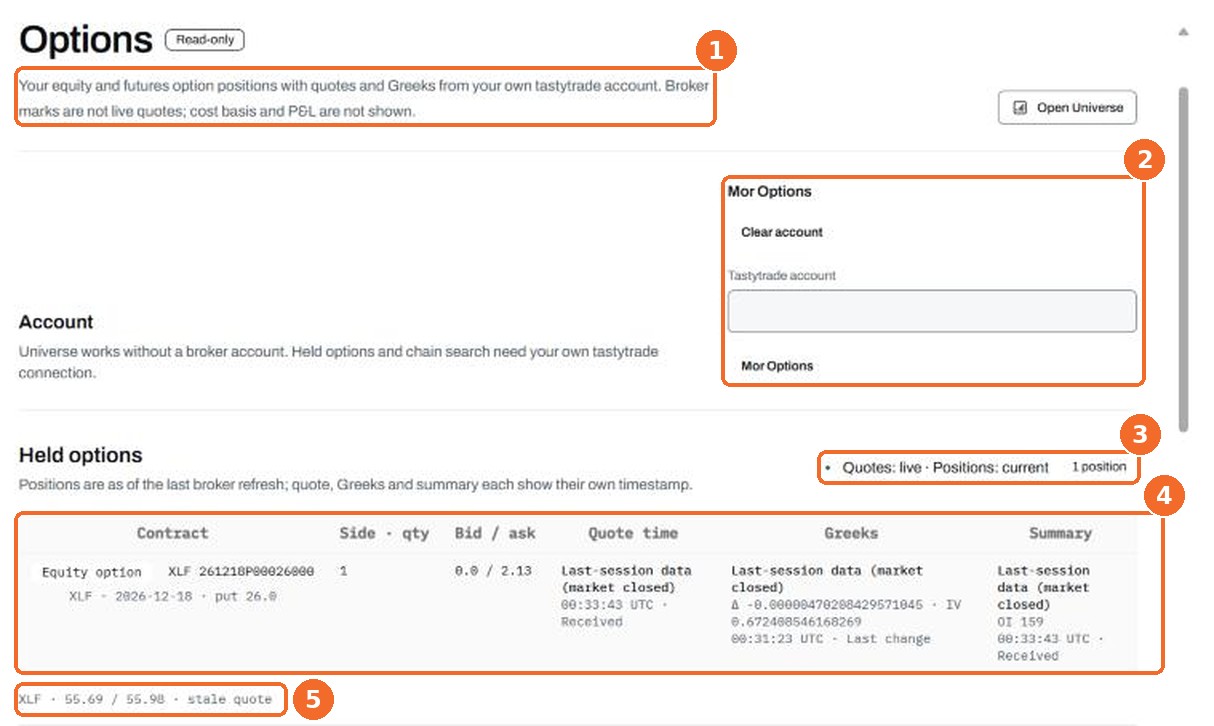
1
Read-only — this screen only shows data. You can't send orders from it. Cost basis and P&L aren't shown here.
2
The account — the selected tastytrade account.
3
Quotes · Positions — whether prices are live and positions current, and how many positions.
4
The table — contract, side and quantity, Bid/Ask, quote time, Greeks and summary. Each has its own timestamp.
5
The underlying — the stock price. "stale quote" means the price isn't current.
Outside market hours you see last-session data, marked "market closed".
Step 2 — Search the option chain
Lower on the same screen: Option chain search. Search one stock or one futures product.
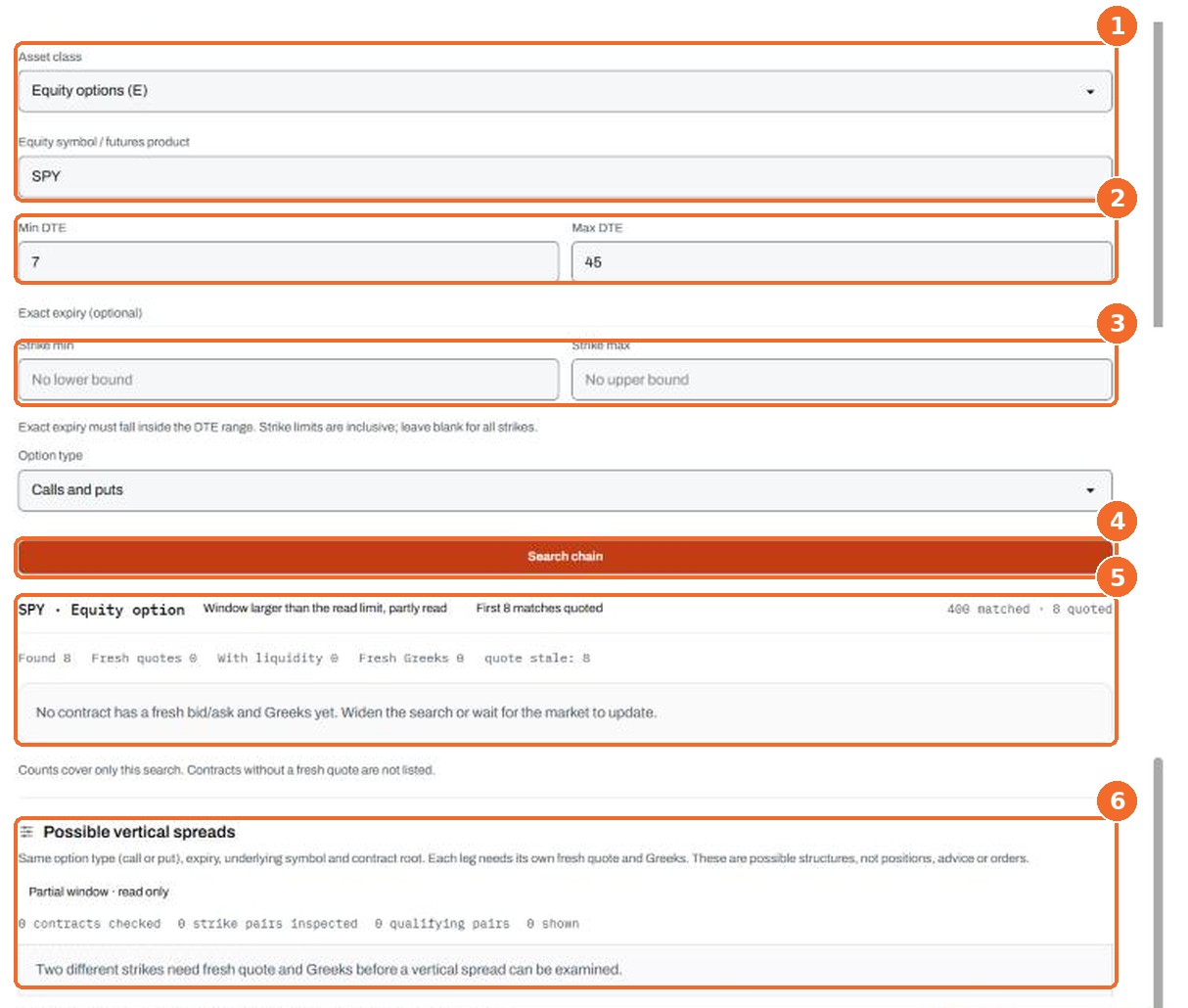
1
Asset class and the symbol — for example SPY.
2
Min DTE / Max DTE — days left to expiry.
3
Strike min / max — a strike range. Leave blank for all strikes.
4
Search chain — runs the search. Reactor streams live quotes for up to 8 contracts for two minutes.
5
The results — how many contracts matched, and how many have fresh quotes and Greeks. Outside market hours there are no fresh quotes.
6
Possible vertical spreads — possible structures from the same chain. They are not recommendations or orders.
Step 3 — An order preview
In the sidebar: Trading → Orders → Equity-option order. Build a limit order with one to four legs.
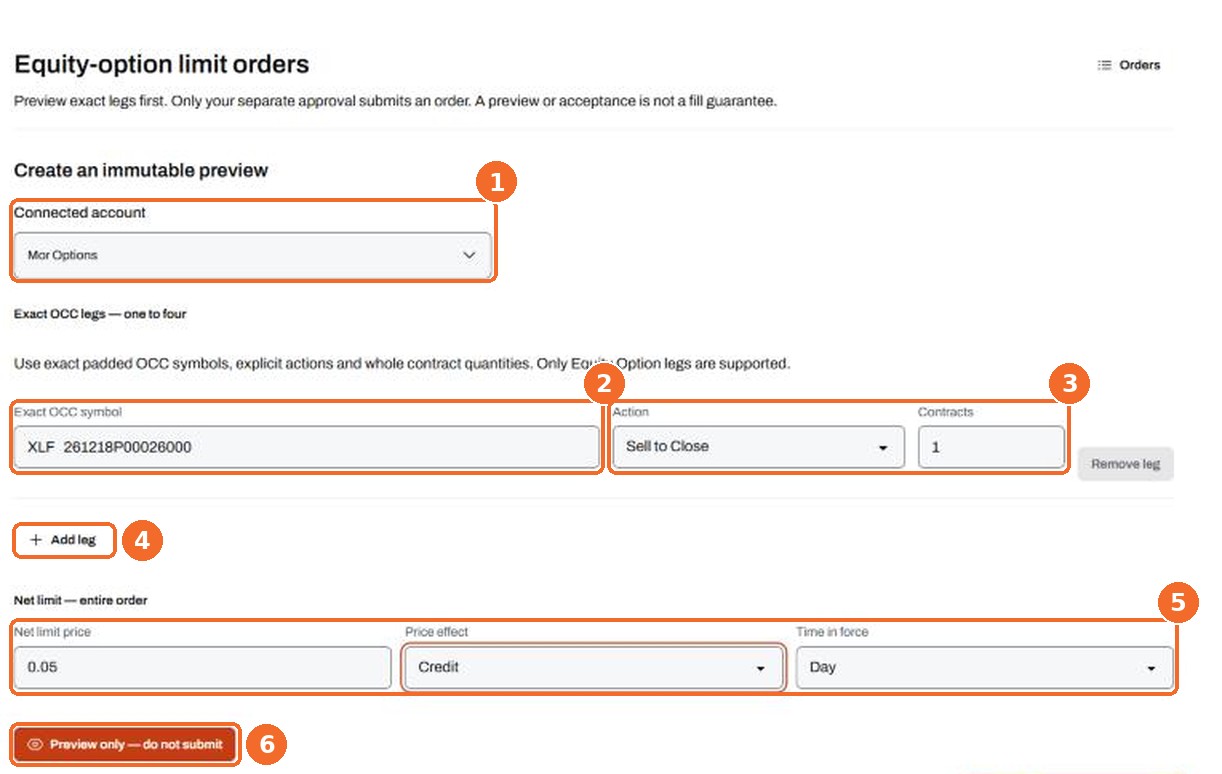
1
Connected account — your tastytrade account.
2
Exact OCC symbol — the contract's full symbol, for example XLF 261218P00026000.
3
Action, Contracts — Buy/Sell to Open/Close, and a whole number of contracts.
4
Add leg — adds a leg, up to four.
5
Net limit — a net price for the whole order, Debit or Credit, and Day or GTC.
6
Preview only — do not submit — creates a preview at the broker. Nothing is sent.
Step 4 — Check the preview
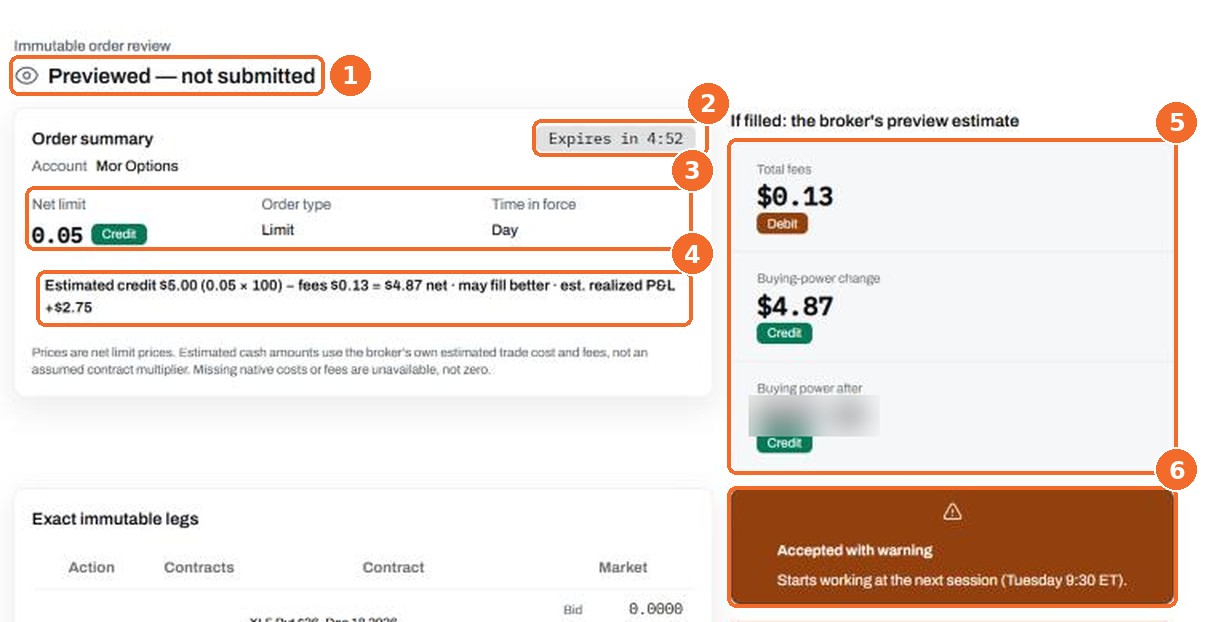
1
Previewed — not submitted — this is a preview, not an order.
2
Expires in — the preview has a time limit. When it runs out, create a new one.
3
Order details — net price, order type and time in force.
4
The calculation — how much comes in or goes out, minus fees. These are the broker's estimates.
5
The broker's estimate — fees, the buying-power change and buying power after the fill.
6
The broker's warning — here: the order starts working only at the next session.
Step 5 — Approve it yourself
Scroll down. This is the only place the order can be sent.
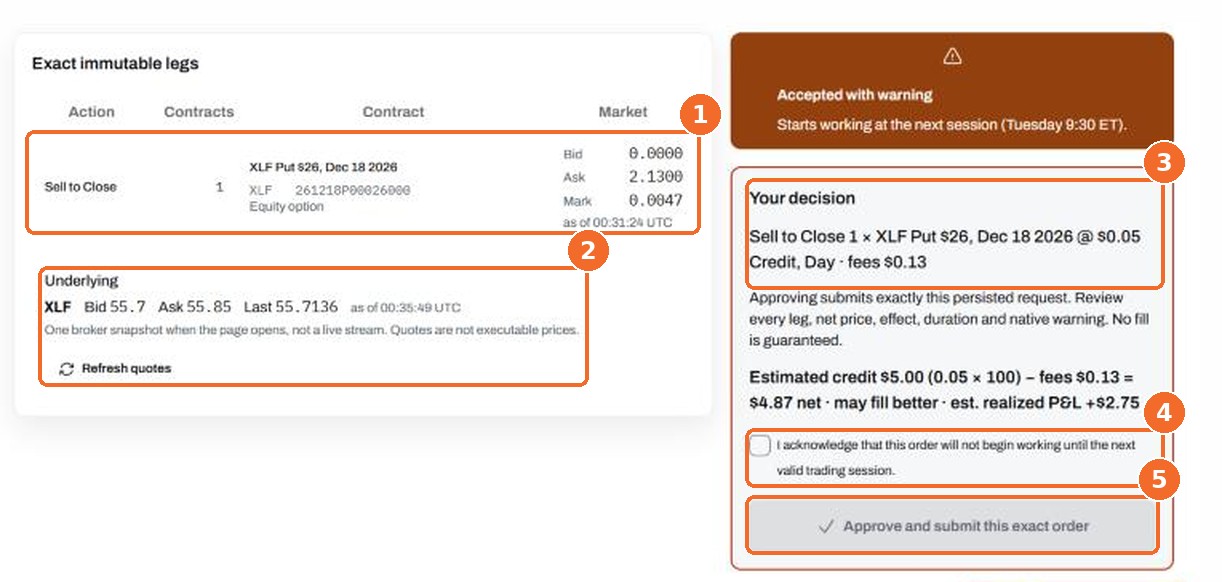
1
The legs — action, quantity, contract, and Bid/Ask/Mark at preview time.
2
The underlying — one broker snapshot, not a live price. Refresh quotes updates it.
3
Your decision — an exact summary of what will be sent.
4
The acknowledgment — when there's a warning, tick that you've read it.
5
Approve and submit this exact order — sends exactly this order. It was not clicked in the capture.
Lower on the page: Broker warnings and errors, the broker's native data, and the order and fills as the broker reported them.
Step 6 — A preview from Chat
You can also ask Reactor in AI Chat to prepare the preview.
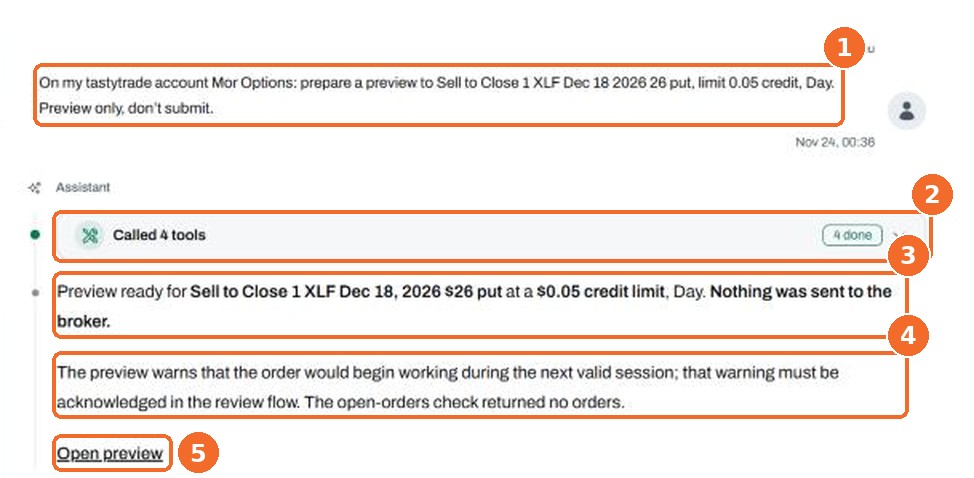
1
The request — account, action, contract, price and time in force, and "Preview only".
2
Called 4 tools — the tools Chat used.
3
Nothing was sent to the broker — a preview only.
4
The warning — Chat passes on the broker's warning.
5
Open preview — opens the same preview page. That is where, and the only place, you approve.
Step 7 — Cancel or change the price
On an open order that hasn't filled, on the order's page:
•
To cancel: Cancel order.
•
To change the price: Change price, enter the new net limit price, choose Preview replacement only, then approve the replacement on the same page.
•
Refresh status shows the broker's final status.
A cancel or change request doesn't guarantee the result: the order may fill before the request reaches the broker.
Keep in mind
•
Options trading can lose money, and fast. Understand the risk of every structure before you approve.
•
Approval is not a fill. A limit order may fill partly, at a better price, or not at all.
•
Outside market hours prices aren't live, and the order starts working only at the next session.
•
For anything urgent, use tastytrade's app or website. Support can't carry out urgent trading instructions.
Next guide
Guide 12: Reactor and TradersPost for prop traders
Your strategy runs in Reactor as an Agent. TradersPost executes at your broker. Test on Paper, with a Telegram confirmation after every action.