Guide 6 · Connections
Connecting a trading account
Connect your broker account — the same screen for every broker.
What you get
A connected trading account lets Reactor see balances, positions and orders, size risk to your account, and send orders only when you approve.
The screen in Reactor is the same for every broker. What changes is the credentials you create at your broker.
Before you start
•
Create a dedicated API key for Reactor at your broker, and keep it in a private file.
•
Enable permission to read balances, positions and orders. Enable trading only if you want Reactor to place orders.
•
Keep withdrawals and transfers disabled. Reactor doesn't need them.
•
Check the permissions at your broker. Reactor doesn't verify every permission you selected.
•
If your broker supports IP restrictions, contact support for Reactor's IP addresses before setting them.
•
Start with a Demo account.
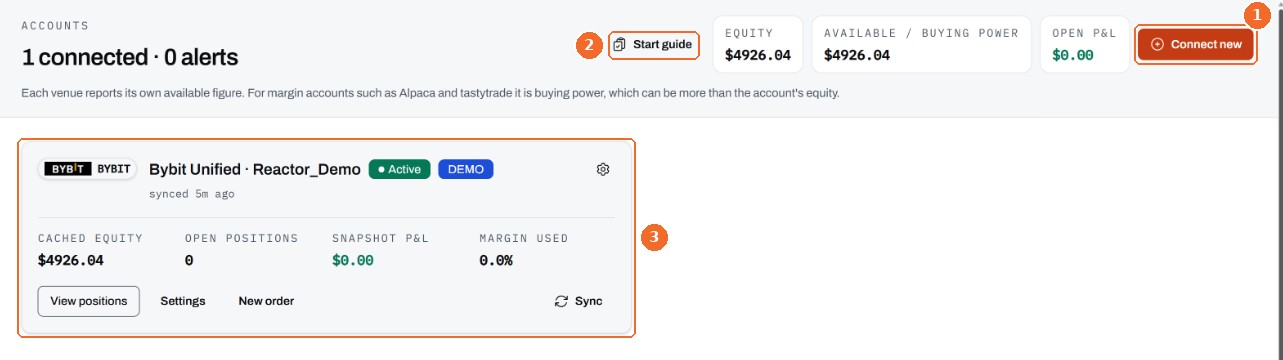
Step 1 — Accounts → Connect new
In the sidebar: Trading → Accounts.
1
Connect new — opens the connection dialog.
2
Start guide — opens the Get started guide, where connecting is step 2.
3
Account card — every connected account appears as a card.
Step 2 — Fill in the connection
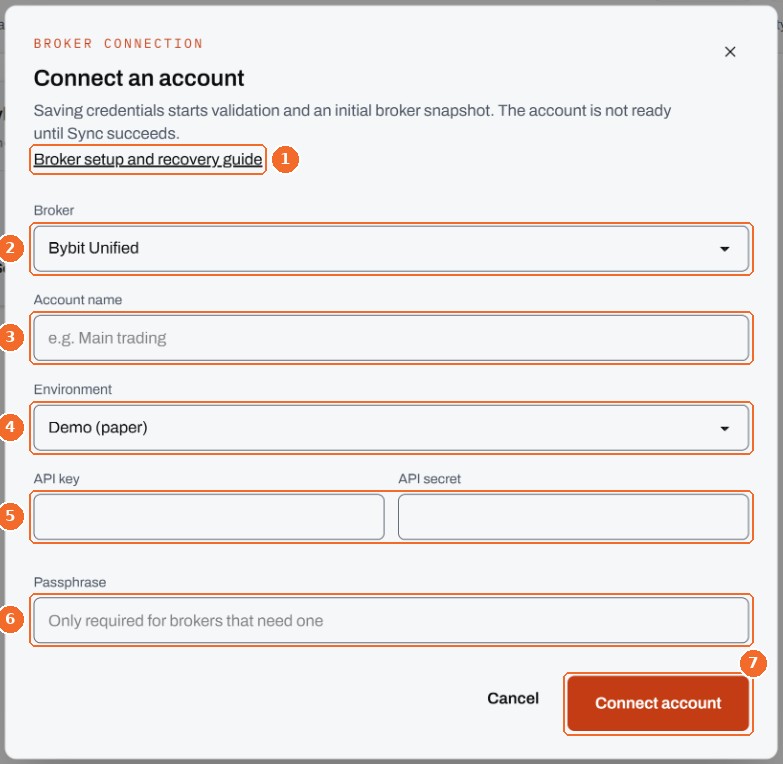
The example: a Bybit Demo account.
1
Broker setup and recovery guide — a built-in guide: permissions, environments, troubleshooting and replacing keys.
2
Broker — Bybit Unified, MEXC, Alpaca or TastyTrade.
3
Account name — a name that helps you recognize the account.
4
Environment — Demo (paper) or Live (real funds). It must match the key: a Demo key doesn't work in Live, and the other way round.
5
API key / API secret — paste from your private file.
6
Passphrase — only for brokers that need one. Leave it empty for Bybit and Alpaca.
7
Connect account — saves, checks the key and pulls the account state.
Never paste API keys into Chat or a support message. This screen is the only place for them.
Step 3 — Check the first sync
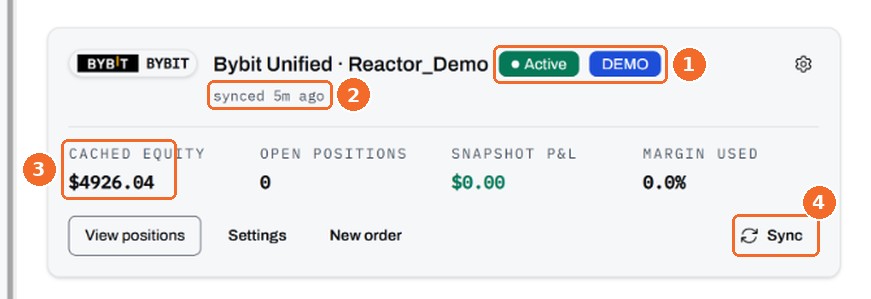
The account is ready only after the first Sync succeeds. Pending or Validating means the sync isn't complete yet.
1
Active + DEMO — the account is connected, and the environment is clearly marked.
2
synced — when the data was last pulled.
3
Cached equity — the balance from the last sync. Compare it with your broker.
4
Sync — refreshes the data. Sync only reads the account and never places orders.
A zero balance can be correct, but it doesn't prove the connection worked. Check the sync status and the last-sync time.
Differences between brokers
•
Bybit — API key + API secret. Demo or Live.
•
Alpaca — Key ID + secret. Paper or Live. A Paper key is different from a Live key.
•
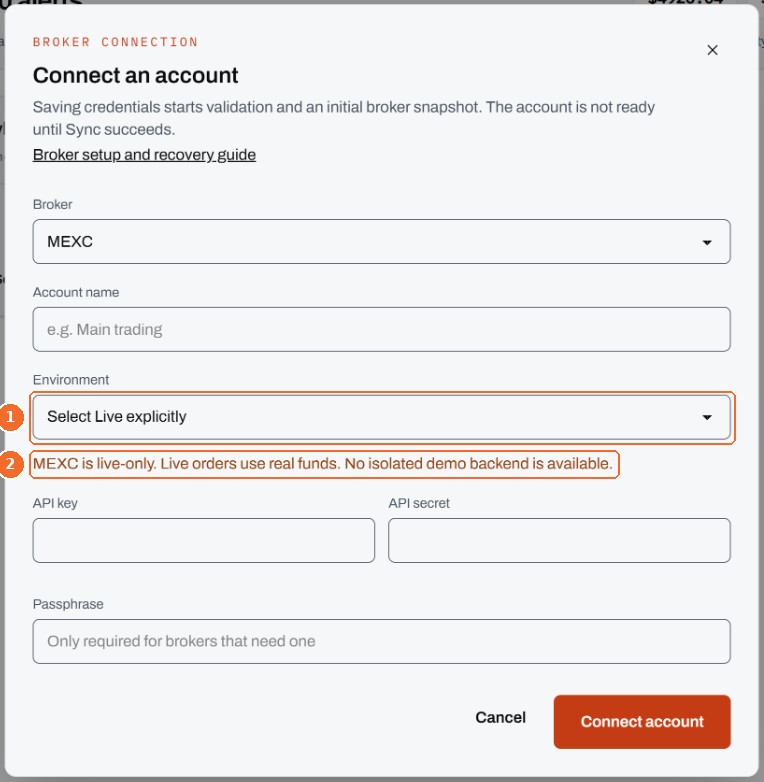
MEXC — API key + API secret. Live only: there is no Demo account, and every order uses real funds.
•
tastytrade — three values from an OAuth application you create at tastytrade. Live.
MEXC
1
Select Live explicitly — choose Live on purpose.
2
The warning — MEXC is live-only. An older MEXC connection labeled Demo: disconnect it and reconnect as Live.
tastytrade
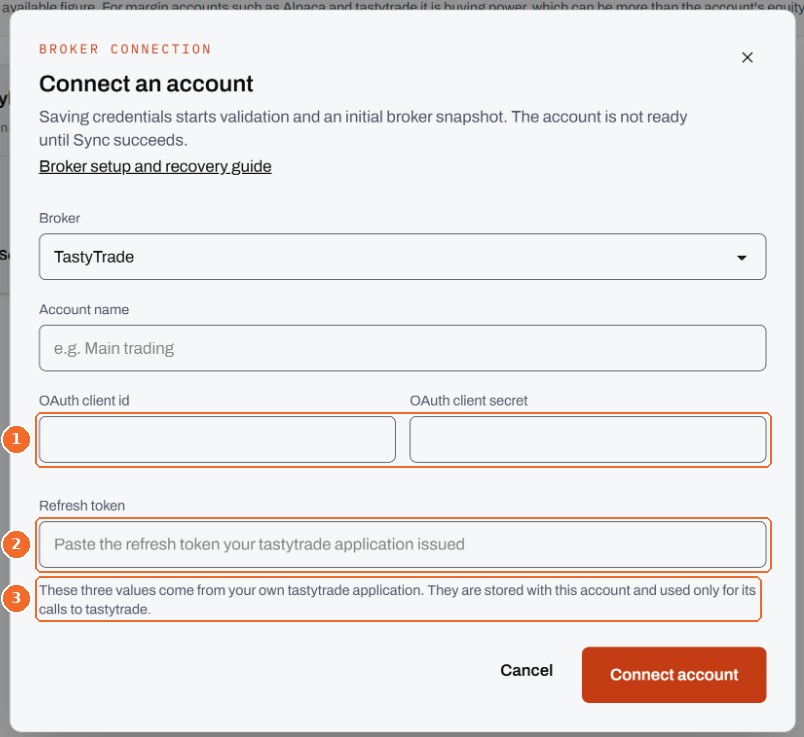
1
OAuth client id / OAuth client secret — from the application you created at tastytrade.
2
Refresh token — the token your application issued.
3
The note — the values are stored with the account and used only for its calls to tastytrade.
When the connection fails
•
The credentials are active and entered correctly.
•
The environment you chose matches the key.
•
The required permissions are enabled at the broker.
•
IP restrictions, if any, allow Reactor to connect.
•
Your broker's service is available.
Fix the problem and click Sync to retry. Saving a new key starts a new validation.
Replacing or revoking a key
If a key may have been exposed, revoke it at your broker first. Create a new key, update it in Reactor through Settings on the account card, and check that the new sync succeeds.
Replacing a key or disconnecting an account in Reactor rejects queued actions that haven't been sent yet. Disconnecting doesn't cancel orders at your broker, close positions, or revoke the key at your broker.
The built-in guide
The Broker setup and recovery guide link in the connection dialog opens the same information inside Reactor.
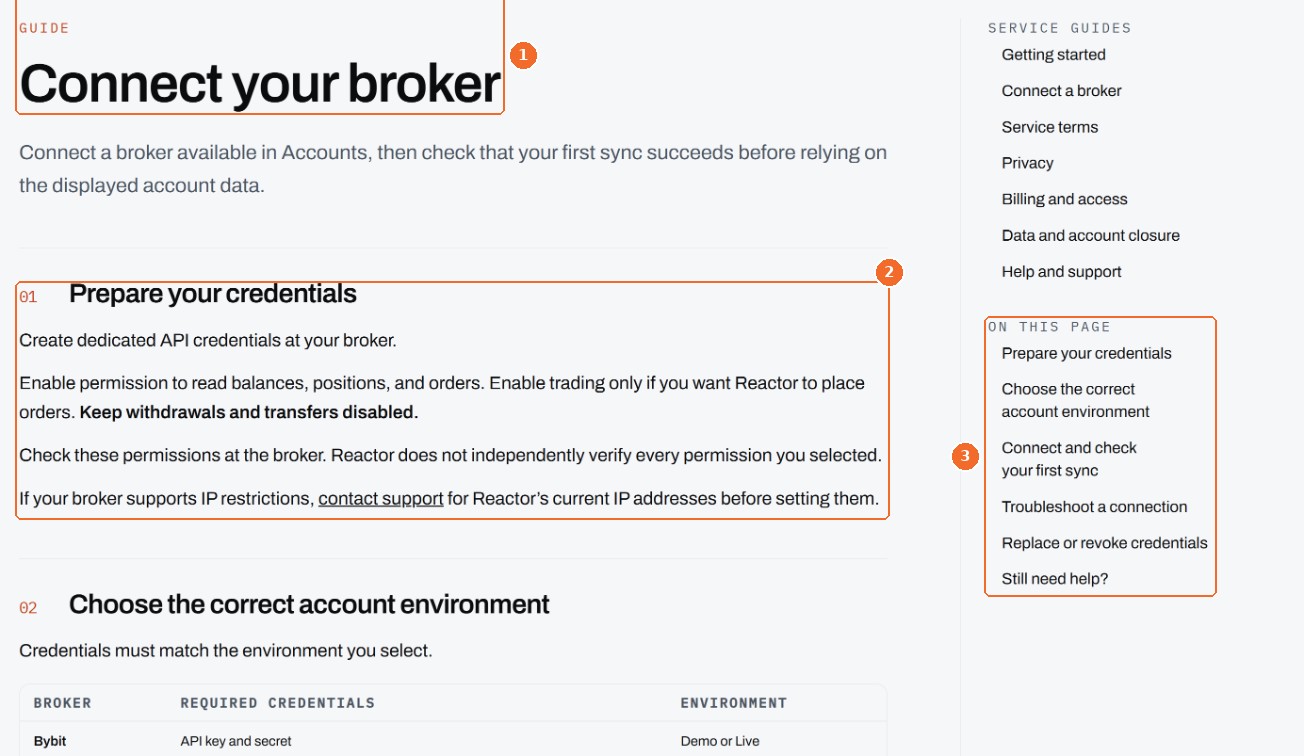
1
Connect your broker — the full guide.
2
Prepare your credentials — which permissions to enable, and which not.
3
On this page — environments, first sync, troubleshooting and replacing keys.
Next guide
Guide 7: Balances, positions and orders
See your balance and positions, place orders and close positions from the screen.