Guide 5 · Connections
Connecting a Telegram bot
Reactor inside your Telegram — questions, reports and alerts from anywhere.
What you get
A private Telegram bot connected to Reactor. Ask it questions from your phone, and get automation results, approval requests, risk alerts and account alerts through it — without opening the app.
Time: about 10 minutes. You need a Telegram account and a Reactor account. Telegram on your computer makes copying and pasting easier.
Before you start, open a private text file or a password manager. You'll save four details in it: the bot's name, its @username, the token, and your numeric ID.
Step 1 — Create a bot in BotFather
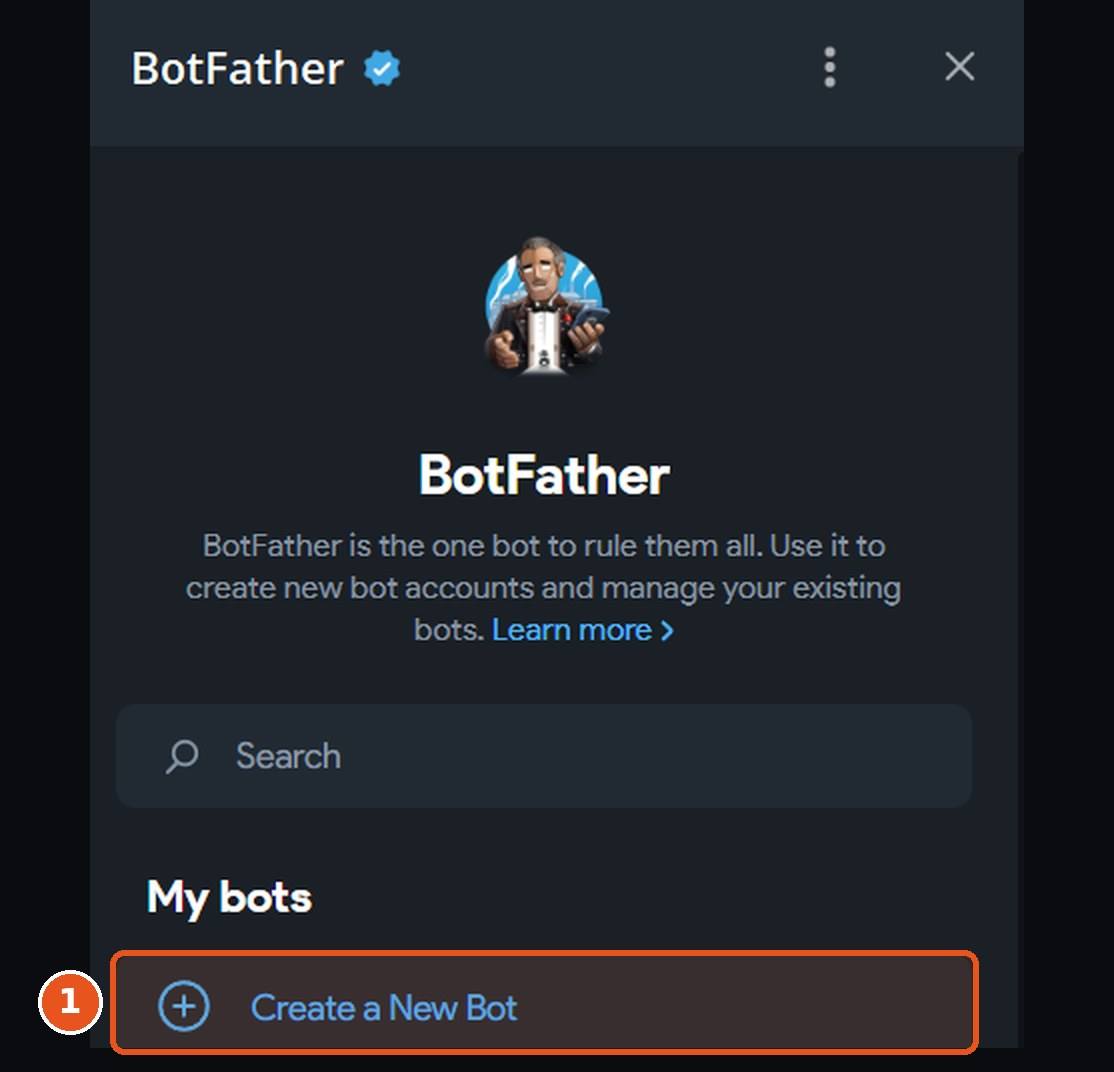
In Telegram, search for @BotFather with the blue verified badge, and click Open.
1
Create a New Bot — opens a form for a new bot.
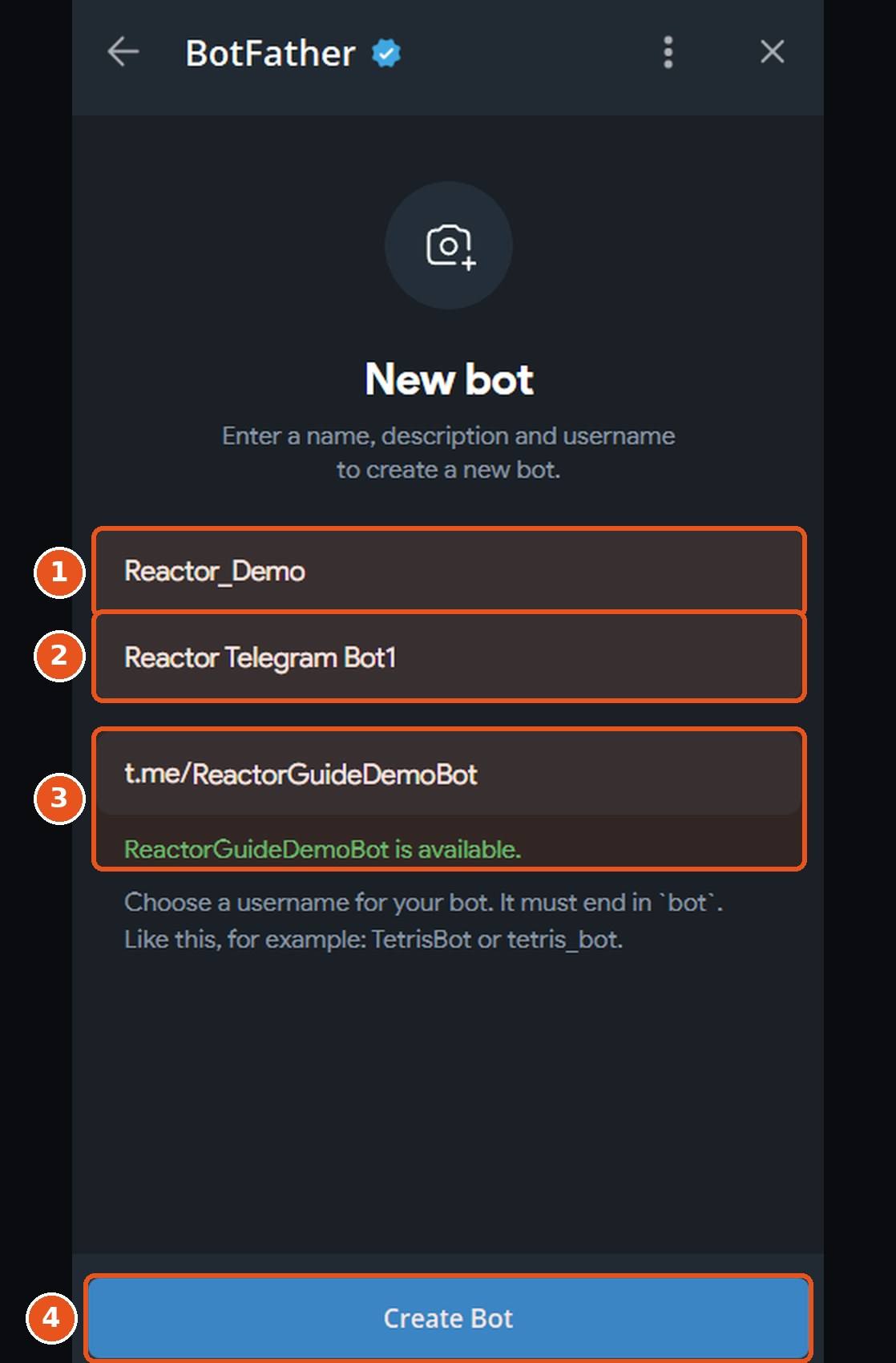
1
Bot Name — the name shown in Telegram, for example Reactor_Demo.
2
About — a short description. You can leave it empty.
3
Username — a unique name that ends in bot. Telegram confirms in green when it's available.
4
Create Bot — creates the bot.
Step 2 — Copy and save the token
1
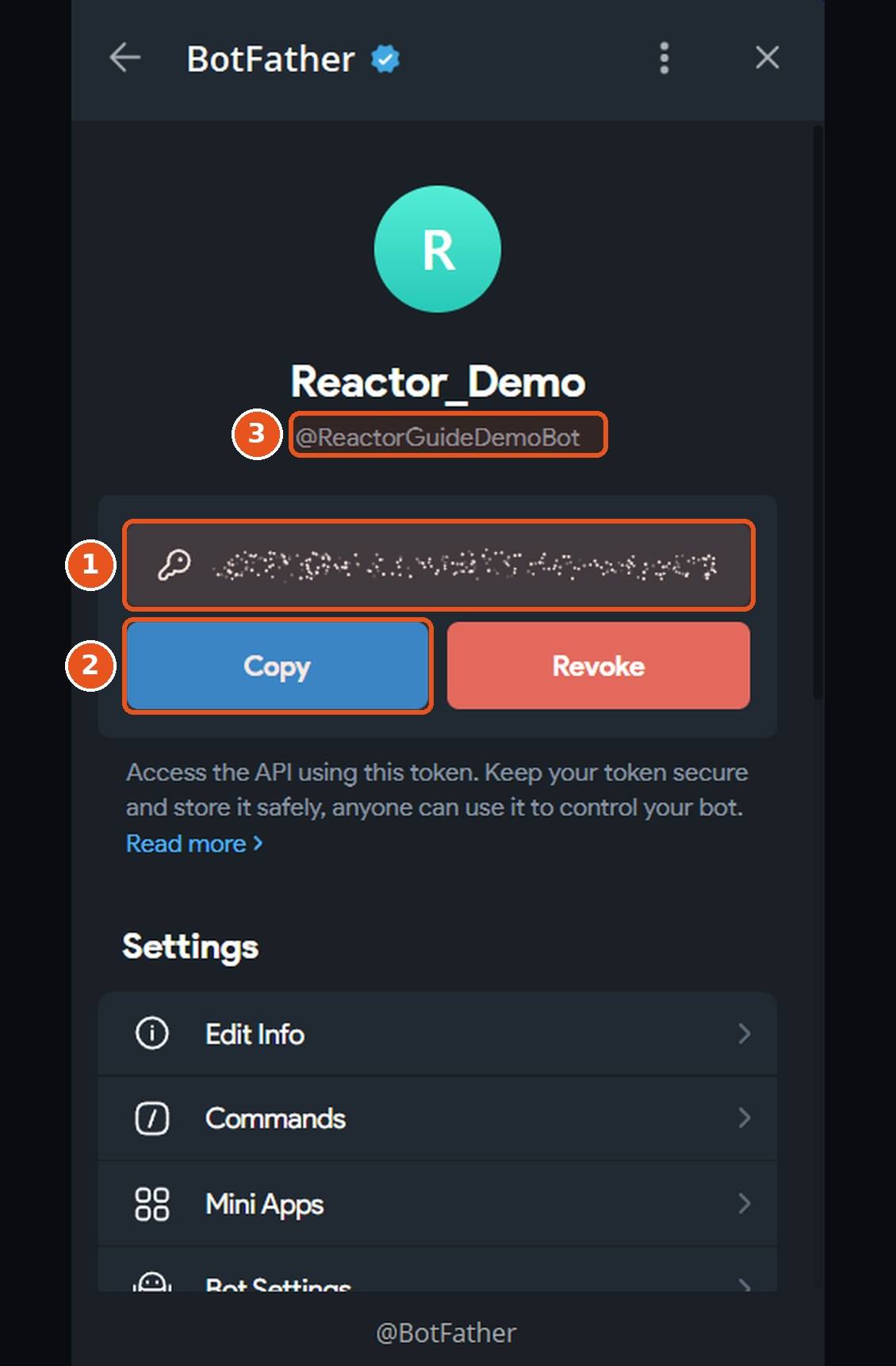
The token — the bot's key. Whoever holds it controls the bot.
2
Copy — copy it and paste it right away into your private file, with the bot's name and @username.
3
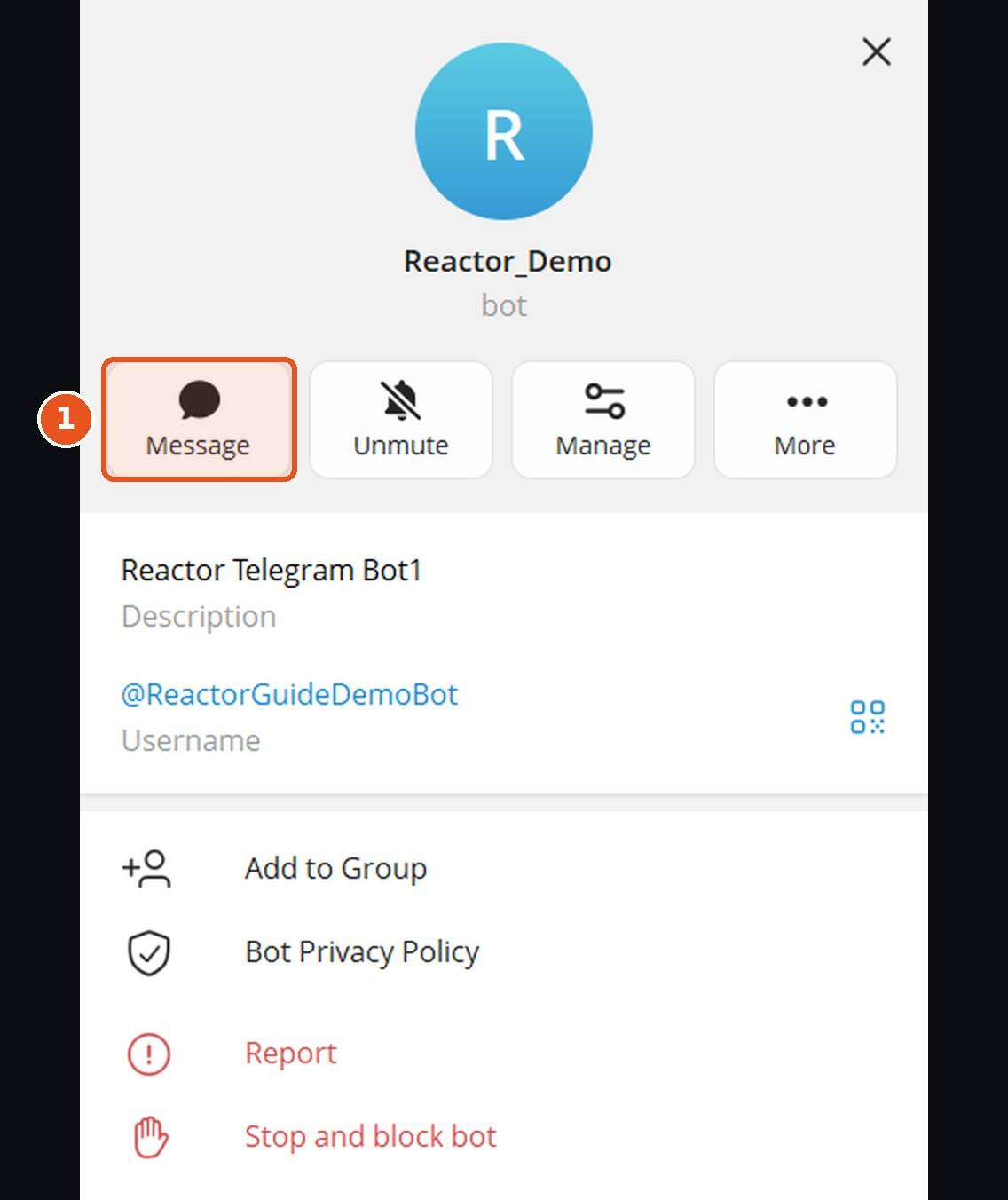
@username — click it to go to the bot itself.
Don't paste the token into a chat, an email or a screenshot, and don't keep the file in a shared folder. Don't click Revoke — that cancels the token.
Step 3 — Open the bot and click START
1
Message — opens a conversation with the new bot.

1
START — activates the bot. Without this step the bot can't send you messages.

1
/start — appears in the chat. The bot doesn't answer yet, because it isn't connected to Reactor yet. That's expected.
Step 4 — Find your numeric ID
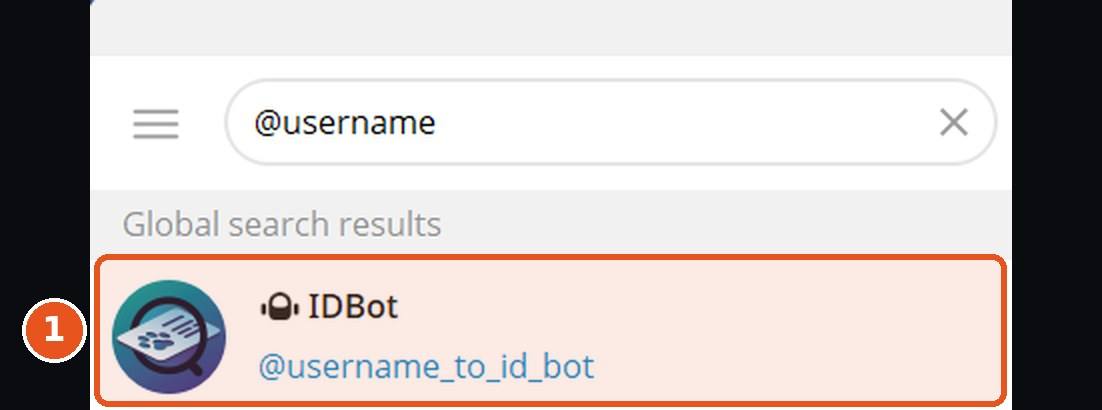
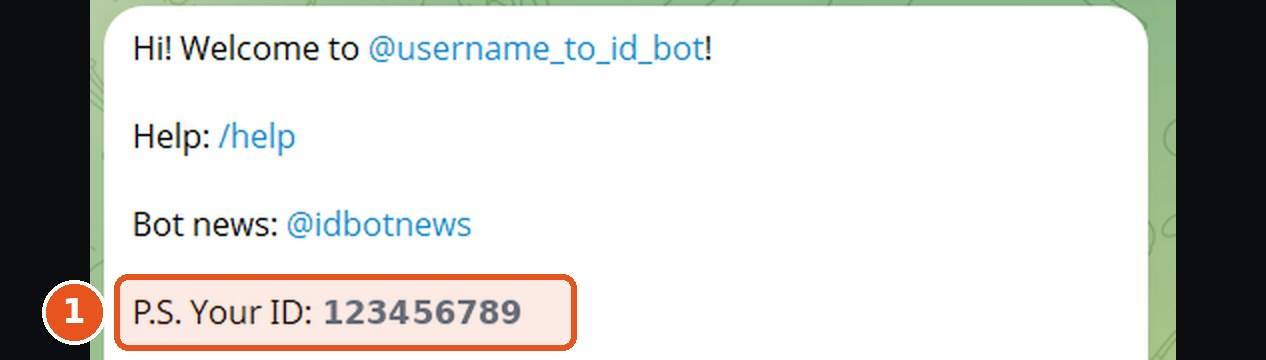
Reactor needs the number that identifies you in Telegram, not your @username.
1
IDBot — search for @username_to_id_bot, open it and click START.
1
Your ID — copy only the number, and save it in the same file as the token.
IDBot is an external bot, not Telegram's and not Reactor's. Send it only /start, never the token. Ignore its ads and subscription offers.
Step 5 — Connect in Reactor
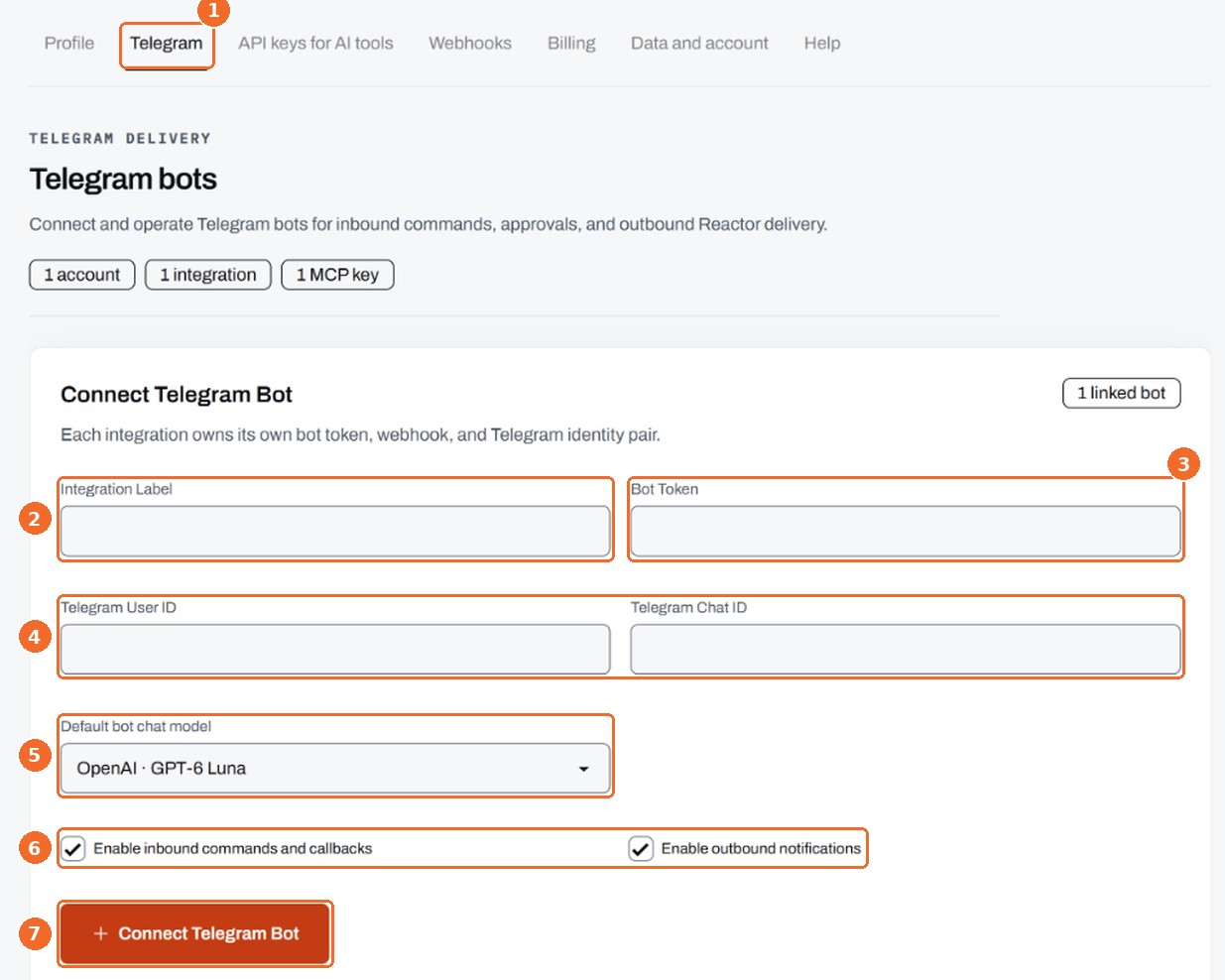
Click your email in the bottom-left corner → Settings → the Telegram tab.
1
Telegram — the Telegram bots tab in Settings.
2
Integration Label — a name for the connection, for example the bot's name.
3
Bot Token — paste the token from your file.
4
Telegram User ID + Telegram Chat ID — the same number in both fields.
5
Default bot chat model — the model that answers you in Telegram. Pick one from the list.
6
Both checkboxes — the first lets you send commands and approve actions from the bot. The second sends alerts to it. Keep both checked.
7
Connect Telegram Bot — connects it.
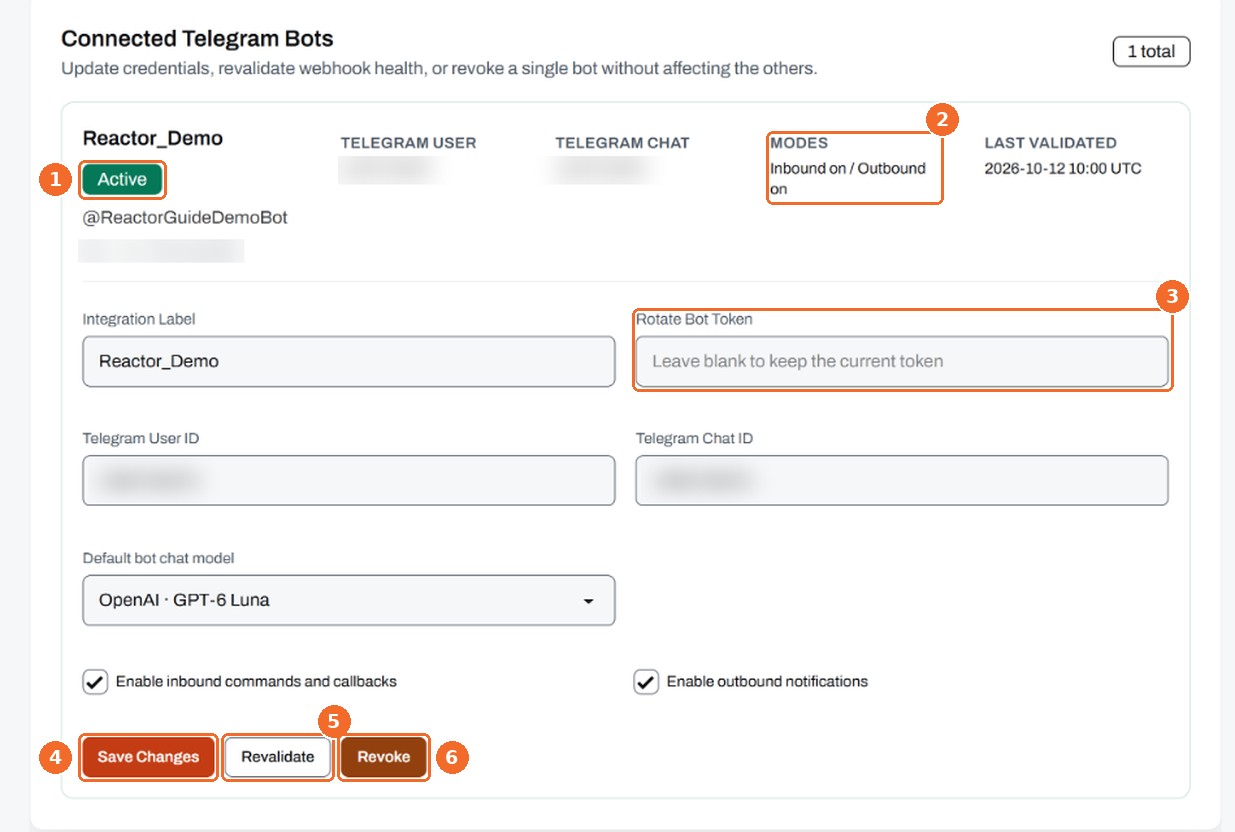
Once connected, the bot appears under Connected Telegram Bots.
1
Active — the bot is connected.
2
Inbound on / Outbound on — both directions are active.
3
Rotate Bot Token — paste a new token here if you replaced it. Leave it empty to keep the current token.
4
Save Changes — saves changes on the card.
5
Revalidate — checks the connection again.
6
Revoke — disconnects this bot only.
Further down the page, Telegram Activity Log shows commands, approvals and failures from the bot, and Telegram Outbound Log shows every message Reactor sent to the bot and whether it was delivered.
Step 6 — Test it
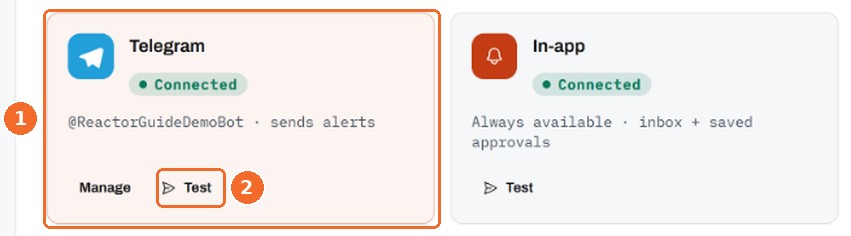
In Reactor, go to Comms → Notifications and scroll to the destination cards.
1
Telegram · Connected — the bot is connected as an alert destination. Manage opens the bot settings.
2
Test — sends a test alert to the bot.
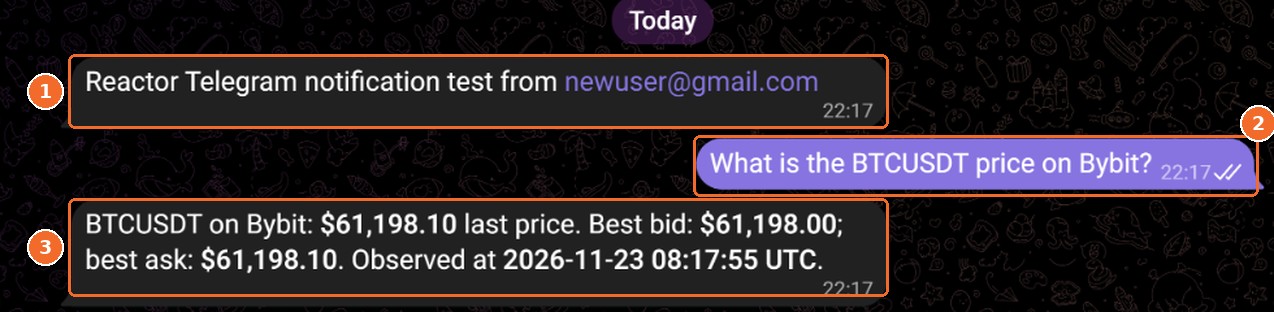
Then ask the bot a question in Telegram.
1
The test alert — arrived at the bot.
2
The question — for example: What is the BTCUSDT price on Bybit?
3
The answer — live data from Reactor, within seconds.
Step 7 — Choose what goes to Telegram
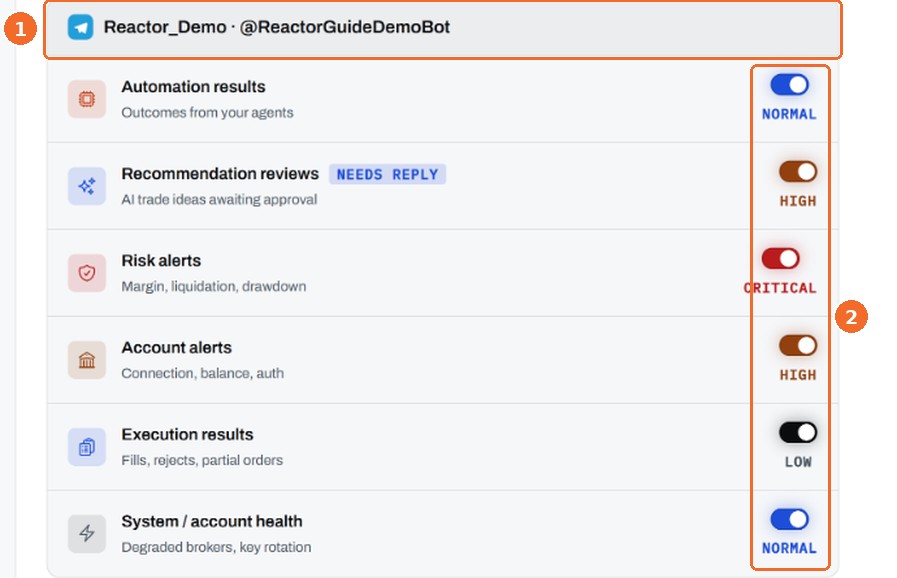
On the same Notifications page, each destination has its own list of events.
1
Reactor_Demo · @ReactorGuideDemoBot — the events sent to this bot.
2
The toggles — turn each type on or off: Automation results, Recommendation reviews, Risk alerts, Account alerts, Execution results and System / account health. The priority shows under each toggle.
Below the list, Recent deliveries shows what was sent recently and to which destination.
If something doesn't work
•
The bot doesn't answer — check that you clicked START in the chat with the bot and that the first checkbox is checked, then click Revalidate.
•
The test alert doesn't arrive — check that the second checkbox is checked, and that both ID fields have the same number.
•
Reactor rejects the token — copy it again from BotFather, with no spaces at the start or end.
•
The token leaked — click Revoke in BotFather, paste the new token in Rotate Bot Token and click Save Changes.
Next guide
Guide 6: Connecting a trading account
Connect your broker account — the same screen for every broker.