Guide 1 · Getting started
Sign-up, login and system tour
In ten minutes you'll open a Reactor account, sign in, and get to know every screen in the system. This guide is for new users in the ALPHA group.
What you need
An email address you read, and a password of at least 8 characters. No trading account, deposit or trade is needed.
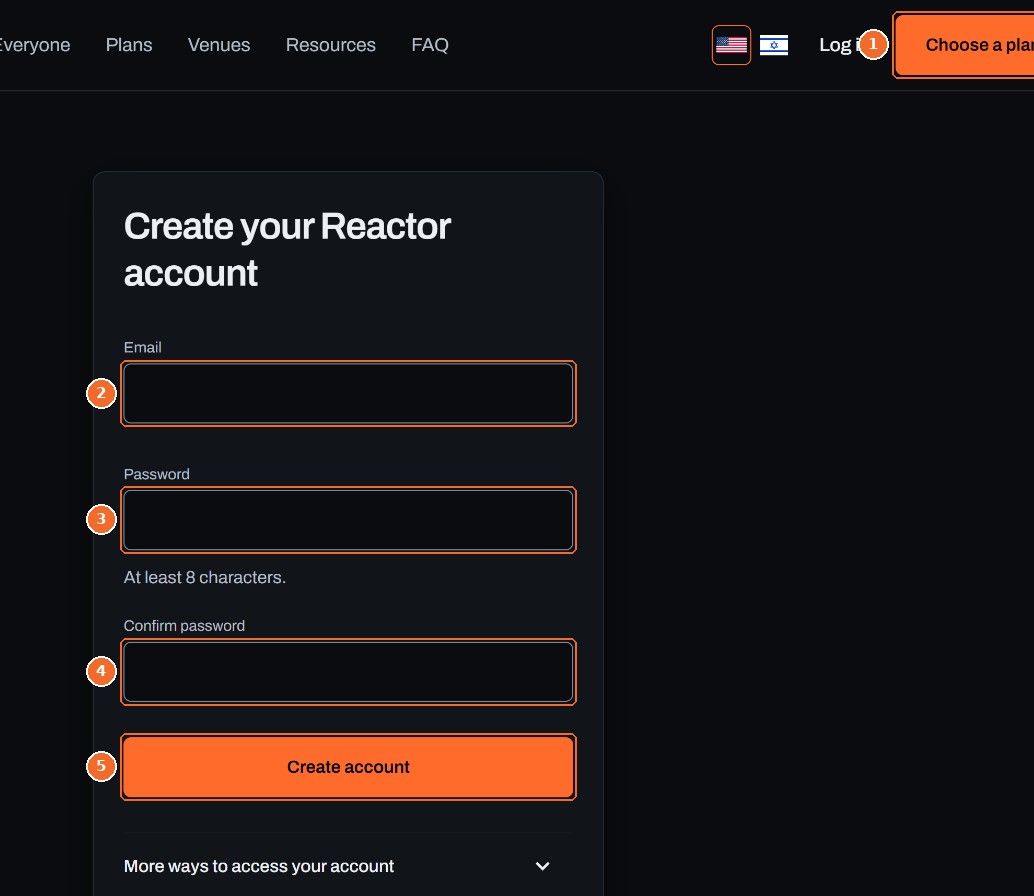
How to read the screenshots: every orange box has a number, and the text under the screenshot follows the same numbers. Button names appear exactly as on screen.
Step 1 — Sign up
Open the sign-up form from Create an account on the home page, or pick a plan with Choose a plan.
1
Choose a plan — pick a plan, from any page on the site.
2
Email — an address you read. The verification email, sign-in links and security alerts go here.
3
Password — at least 8 characters.
4
Confirm password — the same password again.
5
Create account — creates the account and signs you in.
Step 2 — Verify your email
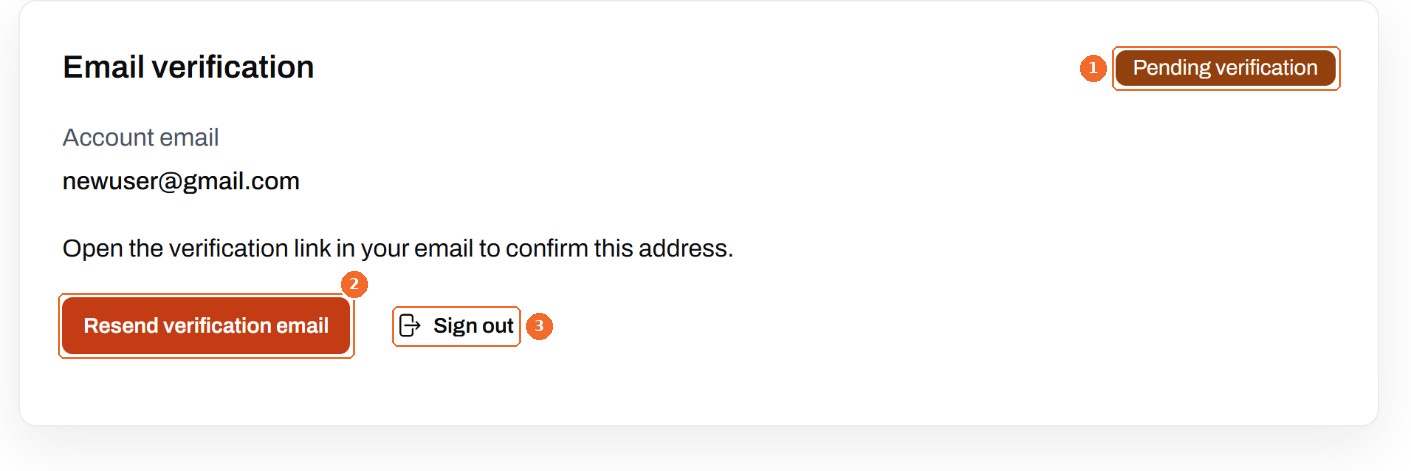
Right after you sign up, we send you a verification email. Open the link in it to confirm your address. You can look around the system before you verify.
1
Pending verification — the address isn't verified yet.
2
Resend verification email — sends the email again. Check your spam folder too.
3
Sign out — signs you out.
This screen is in Settings → Data and account. You can also reach it from the Email status and resend link on the Get started screen.
Step 3 — Sign in again
1
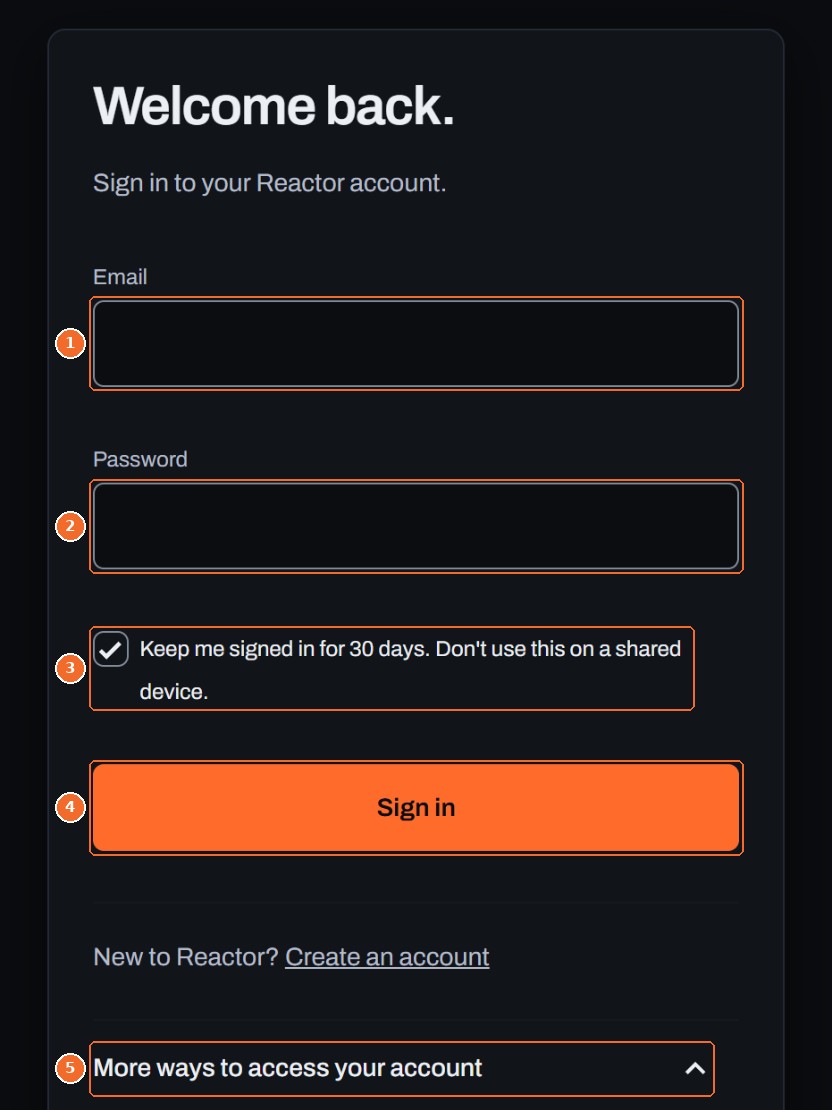
Email — the address you signed up with.
2
Password — the password you chose.
3
Keep me signed in for 30 days — on by default. Turn it off on a shared computer.
4
Sign in — takes you to the Dashboard.
5
More ways to access your account — more sign-in options.
1
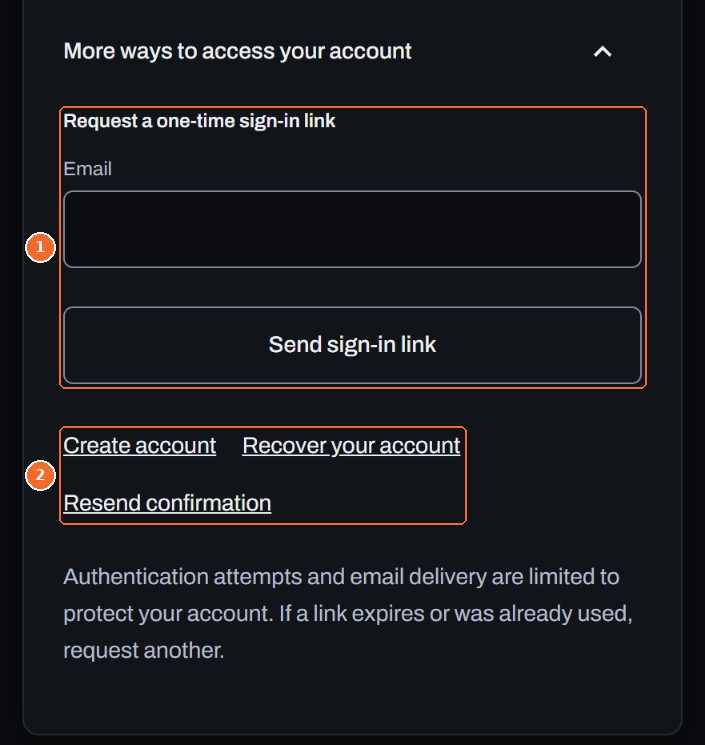
Request a one-time sign-in link — type your email and click Send sign-in link. A one-time link signs you in without a password.
2
Create account / Recover your account / Resend confirmation — sign up, recover access, and resend the verification email.
Sign-in attempts and emails are limited. If a link expired or was already used, request a new one.
Step 4 — Get started: six first steps
The Getting started screen in the sidebar (and the Get started with Reactor card on the Dashboard) teaches Reactor in six short steps. You can skip any step and come back to it from any device. No deposit or trade is needed.
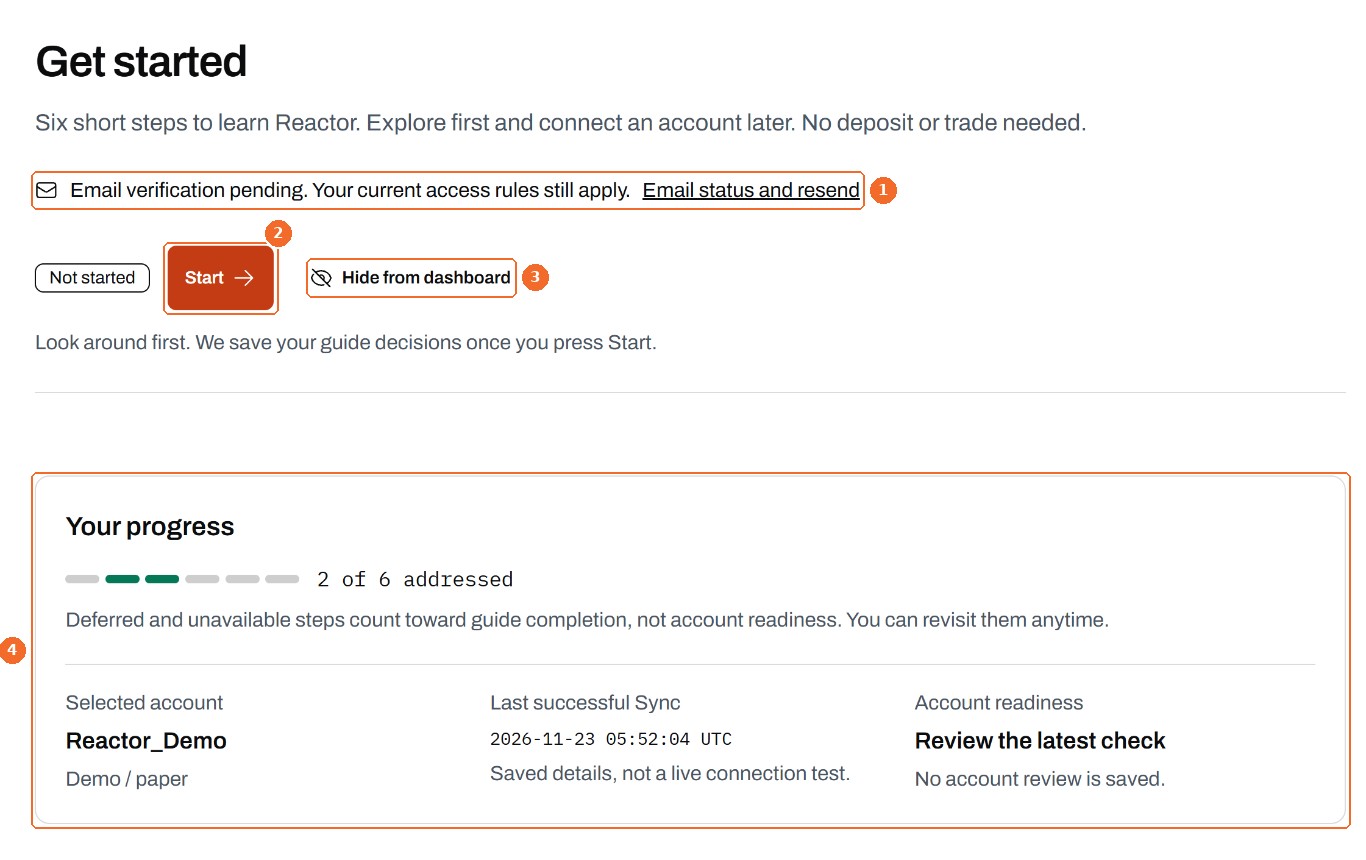
1
Email verification pending — a reminder to verify your email, with a link to the verification screen.
2
Start — starts the guide. Your choices are saved from this point.
3
Hide from dashboard — hides the Get started card from the Dashboard.
4
Your progress — how many steps are addressed, the selected account and the last successful Sync.
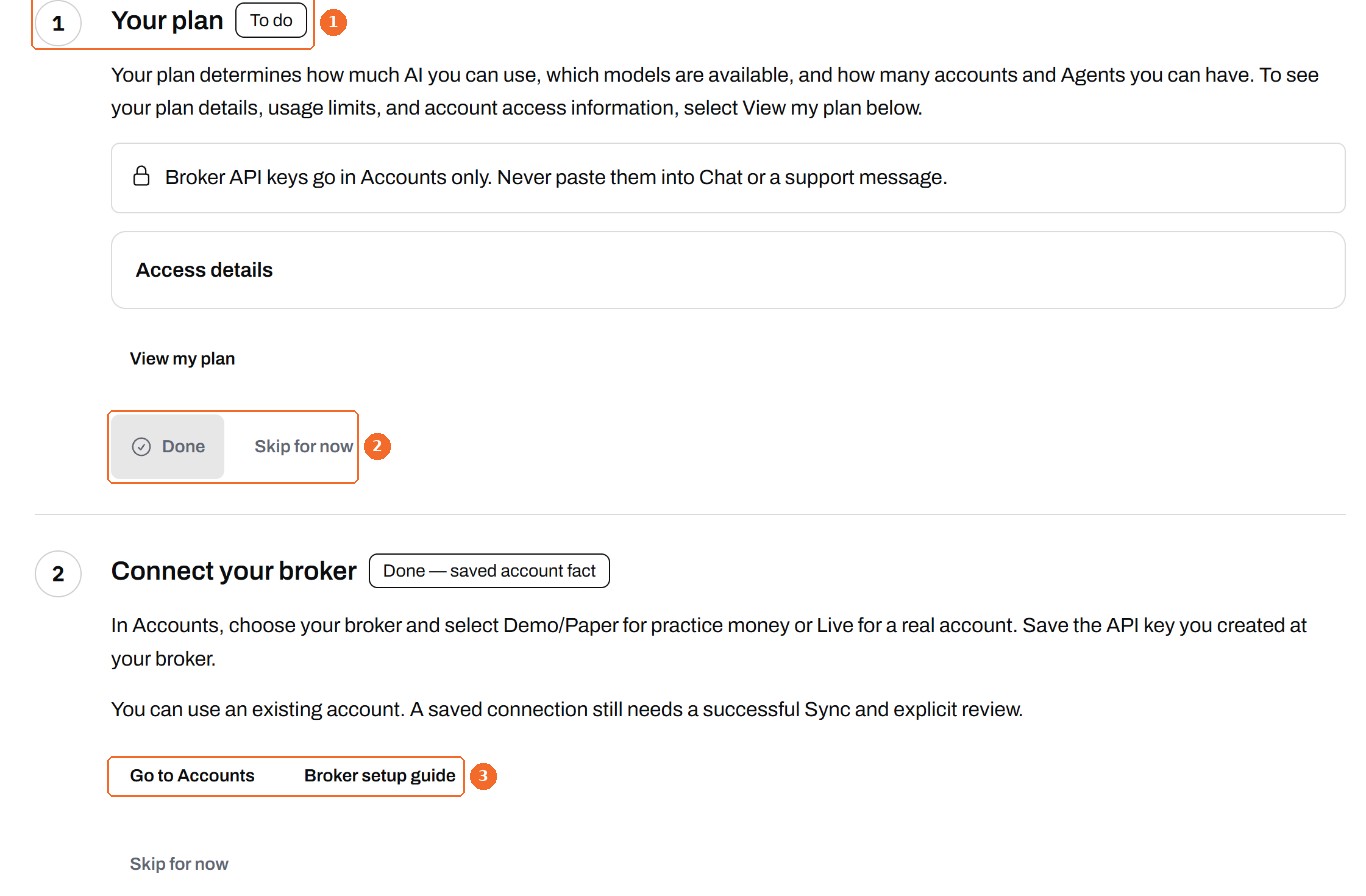
1
The step — number, title and status (To do, Done).
2
Done / Skip for now — mark the step as done, or put it off for later.
3
Shortcuts — buttons that go straight to the right screen, such as Go to Accounts and Broker setup guide.
The six steps:
•
Your plan — what your plan includes: how much AI, which models, and how many accounts and Agents.
•
Connect your broker — connect a broker in Accounts, in Demo/Paper or Live (Guide 6).
•
Test the connection — press Sync in Accounts. Sync only reads your account and never places an order.
•
Confirm your account — check that this is your account and confirm the details. A zero balance with no positions is fine.
•
Try AI Chat — optional. Each message uses your plan's AI allowance.
•
Need help? — Help, the guides and contacting support.
Broker API keys go in Accounts only. Never paste them into Chat or a support message.
Step 5 — Sidebar, search and Help
Every screen is in the sidebar, in four groups. It is the same on every screen.
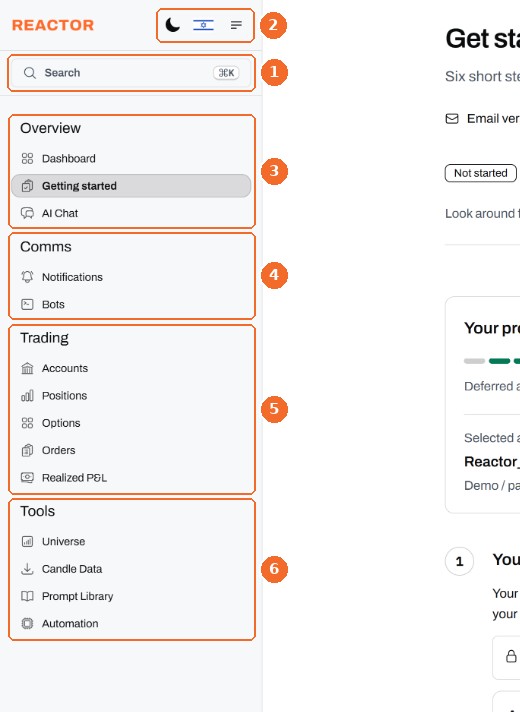
1
Search ⌘K — quick search and navigation.
2
Theme, language and menu — dark or light, Hebrew or English, and collapsing the sidebar.
3
Overview — Dashboard, Getting started and AI Chat.
4
Comms — Notifications and Bots: alerts, approvals and channels such as Telegram.
5
Trading — Accounts, Positions, Options, Orders and Realized P&L.
6
Tools — Universe, Candle Data, Prompt Library and Automation.
Click Search (or ⌘K on Mac, Ctrl+K on Windows) and type the name of an asset, account, position or order.
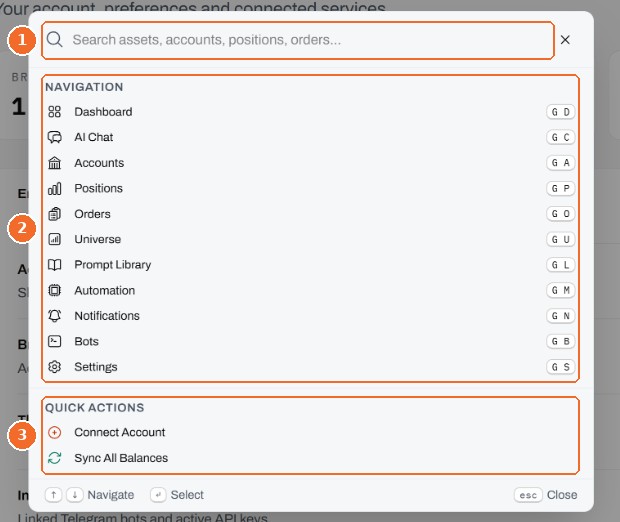
1
The search box.
2
Navigation — go to any screen. Each screen has a shortcut: G, then a letter, for example G D for Dashboard and G C for Chat.
3
Quick actions — Connect Account and Sync All Balances without leaving the screen.
The Help button in the bottom corner (or Ctrl/⌘ + Shift + /) opens a help panel on any screen.
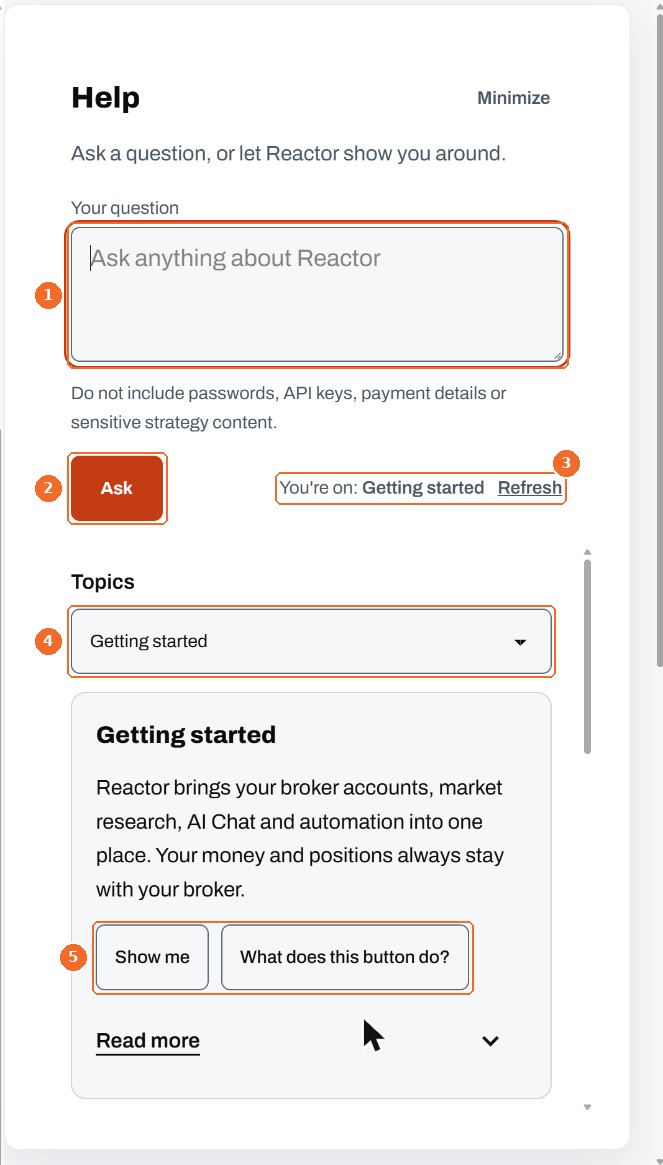
1
Your question — ask in plain language. Don't include passwords, API keys, payment details or sensitive strategy details.
2
Ask — sends the question.
3
You're on — Help knows which screen you're on. Refresh updates it.
4
Topics — ready topics: creating an Agent, Universe, models, plans, account safety, contacting support and more.
5
Show me / What does this button do? — a guided tour of the screen, or an explanation of a specific button.
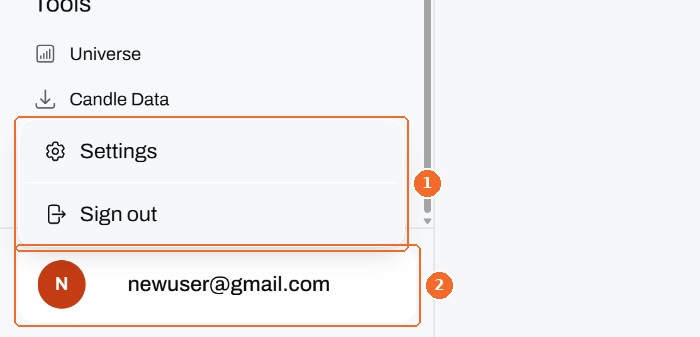
1
Settings / Sign out — opens when you click your address.
2
Your address — at the bottom of the sidebar.
Step 6 — Screen tour
Each screen answers one question. The screenshots were taken with a demo user that has a Bybit Demo account connected.
Dashboard — where things stand now
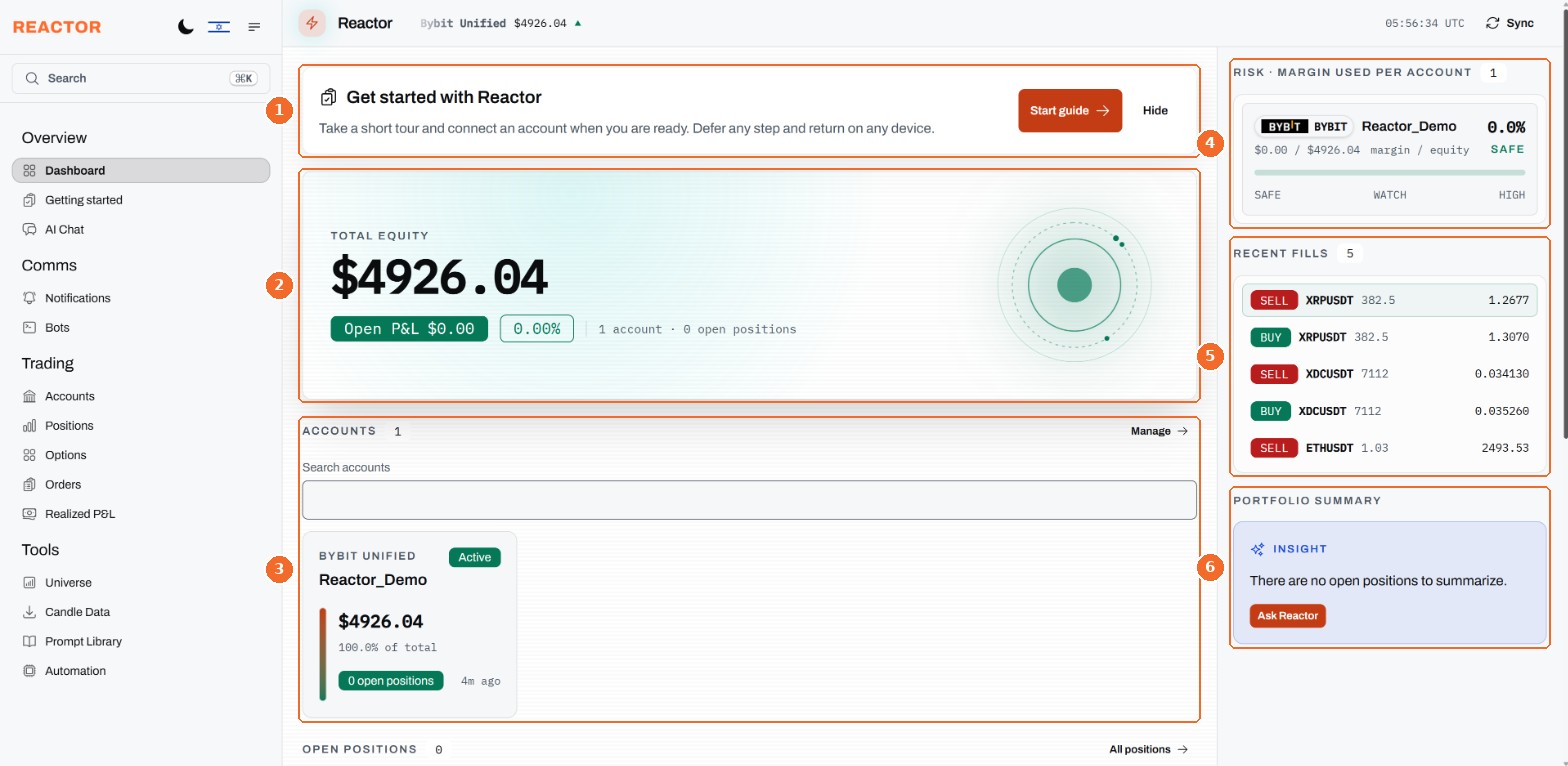
1
Get started with Reactor — a card that leads to the six steps. Hide hides it.
2
Total equity — total equity, open P&L, and the number of accounts and positions.
3
Accounts — a card for each connected account. Manage goes to the Accounts screen.
4
Risk · Margin used per account — how much margin each account uses.
5
Recent fills — your latest fills.
6
Portfolio summary — a short insight about your portfolio, with Ask Reactor.
AI Chat — talk to Reactor
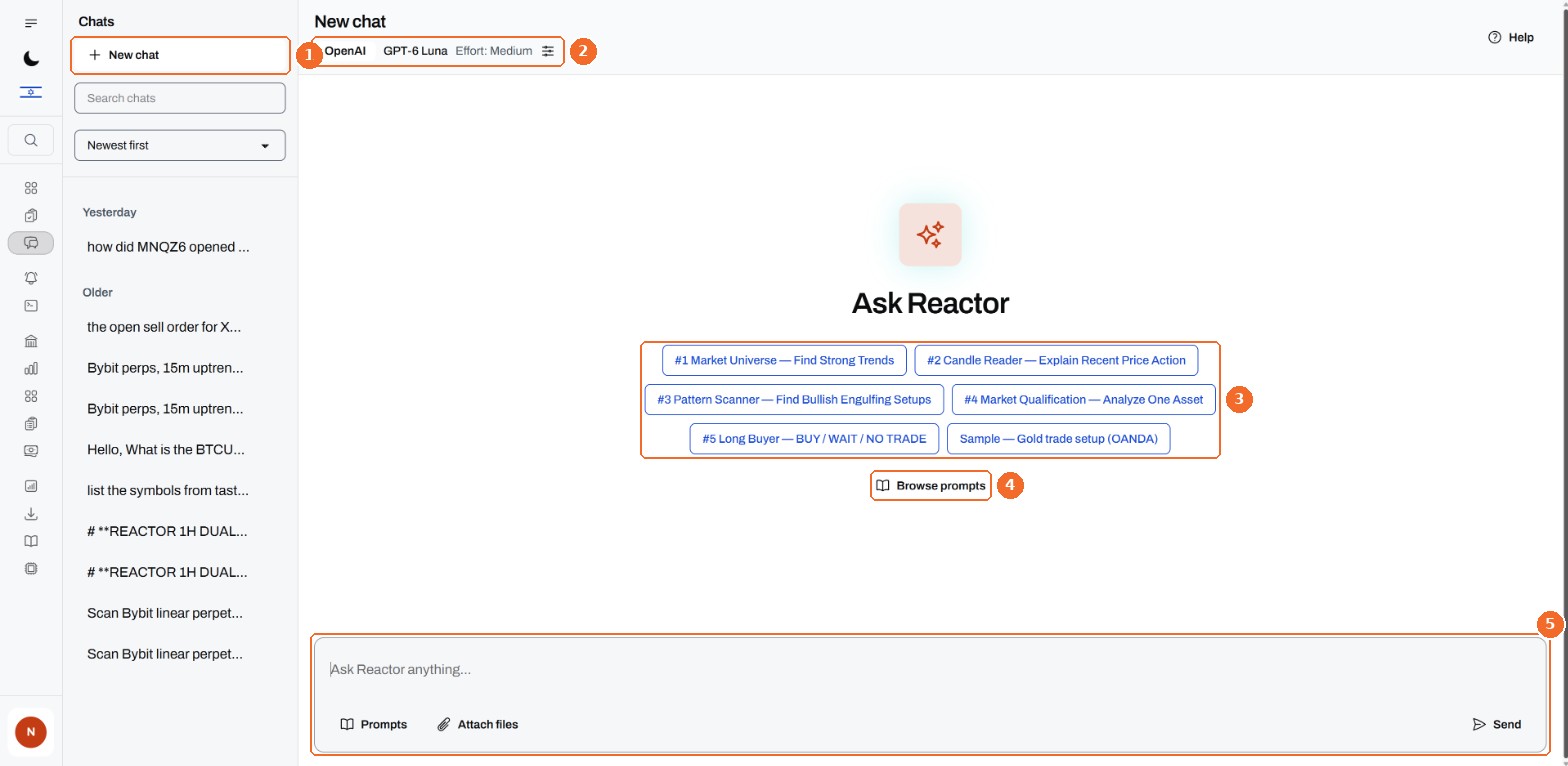
1
New chat — a new conversation. Below it: search and your chat list.
2
Model — provider, model and effort for the chat.
3
Ready prompts — #1 to #5 and a gold trade sample.
4
Browse prompts — the Prompt Library.
5
Ask Reactor anything — type a question. Prompts adds a saved prompt, Attach files adds files.
Notifications — what happened and what is waiting for approval
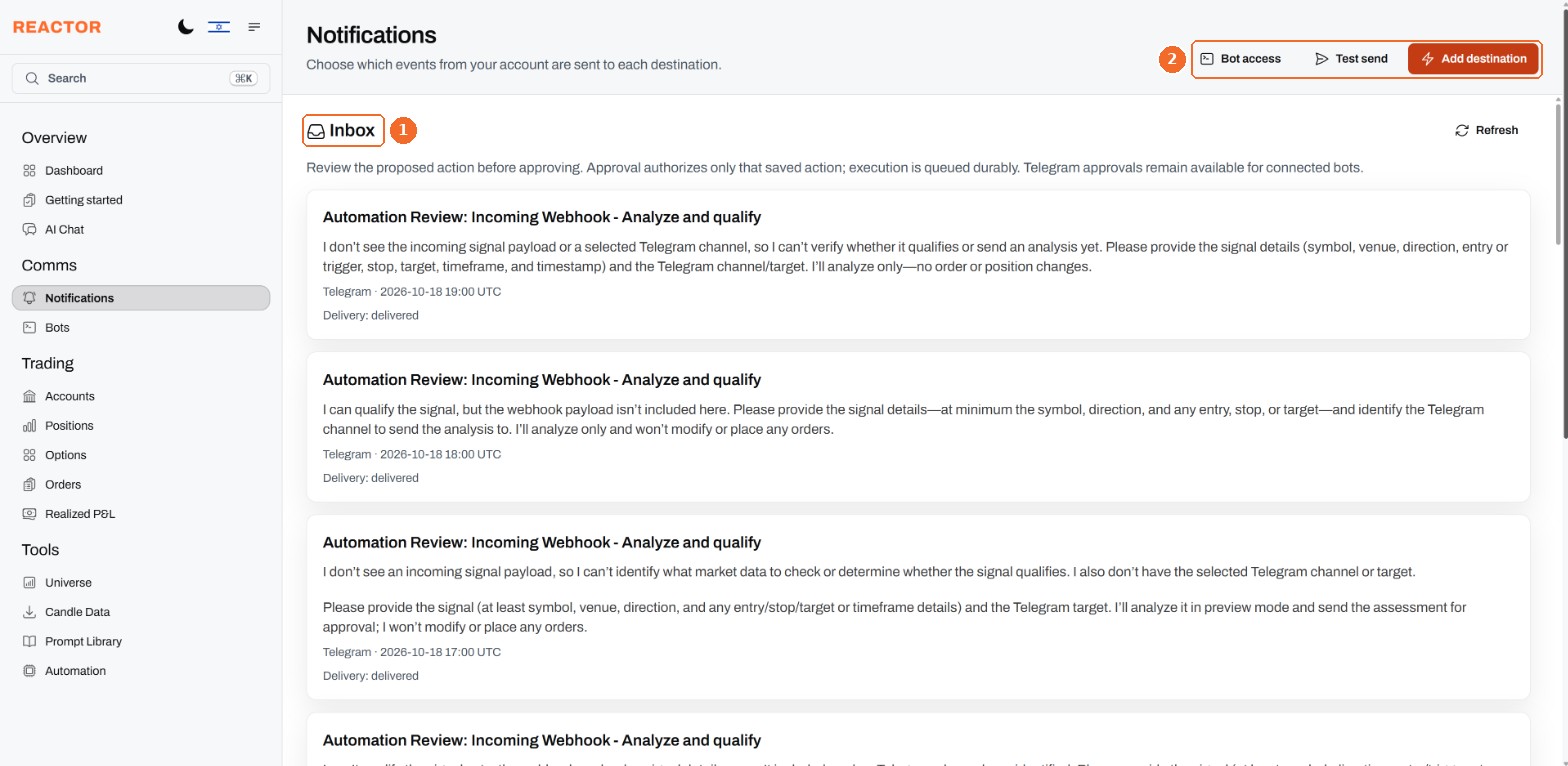
1
Inbox — actions waiting for your approval and automation results. Approving approves only that saved action.
2
Bot access, Test send, Add destination — manage bots, send a test and add a destination.
Further down the screen, you choose which channel gets each type of event.
Bots — who talks to Reactor from outside
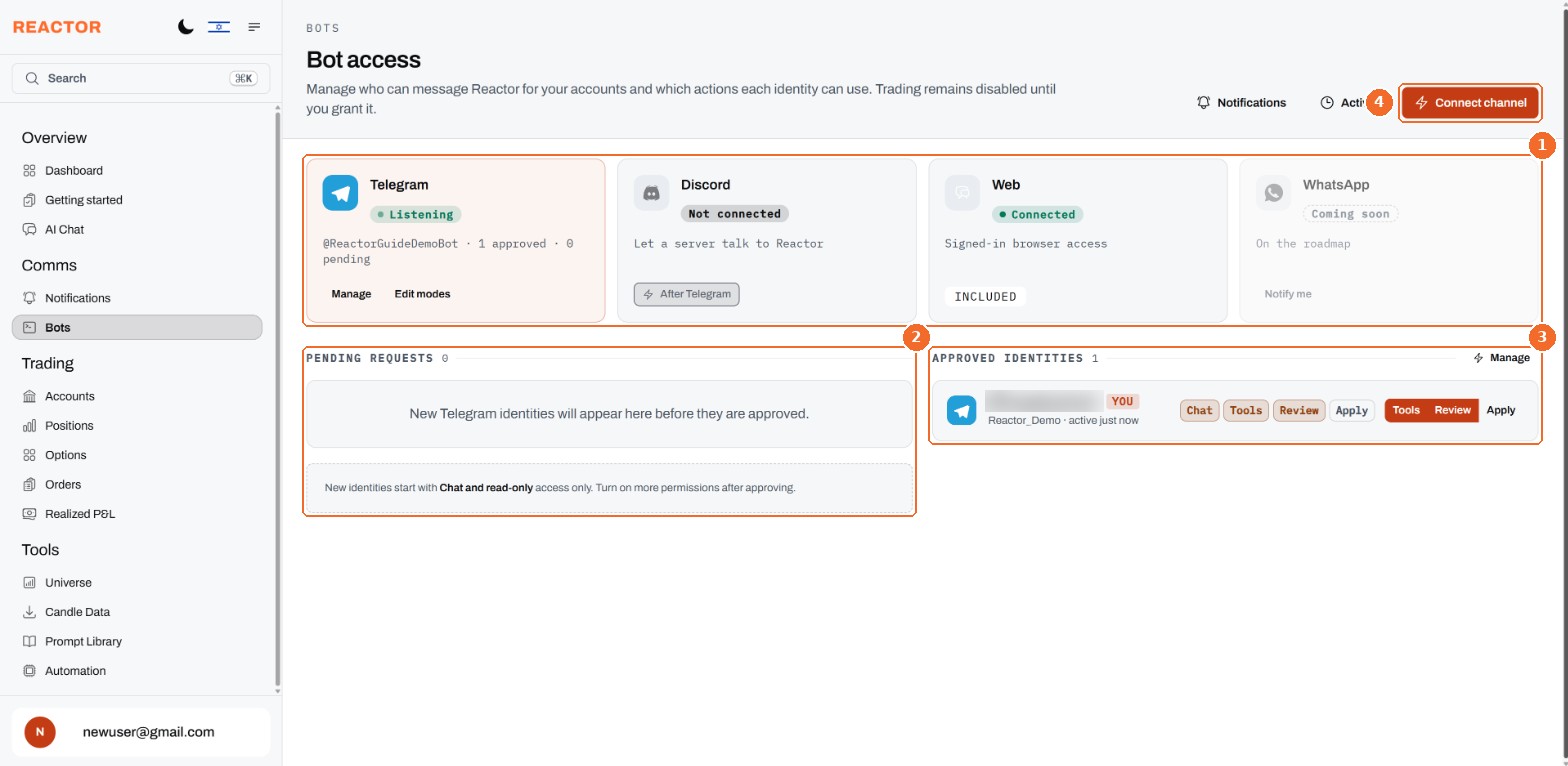
1
Channels — Telegram, Discord, Web (always included) and WhatsApp (coming soon).
2
Pending requests — new Telegram users wait here for approval. They start with chat and read-only access.
3
Approved identities — approved users and their permissions.
4
Connect channel — connect a new channel. Trading through a bot stays off until you explicitly allow it.
Accounts — your connected accounts
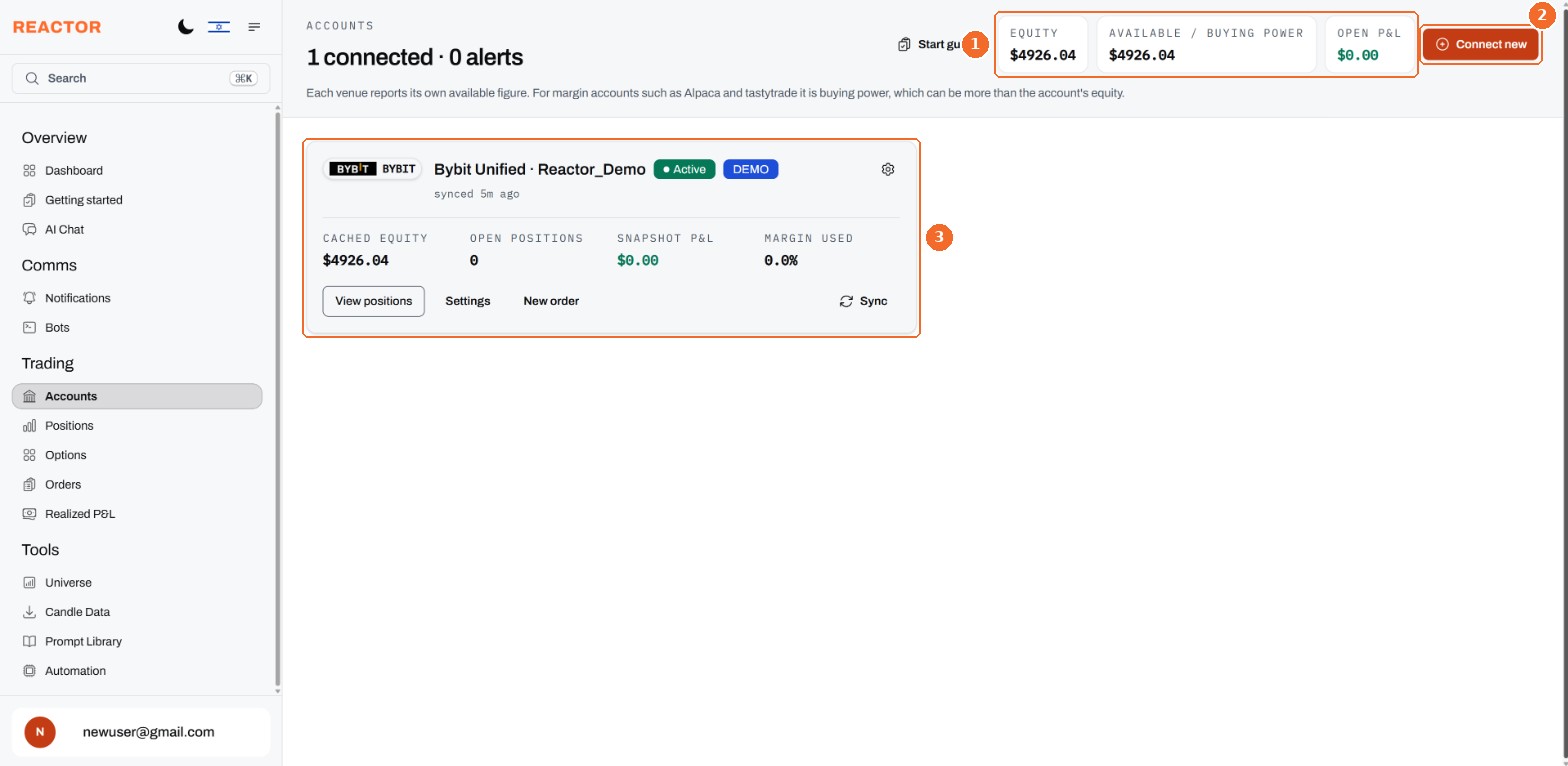
1
Equity / Available / Open P&L — a summary across all accounts.
2
Connect new — connect an exchange or broker account (Guide 6).
3
Account card — environment (DEMO or LIVE), equity, positions and margin, with View positions, Settings, New order and Sync.
Positions — all positions in one place
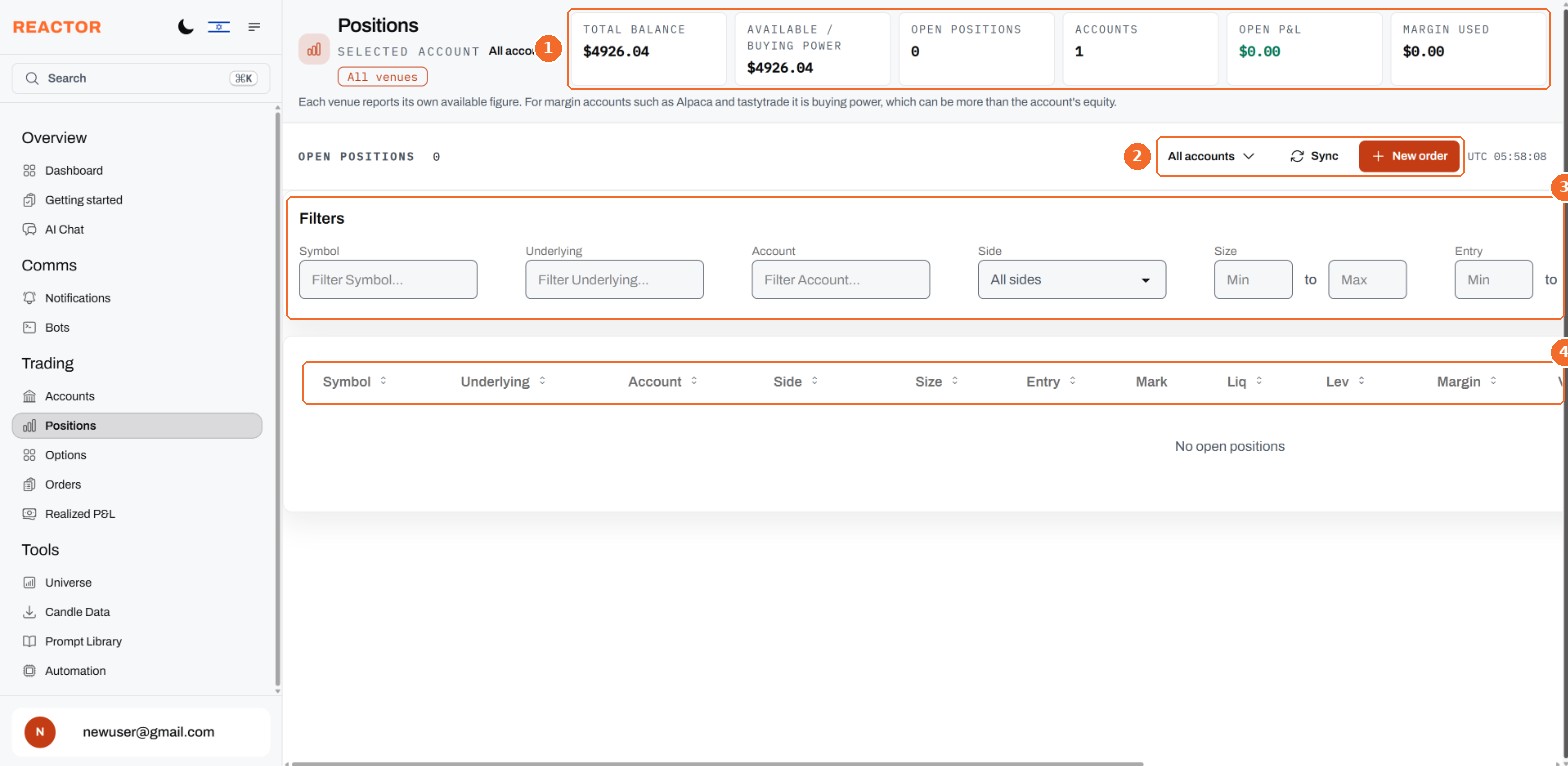
1
Summary — balance, available, positions, accounts, open P&L and margin.
2
Account selector, Sync and New order.
3
Filters — filter by symbol, underlying, account, side, size and more.
4
The table — symbol, account, side, size, entry, mark, liquidation, leverage and margin.
Options — options from your tastytrade account
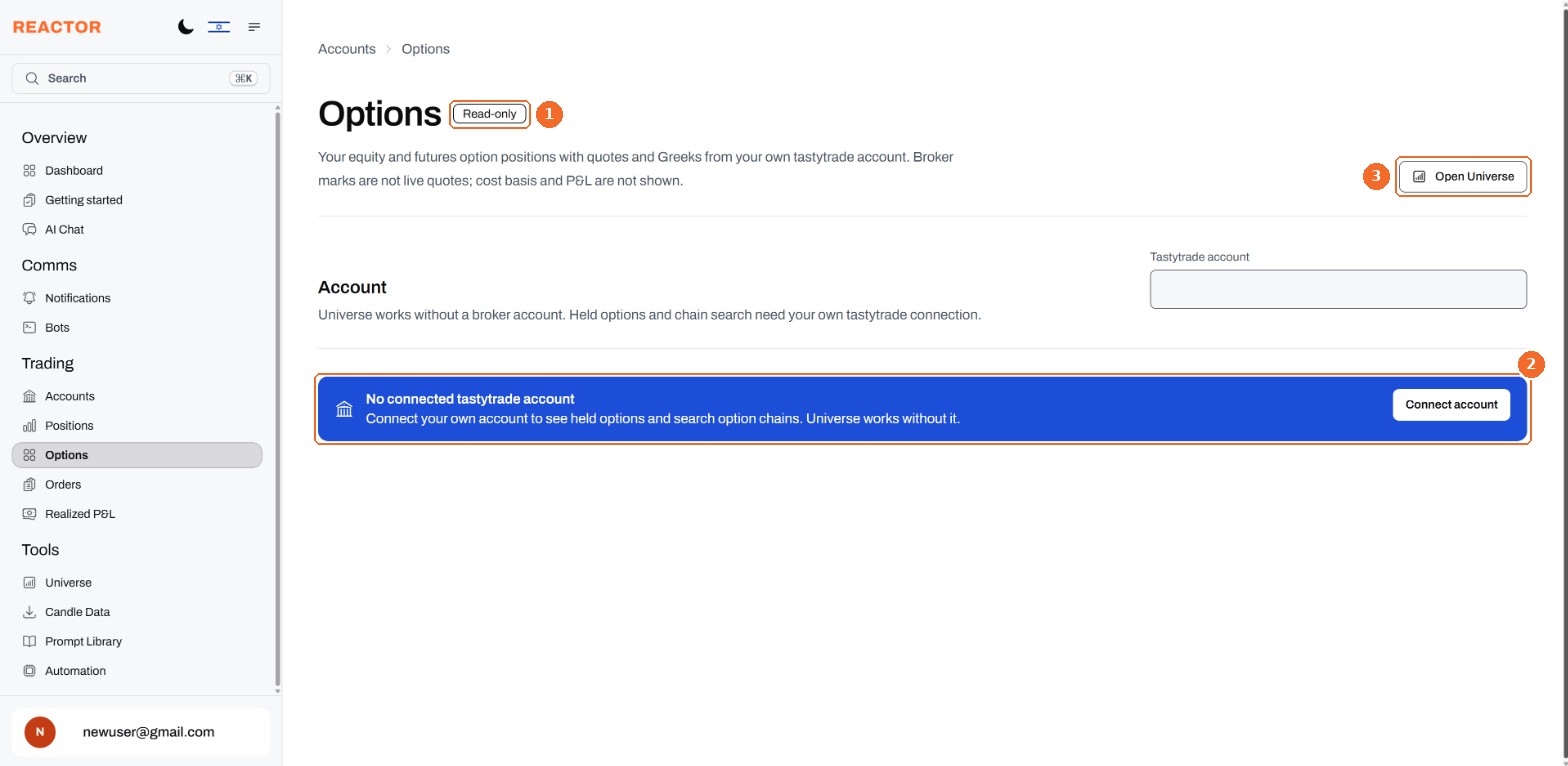
1
Read-only — this screen is read-only: held options with quotes and Greeks.
2
No connected tastytrade account — the screen needs a connected tastytrade account. Connect account starts the connection.
3
Open Universe — search symbols, even without a broker account.
Orders — open orders and history
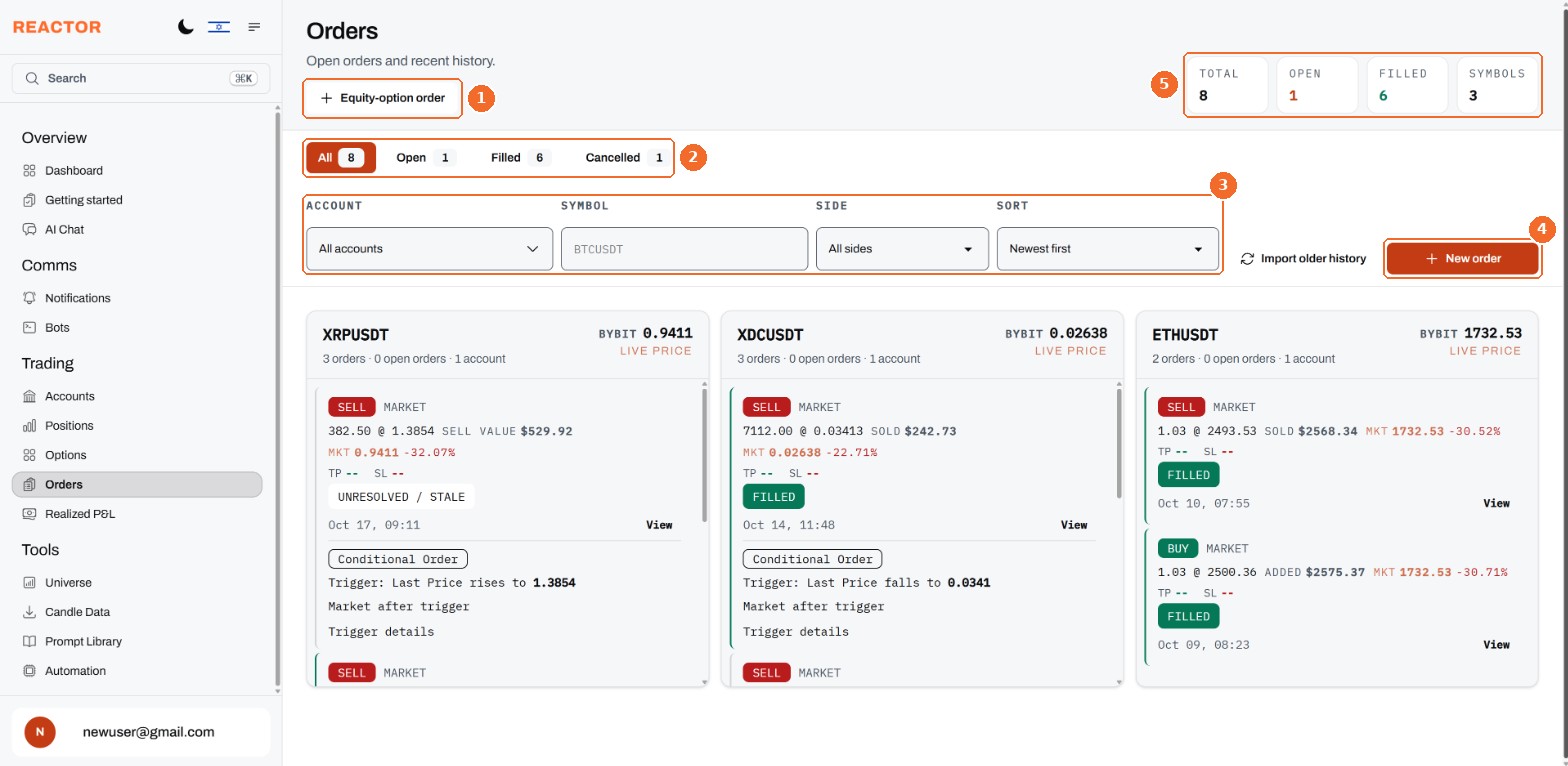
1
Equity-option order — an equity option order through tastytrade. You approve it yourself on the preview page.
2
All / Open / Filled / Cancelled — switch between statuses.
3
Filters — by account, symbol, side and sort order.
4
New order — a new order. Import older history imports older history.
5
Summary — total orders, open, filled and number of symbols.
Realized P&L — what you actually made
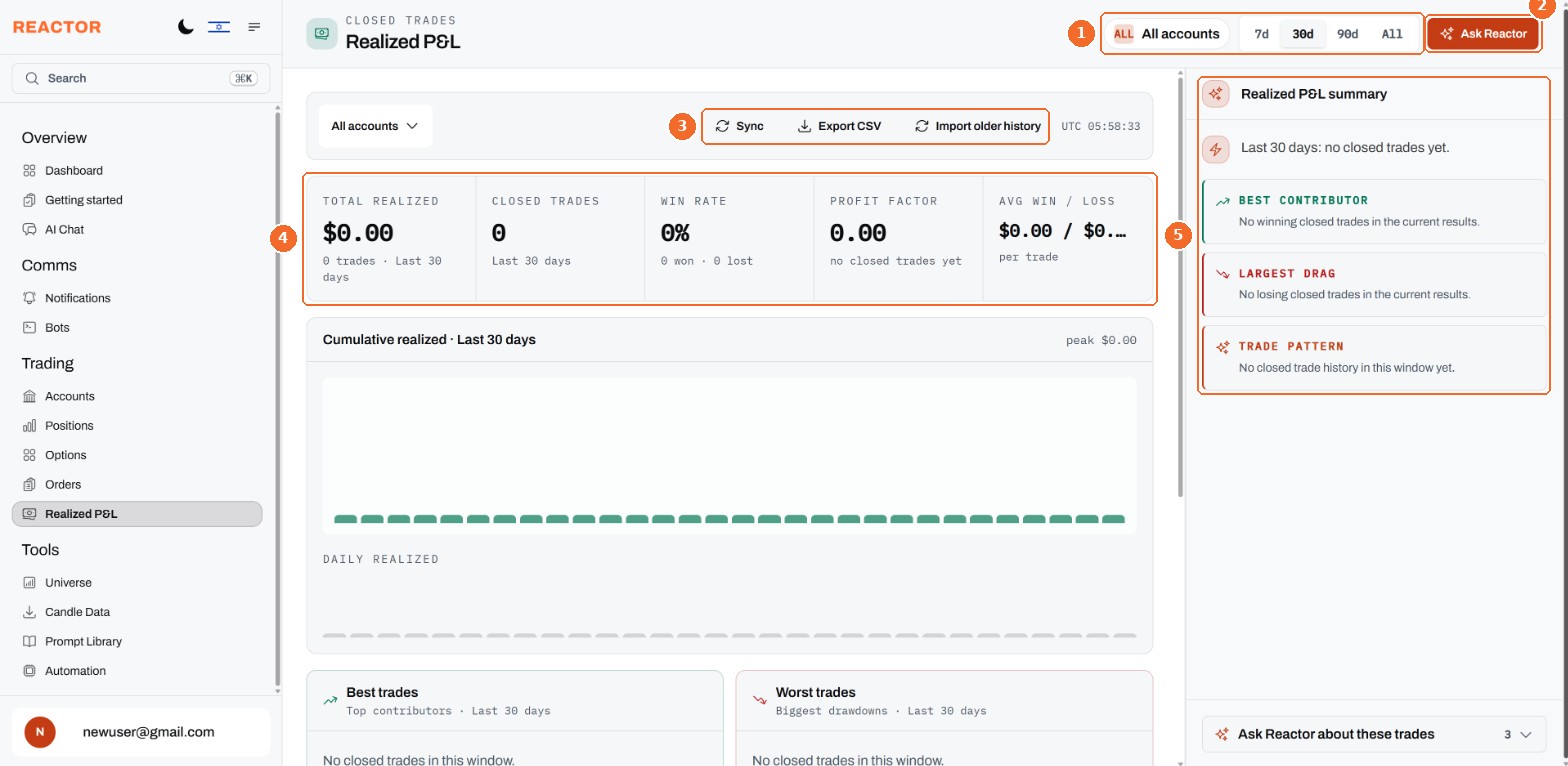
1
Account and period — 7d, 30d, 90d or All.
2
Ask Reactor — ask about the trades in the period.
3
Sync, Export CSV and Import older history.
4
Metrics — total realized, closed trades, win rate, profit factor and average win/loss.
5
Realized P&L summary — the best contributor, the largest drag and a trade pattern.
Universe — search and screen symbols
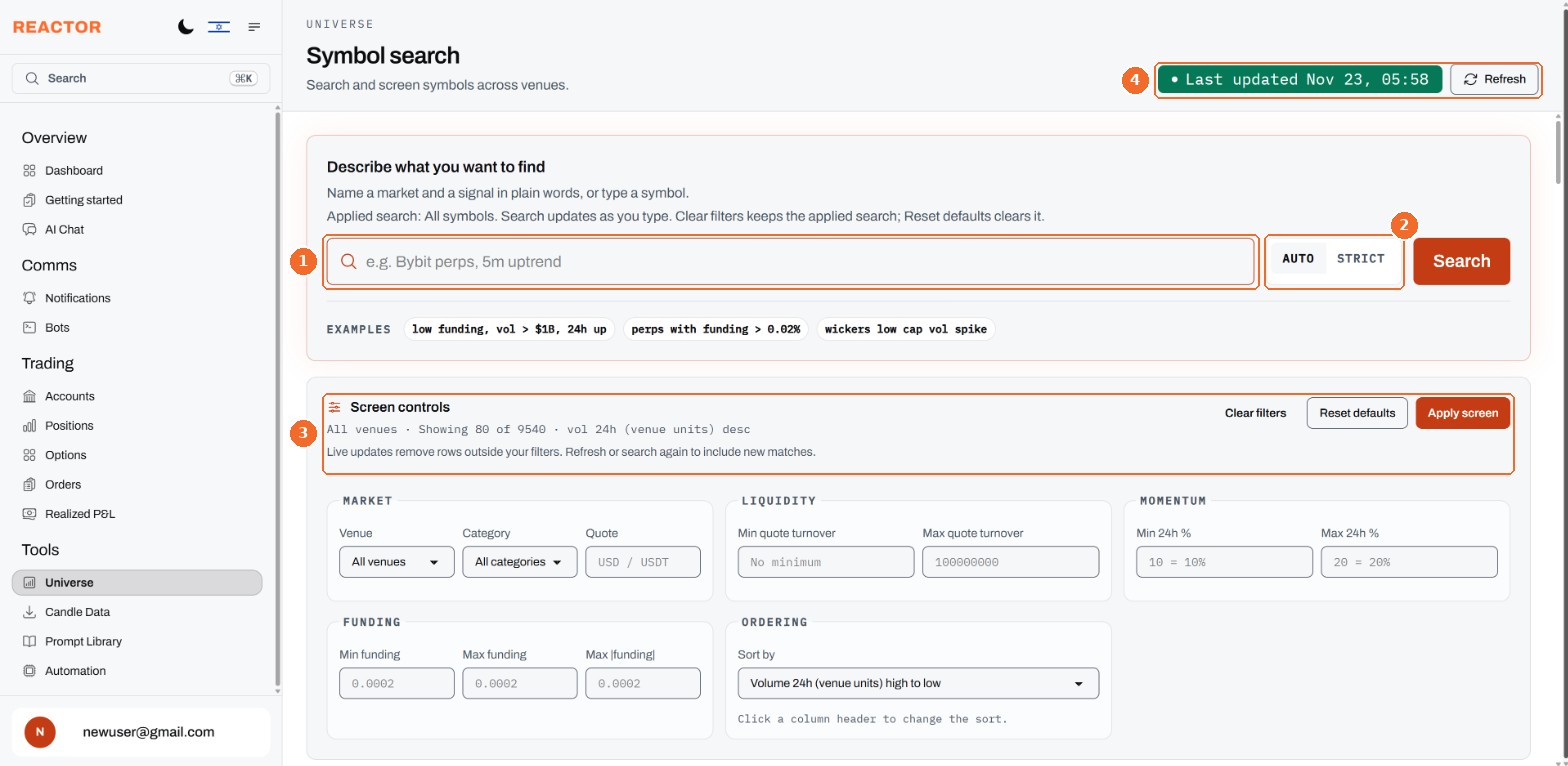
1
Describe what you want to find — type in plain language, for example "Bybit perps, 5m uptrend", and click Search.
2
AUTO / STRICT — how strict the search is.
3
Screen controls — manual filters for market, liquidity, momentum and funding. Apply screen runs it.
4
Last updated / Refresh — when the data was last updated.
Candle Data — download candles
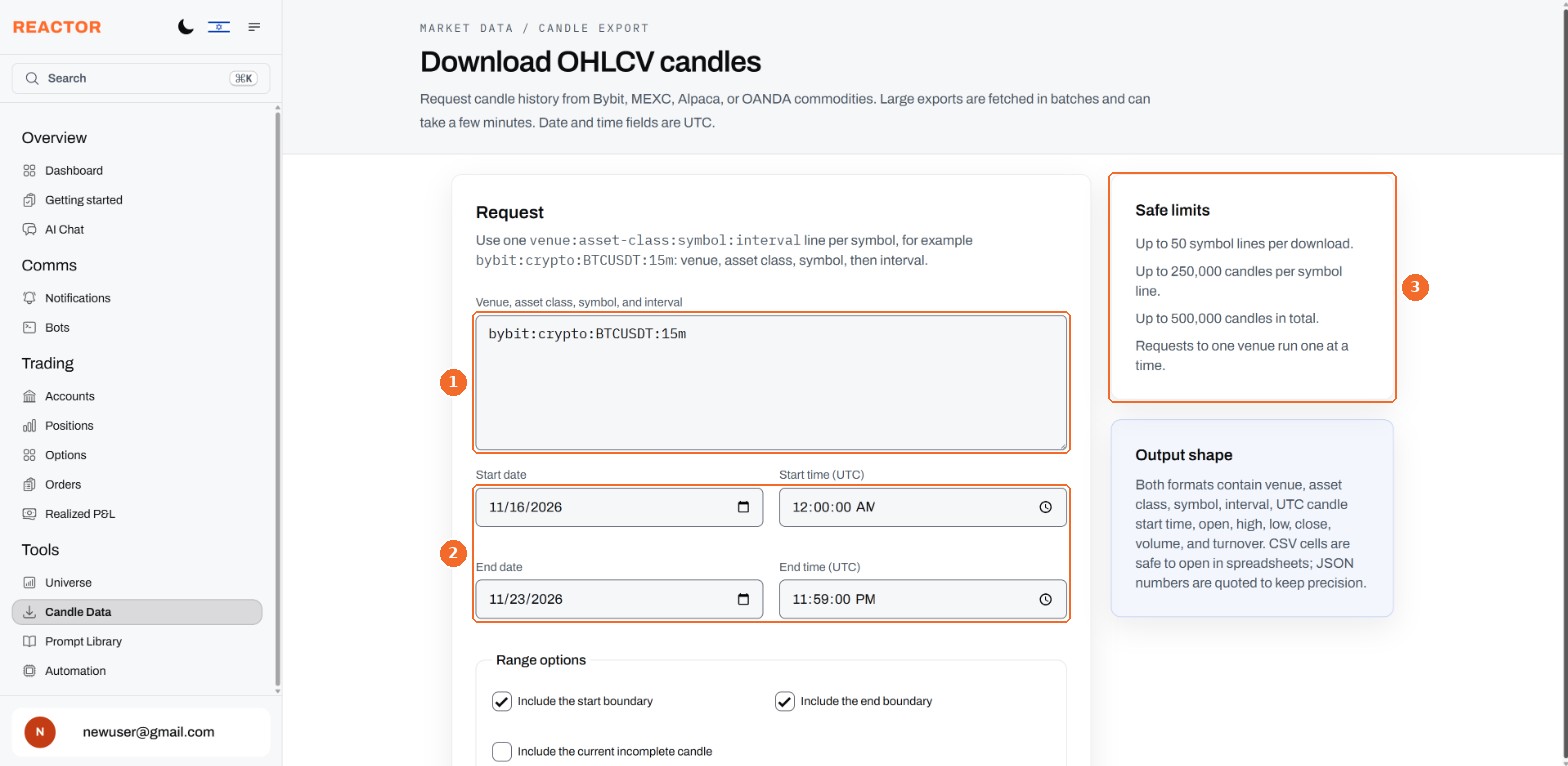
1
Request — one line per symbol in the format venue:asset-class:symbol:interval, for example bybit:crypto:BTCUSDT:15m.
2
Range — start and end date and time, in UTC.
3
Safe limits — up to 50 lines, 250,000 candles per line and 500,000 in total.
At the bottom of the screen: Download CSV and Download JSON. Bybit, MEXC, Alpaca and OANDA commodities are supported.
Prompt Library — ready prompts
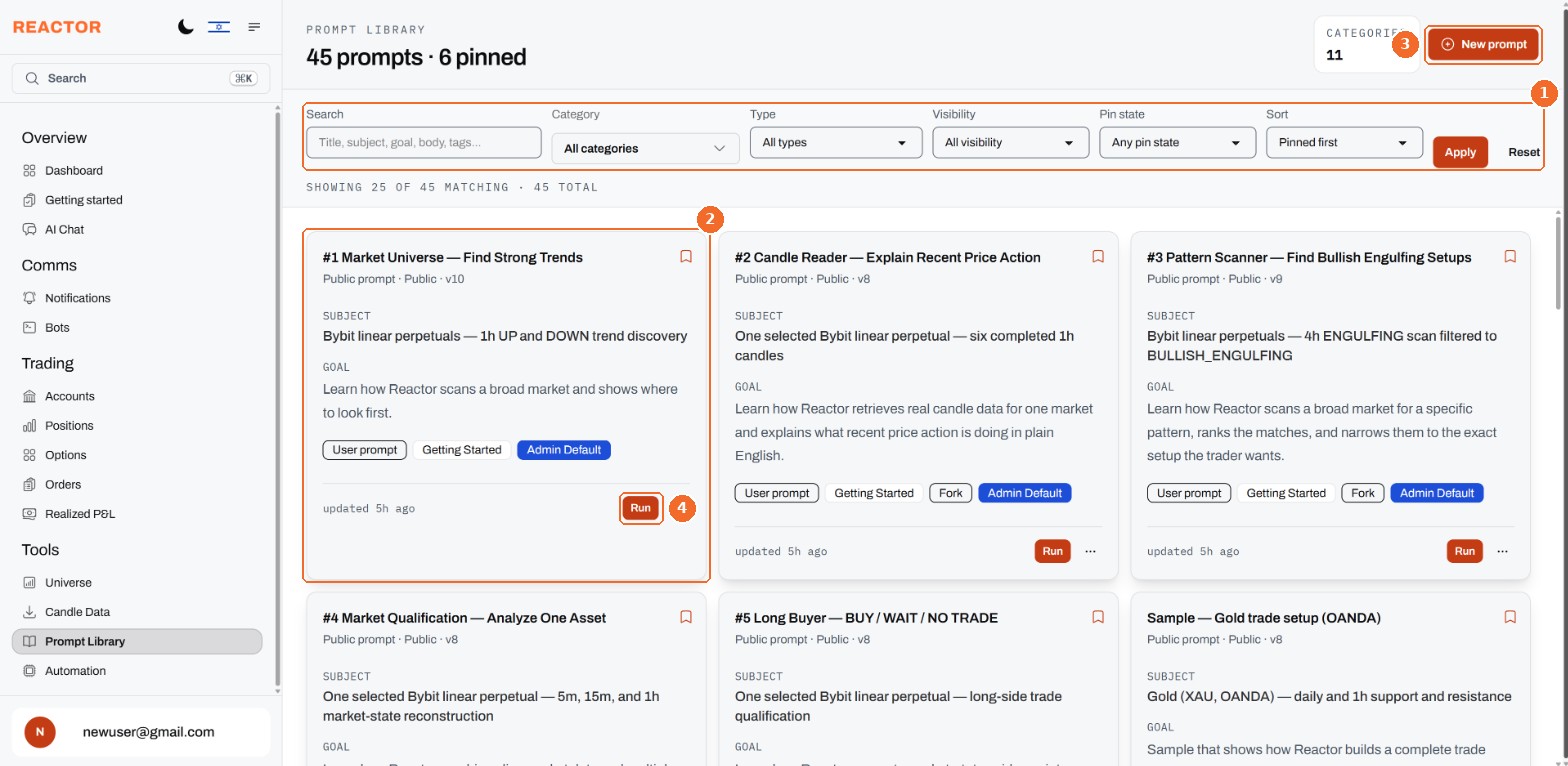
1
Filters — search, category, type, visibility, pin state and sort.
2
Prompt card — subject, goal and tags.
3
New prompt — create your own prompt.
4
Run — runs the prompt in Chat.
Automation — Agents
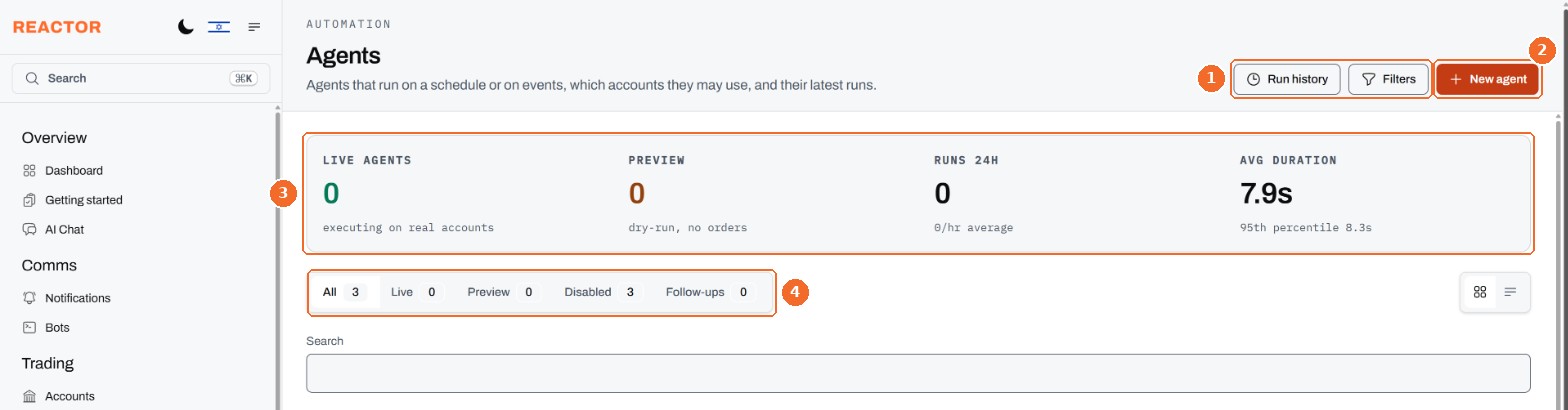
1
Run history / Filters — run history and filters.
2
New agent — a new Agent from a prompt: model, schedule and which accounts it may use.
3
Metrics — live Agents, Preview (no orders), runs in 24h and average duration.
4
Filter by state — All, Live, Preview, Disabled and Follow-ups.
Creating an Agent is covered in a separate guide.
Settings — your account settings
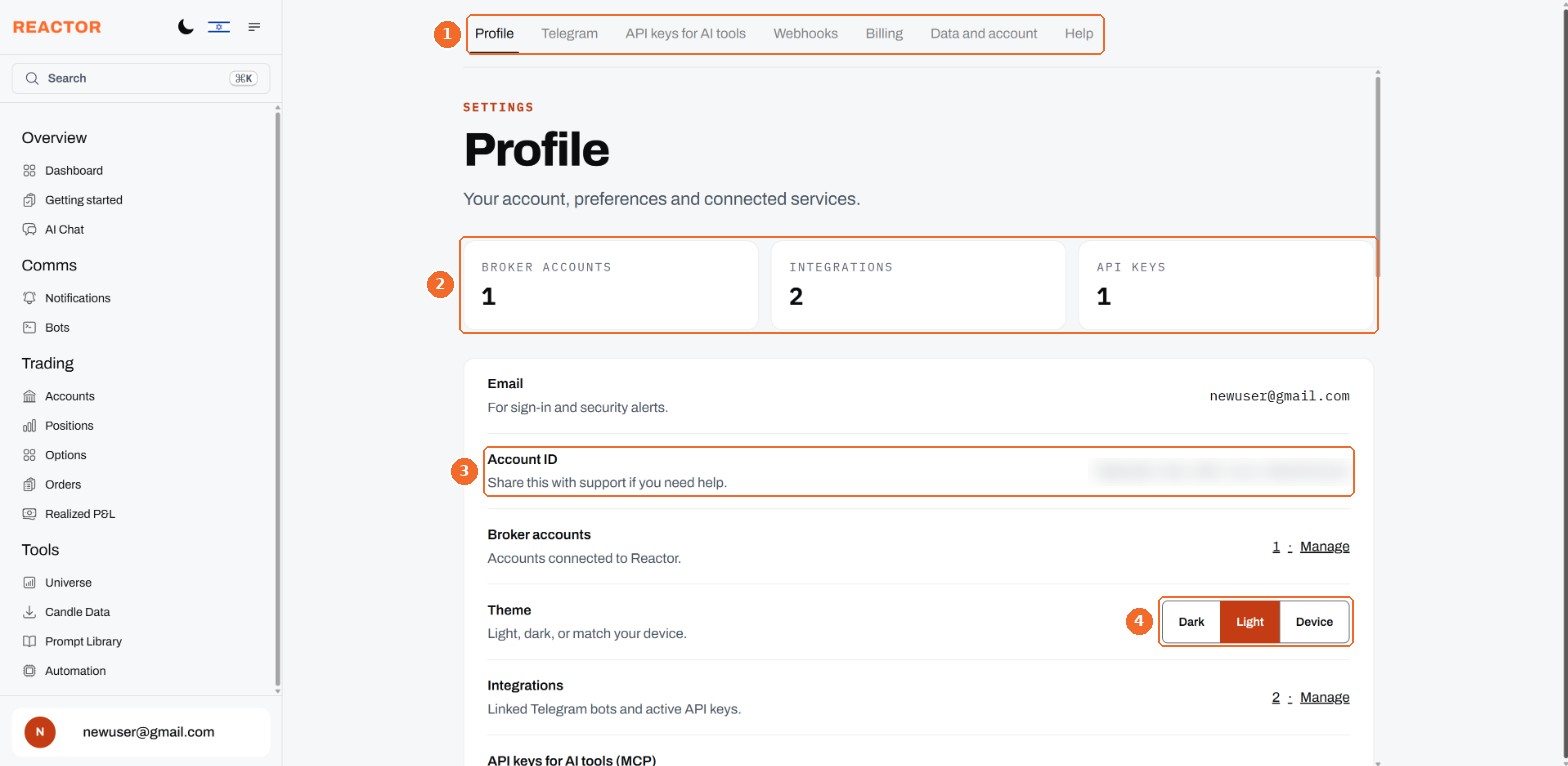
1
Tabs — Profile, Telegram, API keys for AI tools, Webhooks, Billing, Data and account, and Help.
2
Counters — broker accounts, integrations and API keys.
3
Account ID — give it to support when you need help.
4
Theme — dark, light or match your device.
Step 7 — Sign out
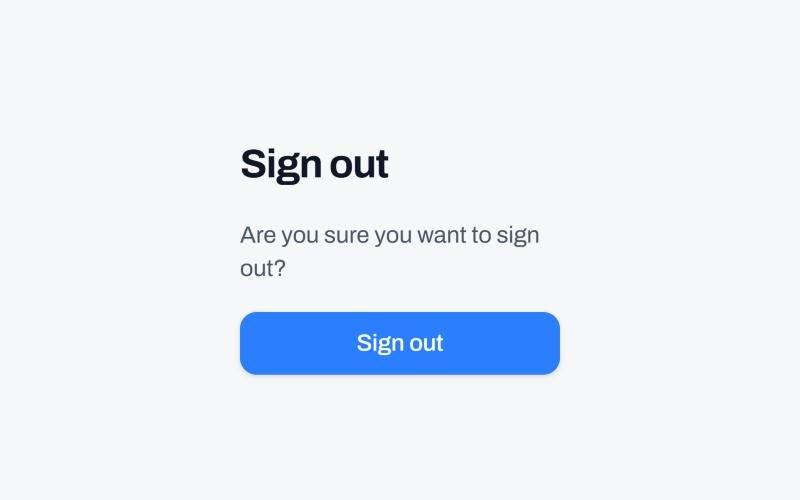
Click your address at the bottom of the sidebar and choose Sign out. On the confirmation screen, click Sign out again and you're back on the home page.
What's next
Next guide
Guide 2: Market research with Reactor AI
Ask in plain language — and Reactor scans 200 markets in seconds.