Guide 12 · TradersPost
Reactor and TradersPost: for prop traders
Your strategy runs in Reactor as an Agent. TradersPost executes at your broker. Set up, test on Paper, and get a Telegram confirmation after every action.
What you get
This guide connects Reactor to TradersPost. Your strategy runs in Reactor as an Agent. When its conditions are met, Reactor sends a signal to TradersPost, and TradersPost places the order at your broker, for example your prop firm's broker.
You need a TradersPost account and a Reactor account. Everything here was tested on TradersPost Paper with BTCUSD. Futures and stocks were not tested.
How it works
Your Agent in Reactor → a webhook signal → your TradersPost strategy → its subscription → your broker (Paper first).
Your strategy in Reactor. Execution at your broker. Reactor decides. TradersPost executes.
The rules
•
Start on Paper. Use the TradersPost Paper broker until you trust the setup.
•
Allow live trading: OFF. In TradersPost it's on by default. Turn it off.
•
The webhook URL is a secret. Anyone who has it can send orders to your strategy.
•
Delivered ≠ filled. Reactor confirms that TradersPost received the signal. Fills and positions are only in TradersPost and at your broker.
•
Your stop lives at the broker. Reactor can't see inside an account that's connected only through TradersPost.
Part A — In TradersPost (one time)
Step 1 — Create a strategy
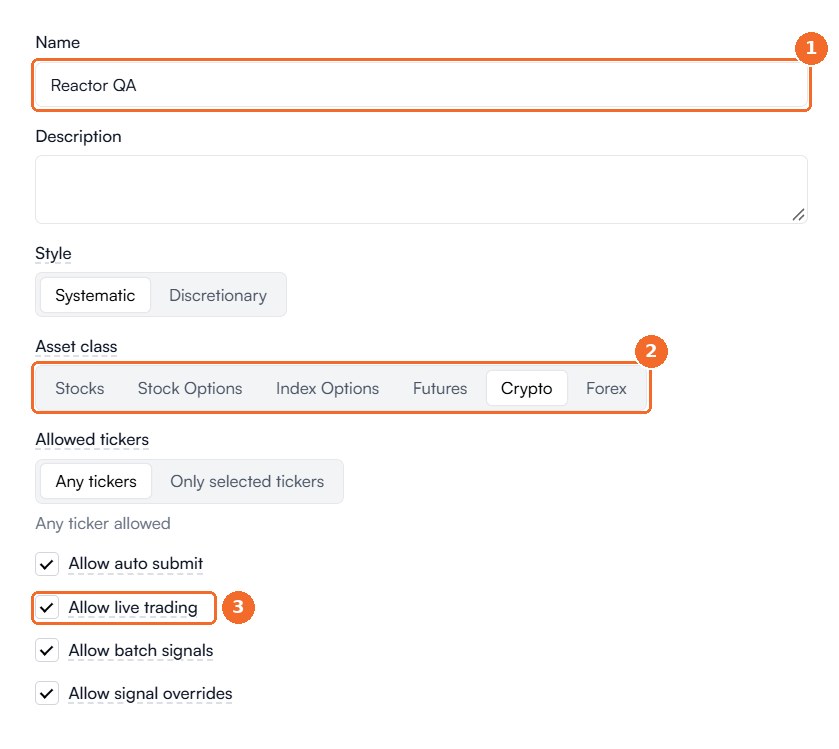
In TradersPost: Strategies → new strategy. Name it and choose the asset class.
1
Name — for example "Reactor QA".
2
Asset class — here, Crypto.
3
Allow live trading — it's on by default. Uncheck it.
Step 2 — Check that live trading is OFF
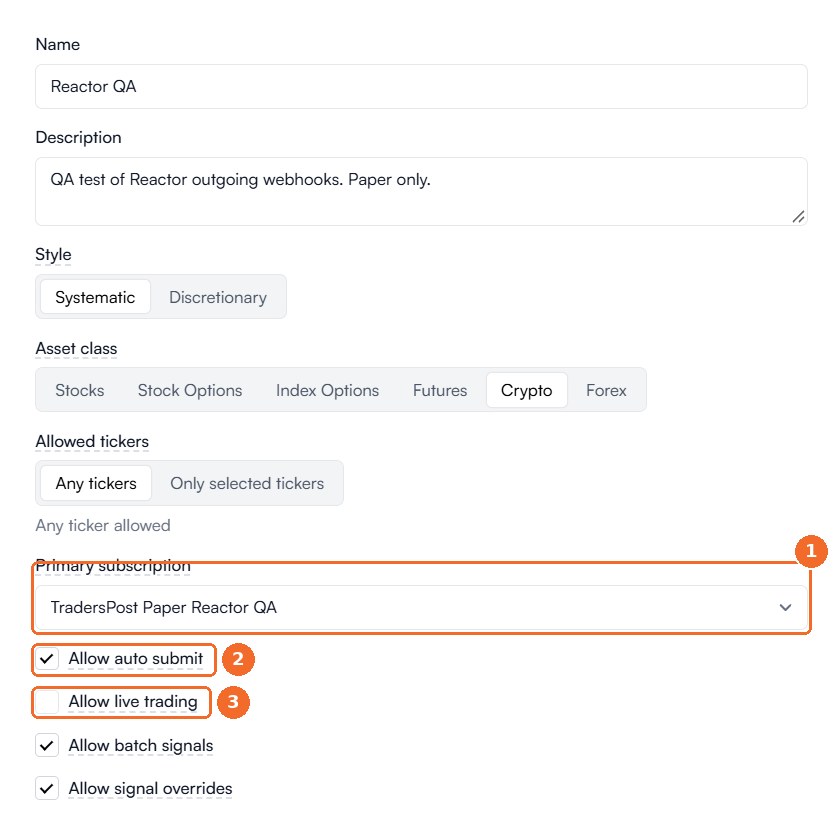
After saving, open the strategy again and check:
1
Primary subscription — the broker this strategy trades on. Here, TradersPost Paper.
2
Allow auto submit — orders go out without a manual approval in TradersPost.
3
Allow live trading — OFF. Paper only.
Step 3 — Subscribe the strategy to a broker
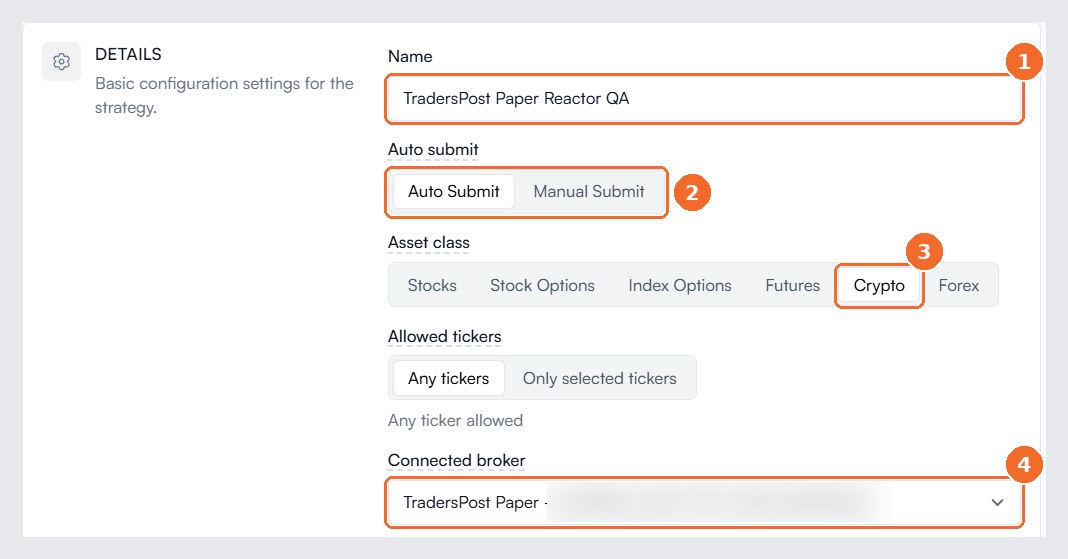
In Subscriptions, connect the strategy to TradersPost Paper. Later, once you trust the setup, this is where you connect your prop firm's broker.
1
Name — the subscription.
2
Auto Submit — every signal becomes an order automatically.
3
Asset class — Crypto, like the strategy.
4
Connected broker — TradersPost Paper. The account ID is hidden here.
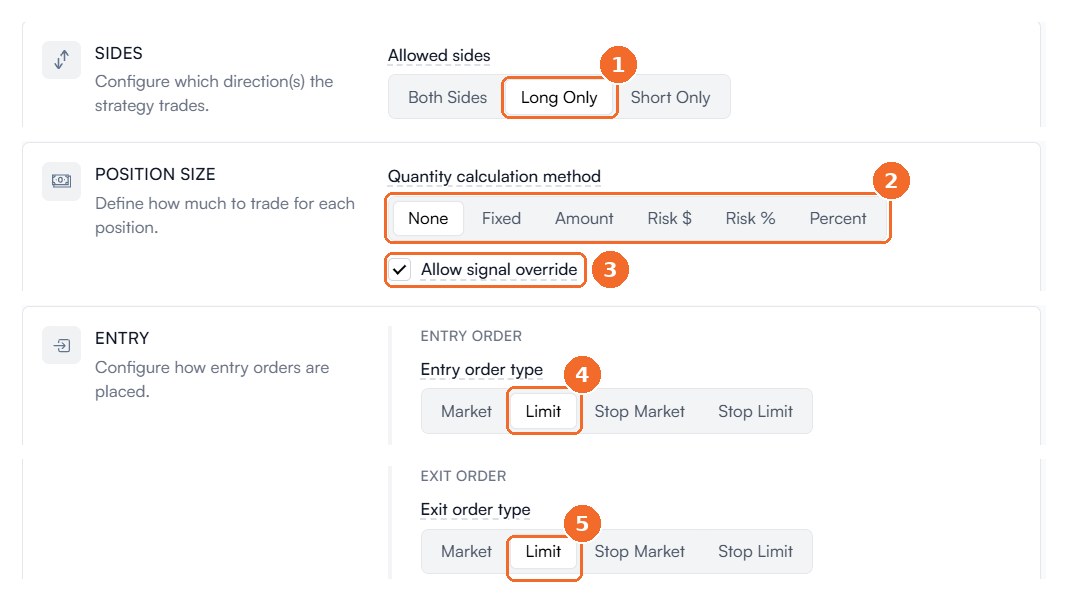
Lower on the same page, the settings we used:
1
Allowed sides — Long Only. So a "sell" closes the long.
2
Quantity calculation method — None: TradersPost doesn't calculate the size.
3
Allow signal override — the quantity comes from the signal Reactor sends.
4
Entry order type — Limit.
5
Exit order type — Limit.
Step 4 — Your stop, at the broker side
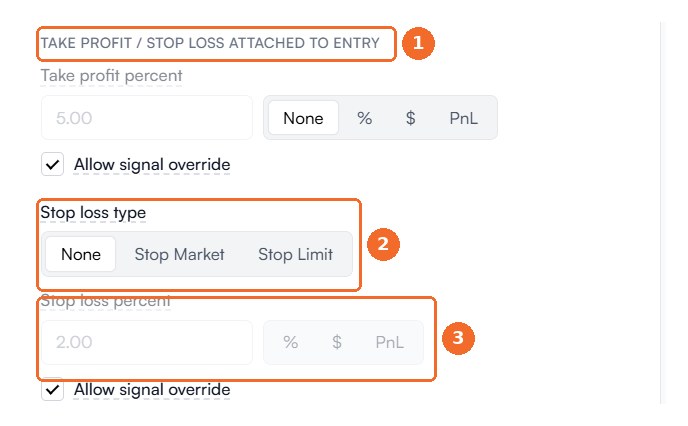
In the same subscription: Take profit / Stop loss attached to entry. TradersPost attaches it to every entry order, so it exists at the broker even if Reactor never sends another signal.
1
Take profit / Stop loss attached to entry — goes out with every entry.
2
Stop loss type — None, Stop Market or Stop Limit. In our test: None.
3
Stop loss percent — the stop distance.
Your stop lives at the broker. Choose a stop that fits your plan and your prop firm's rules. This guide doesn't choose one for you.
Step 5 — Copy the webhook URL
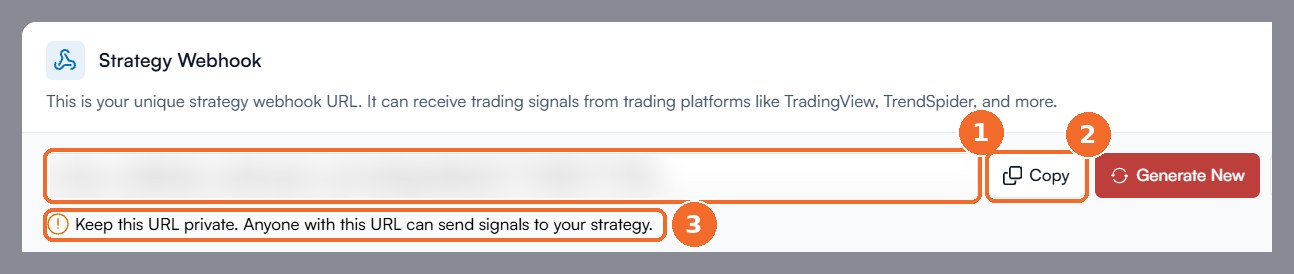
On the strategy, open the Strategy Webhook window and copy the URL. You paste it into Reactor in the next step.
1
The URL — hidden here. Never share it or show it on screen.
2
Copy — copies the URL.
3
Keep this URL private — anyone with the URL can send signals to your strategy.
Part B — In Reactor (one time)
Step 6 — Create a webhook target
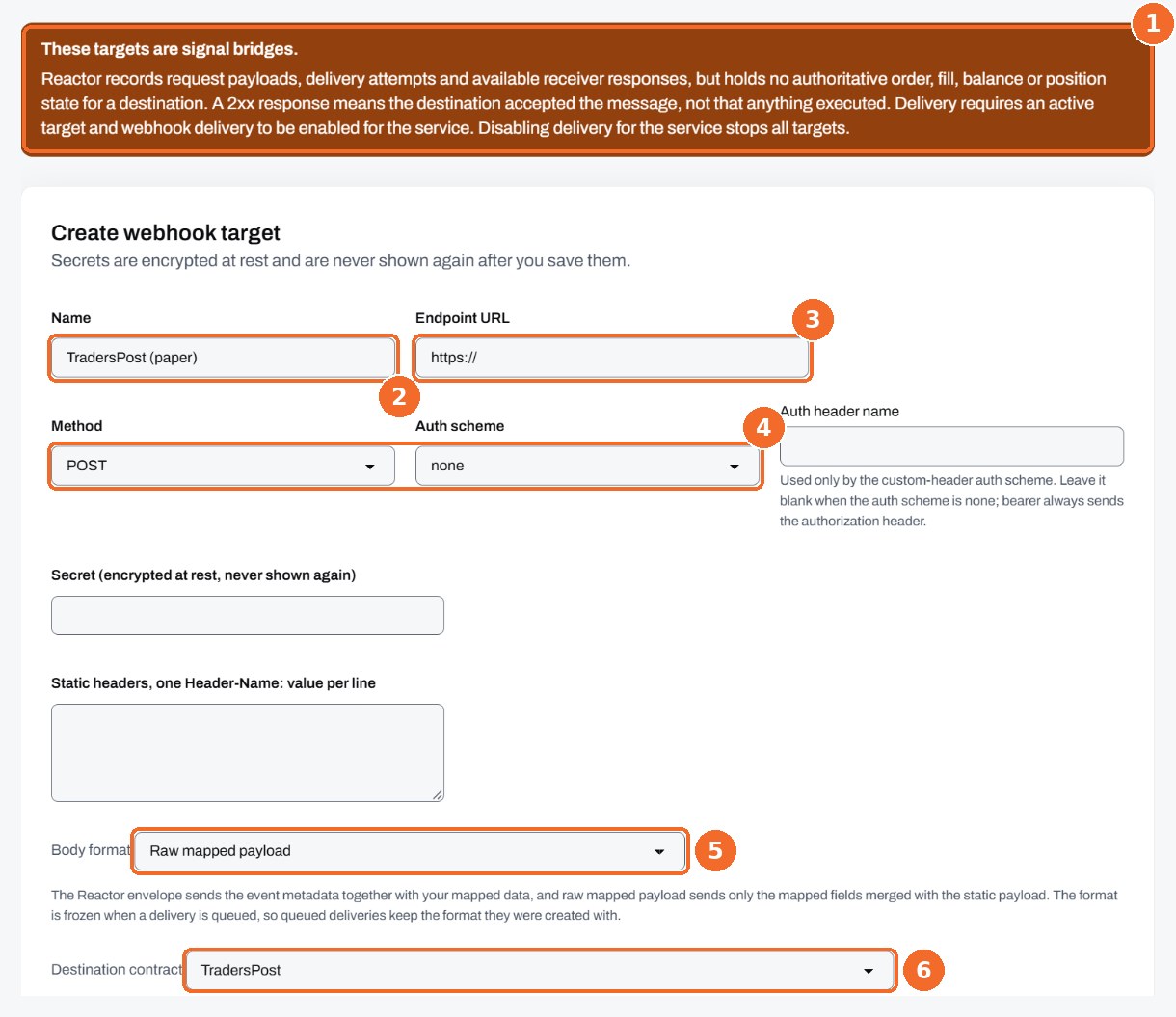
In Reactor: Settings → Integrations → Webhooks → Create webhook target.
1
These targets are signal bridges — Reactor records what it sent and what came back. It holds no order, fill, balance or position data for the destination.
2
Name — a clear name, for example "TradersPost (paper)". You use this name in Chat and in Agent prompts.
3
Endpoint URL — paste the TradersPost webhook URL.
4
Method, Auth scheme — POST and none.
5
Body format — Raw mapped payload.
6
Destination contract — TradersPost.
1
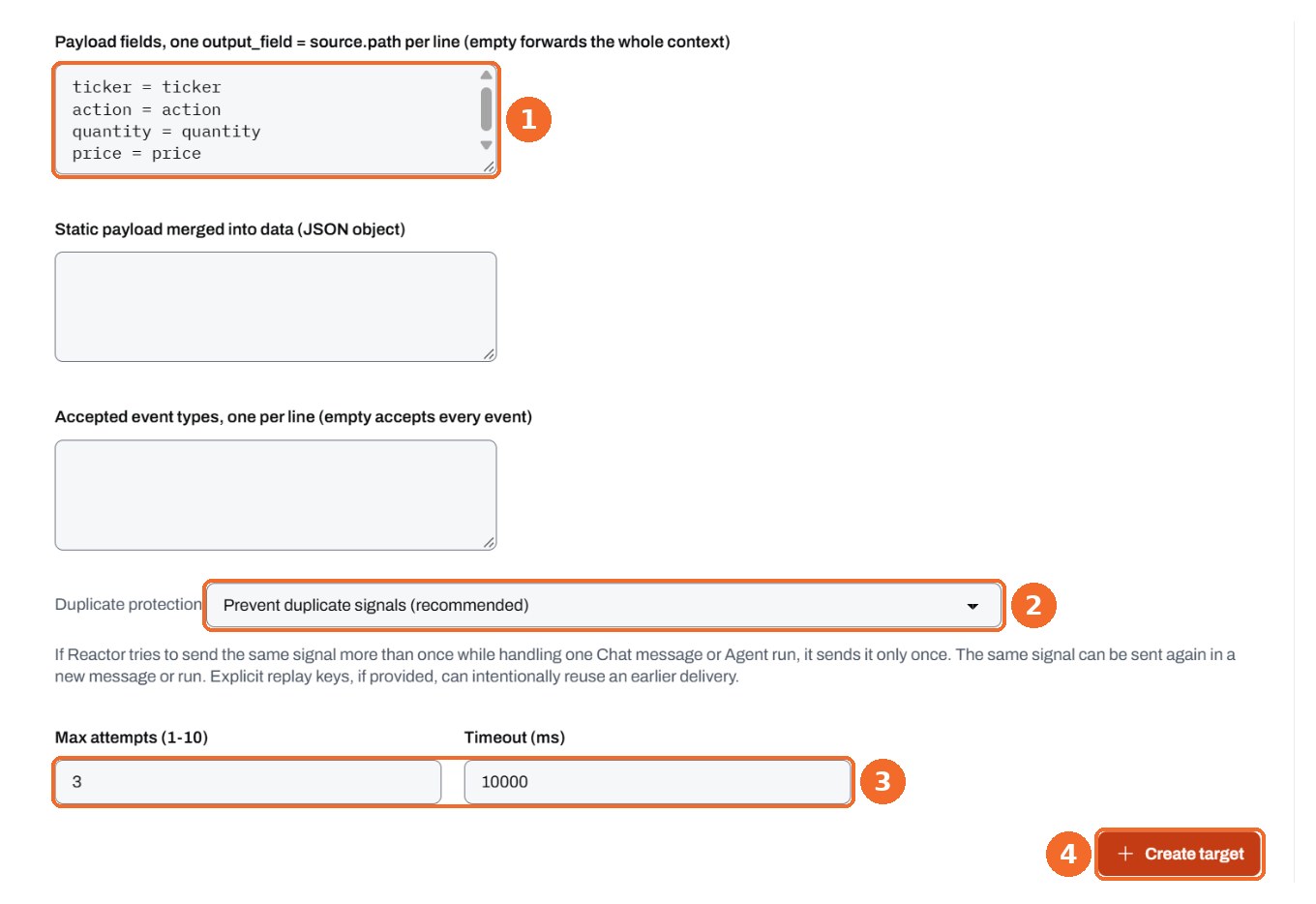
Payload fields — four lines: ticker = ticker, action = action, quantity = quantity, price = price.
2
Duplicate protection — Prevent duplicate signals (recommended). The same signal is sent once per Chat message or Agent run.
3
Max attempts, Timeout — leave the defaults.
4
Create target — saves the target.
To copy into Payload fields:
ticker = ticker
action = action
quantity = quantity
price = price
Step 7 — Find your target
The target appears under Configured targets, not always at the top. Scroll and find it by its name. In these screenshots it's called "TradersPost QA (paper)".
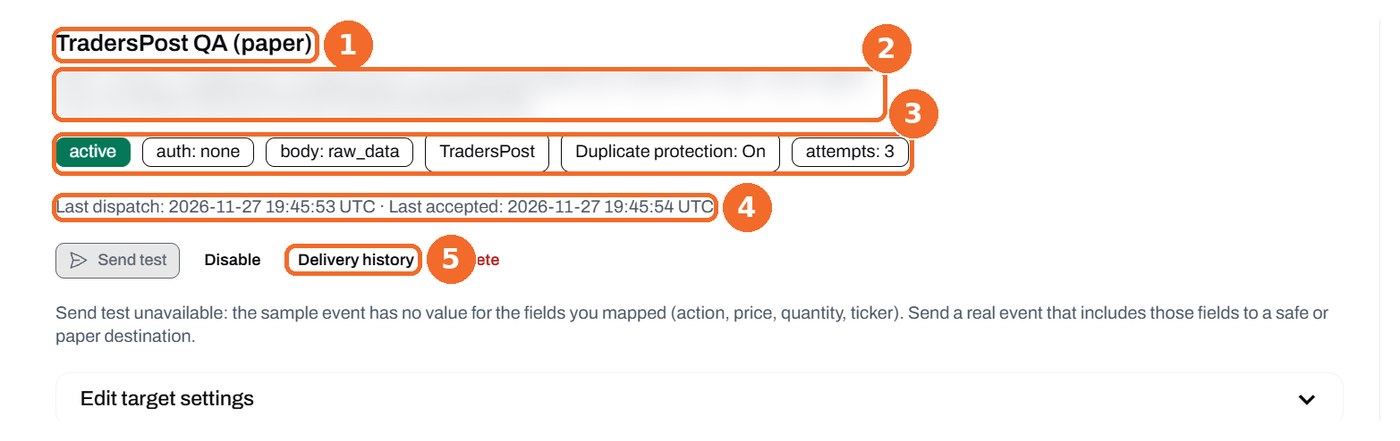
1
The name — the one you use in Chat and in prompts.
2
The URL — hidden here. Treat it as a secret.
3
The settings — active, auth none, raw data, TradersPost, duplicate protection on, 3 attempts.
4
Last dispatch · Last accepted — when Reactor last sent, and when the destination last accepted.
5
Delivery history — every signal sent to this target.
Send test doesn't work with mapped fields. Test with a real signal from Chat, on Paper (Part C).
Part C — A first signal from Chat
A quick check that the connection works.
Step 8 — Send a buy
In AI Chat, name the target and give all four fields:
Send ONE signal to the webhook target "TradersPost (paper)": ticker BTCUSD, action buy, quantity 0.001, price 59835.
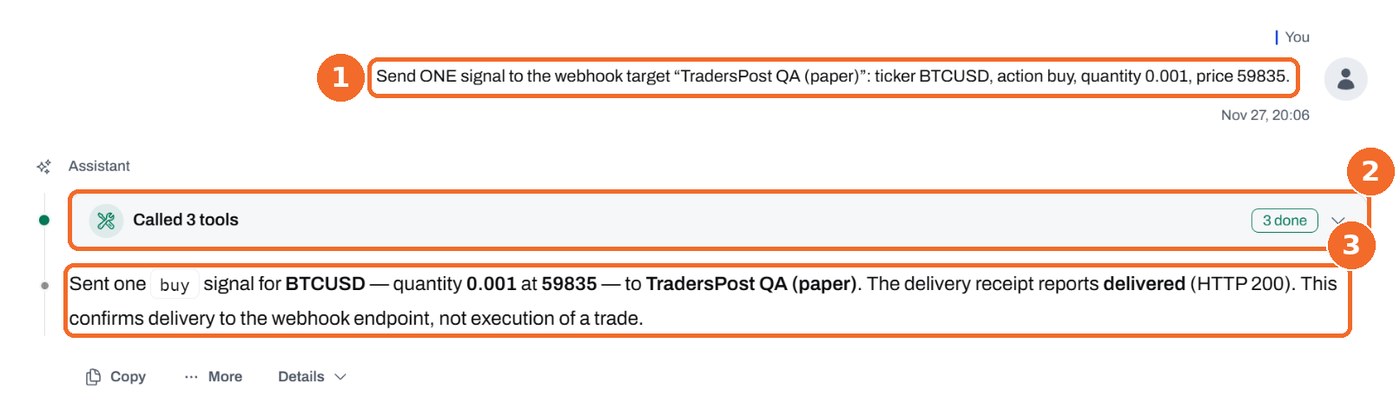
1
The request — target name, ticker, action, quantity and price.
2
Called 3 tools — the tools Chat used to send and check.
3
The reply — "delivered (HTTP 200)": TradersPost received the signal. That isn't a fill.
Step 9 — Check in TradersPost
In TradersPost: Signals → open the signal.
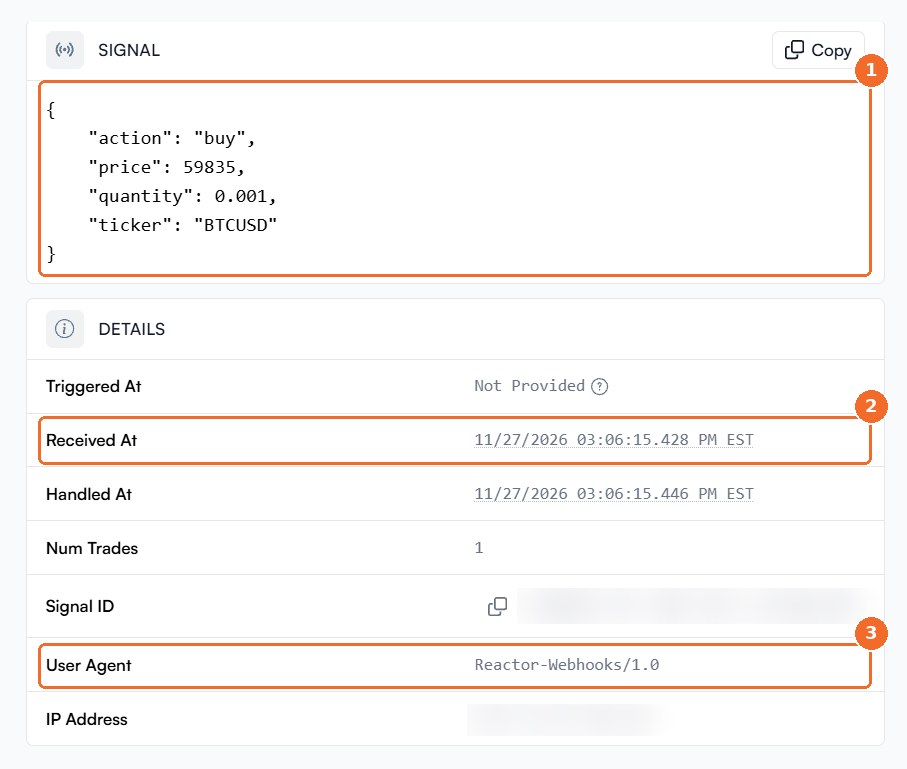
1
Signal — exactly what Reactor sent.
2
Received At — when TradersPost received it.
3
User Agent — Reactor-Webhooks/1.0: it came from Reactor.
TradersPost Paper fills limit orders immediately at the signal price. At a real broker, a limit order may not fill.
Step 10 — Exit, and a built-in protection
Ask for the exit. If a required field is missing, Chat asks for it and sends nothing.
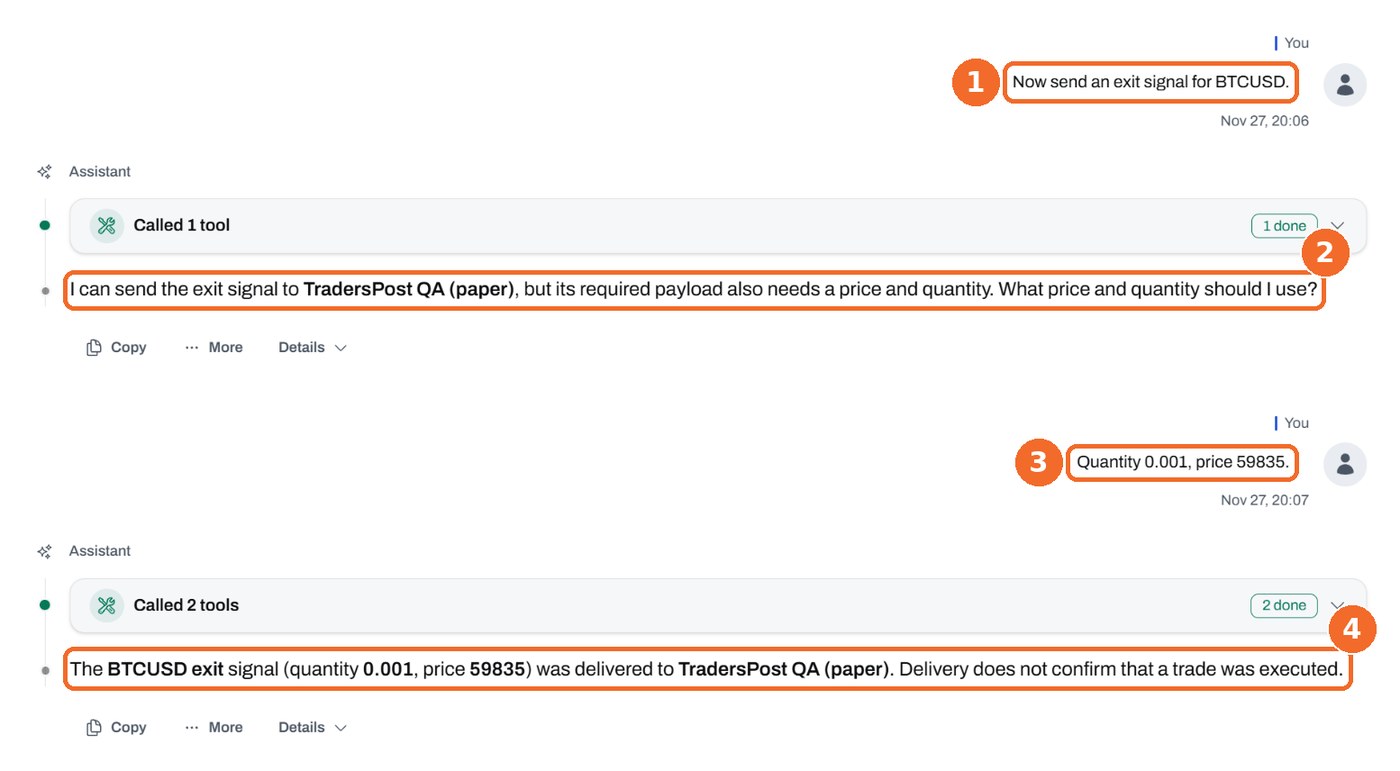
1
The request — an exit, without price and quantity.
2
The protection — Chat asks for the missing fields and sends nothing.
3
The answer — quantity and price.
4
Delivered — the exit reached TradersPost. Delivery doesn't confirm execution.
The complete exit request, to copy:
Send ONE signal to the webhook target "TradersPost (paper)": ticker BTCUSD, action exit, quantity 0.001, price 59835.
Always name the target. With more than one active target, Chat asks which one and sends nothing until you answer.
Part D — Your strategy as an Agent
This is the main part. Reactor runs your strategy on its own: it checks the market, decides, sends the signal to TradersPost and sends you a confirmation on Telegram.
Step 11 — Write the strategy as a prompt
In Prompt Library → New prompt, type User prompt. The prompt holds the condition, the signal and the report:
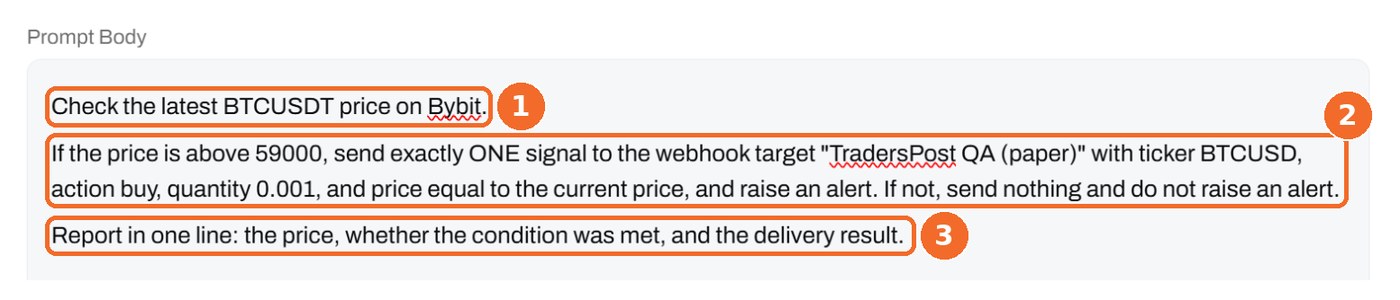
1
What to check — the market data.
2
The rule — the condition and the exact signal: target, ticker, action, quantity and price. If the condition isn't met, nothing is sent. "raise an alert" is what triggers the Telegram message.
3
The report — the price, the condition and the delivery result.
The entry prompt, to copy:
Check the latest BTCUSDT price on Bybit.
If the price is above 59000, send exactly ONE signal to the webhook target "TradersPost (paper)" with ticker BTCUSD, action buy, quantity 0.001, and price equal to the current price, and raise an alert. If not, send nothing and do not raise an alert.
Report in one line: the price, whether the condition was met, and the delivery result.
For the exit, a second prompt with the same pattern:
Check the latest BTCUSDT price on Bybit.
If the price is below 60000, send exactly ONE signal to the webhook target "TradersPost (paper)" with ticker BTCUSD, action exit, quantity 0.001, and price equal to the current price, and raise an alert. If not, send nothing and do not raise an alert.
Report in one line: the price, whether the condition was met, and the delivery result.
This is an illustration, not a strategy. The same pattern carries your own rules: entry conditions, an exit condition and the size.
Step 12 — Create the Agent
In Automation → New agent. Guide 8 explains every field. These are the ones that matter here:
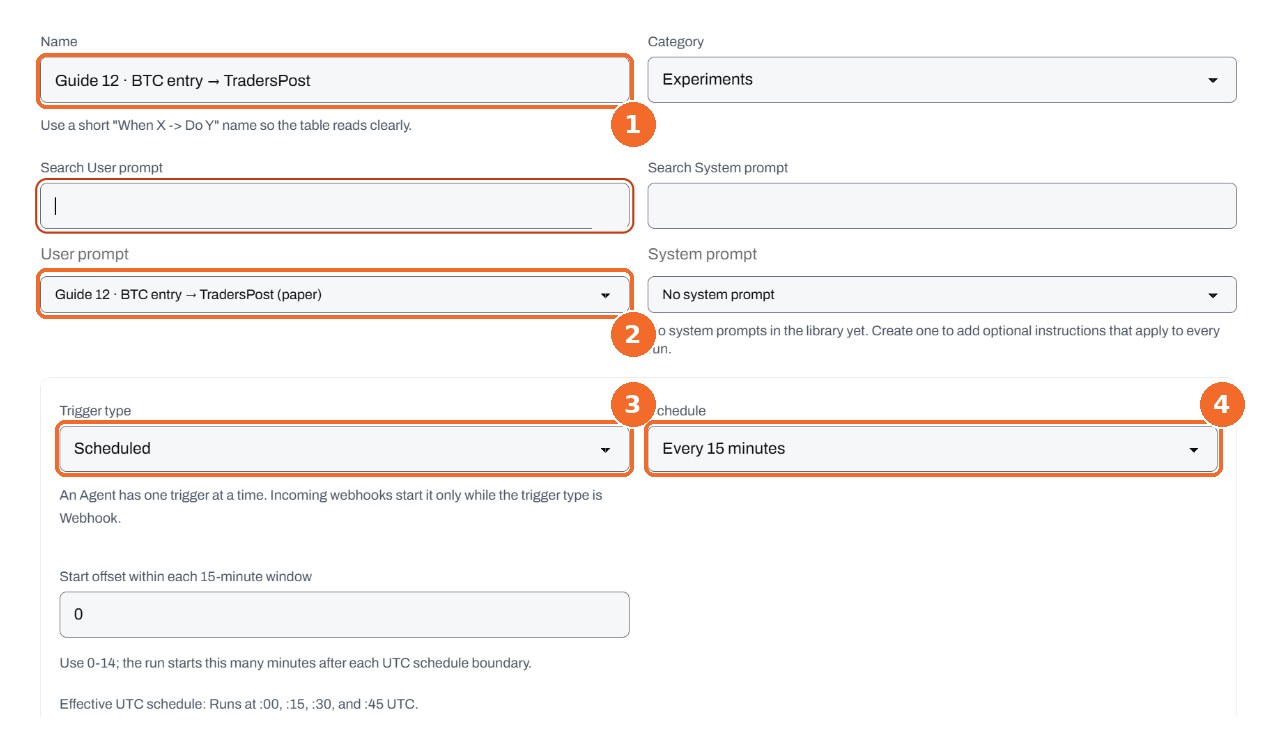
1
Name — a "When X → do Y" name reads well in the table.
2
User prompt — the prompt from step 11.
3
Trigger type — Scheduled, or Webhook (for example a TradingView alert). See guide 8.
4
Schedule — how often it checks.
Step 13 — A Telegram confirmation after every action
Lower in the same form. With these settings you get a message each time the Agent sends a signal:
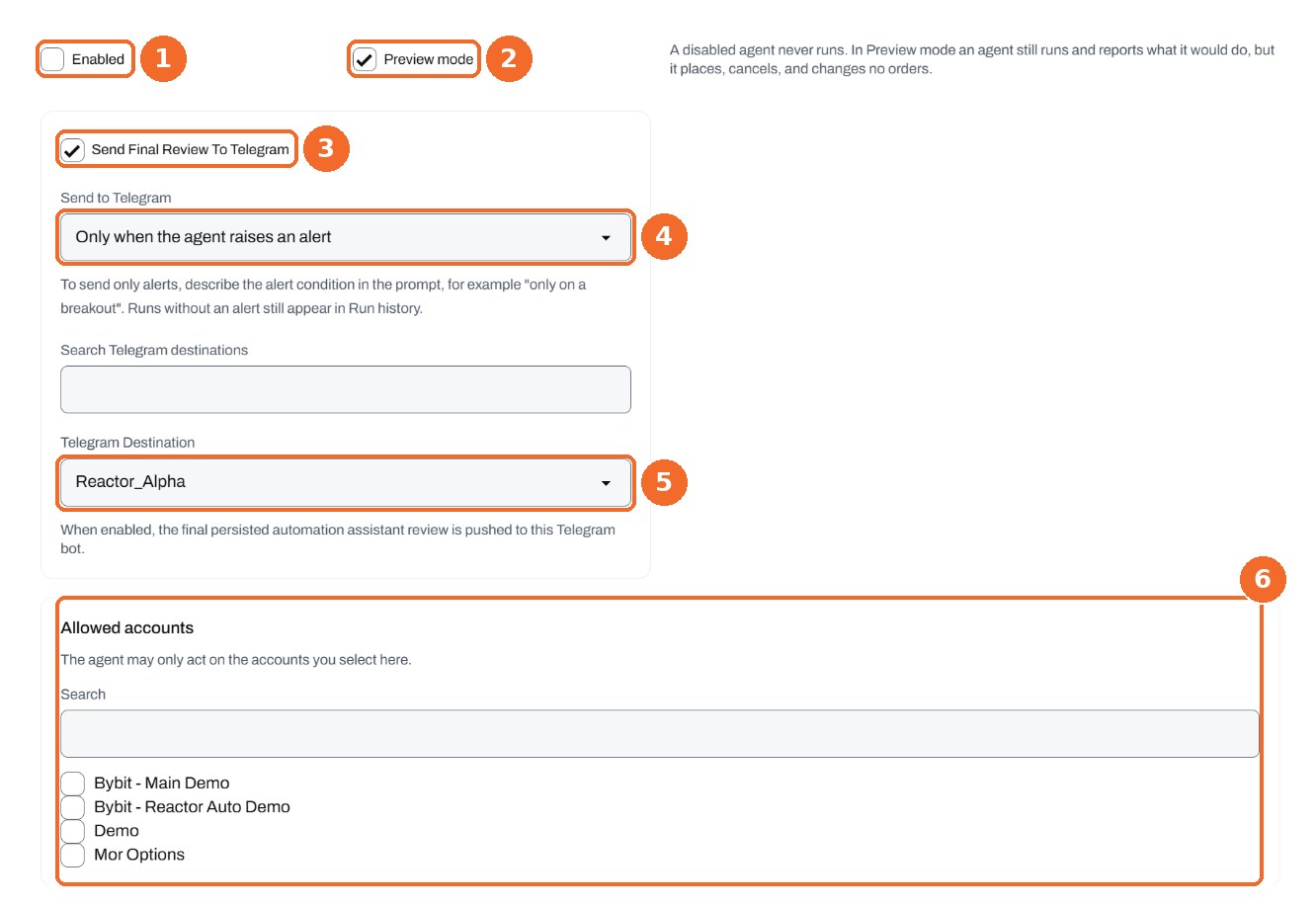
1
Enabled — leave it off while you build. Enabling also arms the schedule.
2
Preview mode — protects only the accounts connected to Reactor. The webhook signal is sent in Preview too.
3
Send Final Review To Telegram — on.
4
Only when the agent raises an alert — a message only when the Agent acts. The prompt says when to raise the alert.
5
Telegram Destination — your bot (guide 5).
6
Allowed accounts — none. TradersPost isn't a Reactor account; the Agent only sends to the webhook target.
Preview doesn't stop the signal to TradersPost. Test on TradersPost Paper, with Allow live trading OFF. Guides 8 and 9 explain Preview and Live.
Step 14 — Run it
Click Create Agent. On the Agent's card, click Enable, then:
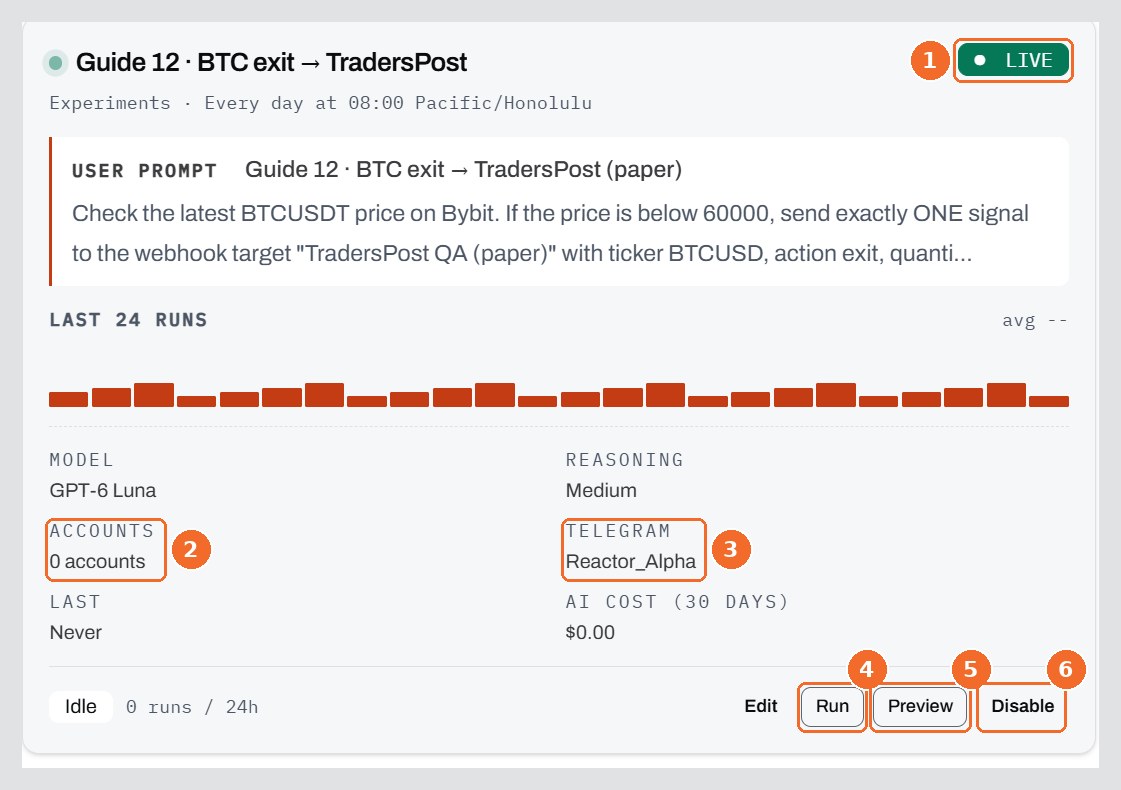
1
LIVE / PREVIEW — the mode. For webhook signals, both send.
2
0 accounts — no Reactor account is touched.
3
Telegram — where the confirmations go.
4
Run — runs the Agent now. One run at a time: a second click while a run is queued is refused.
5
Preview — switches the mode back (on a Preview Agent, this button is Go live).
6
Disable — stops future runs. It doesn't undo a signal already sent.
Step 15 — Read the run report
Click the run to open its report:
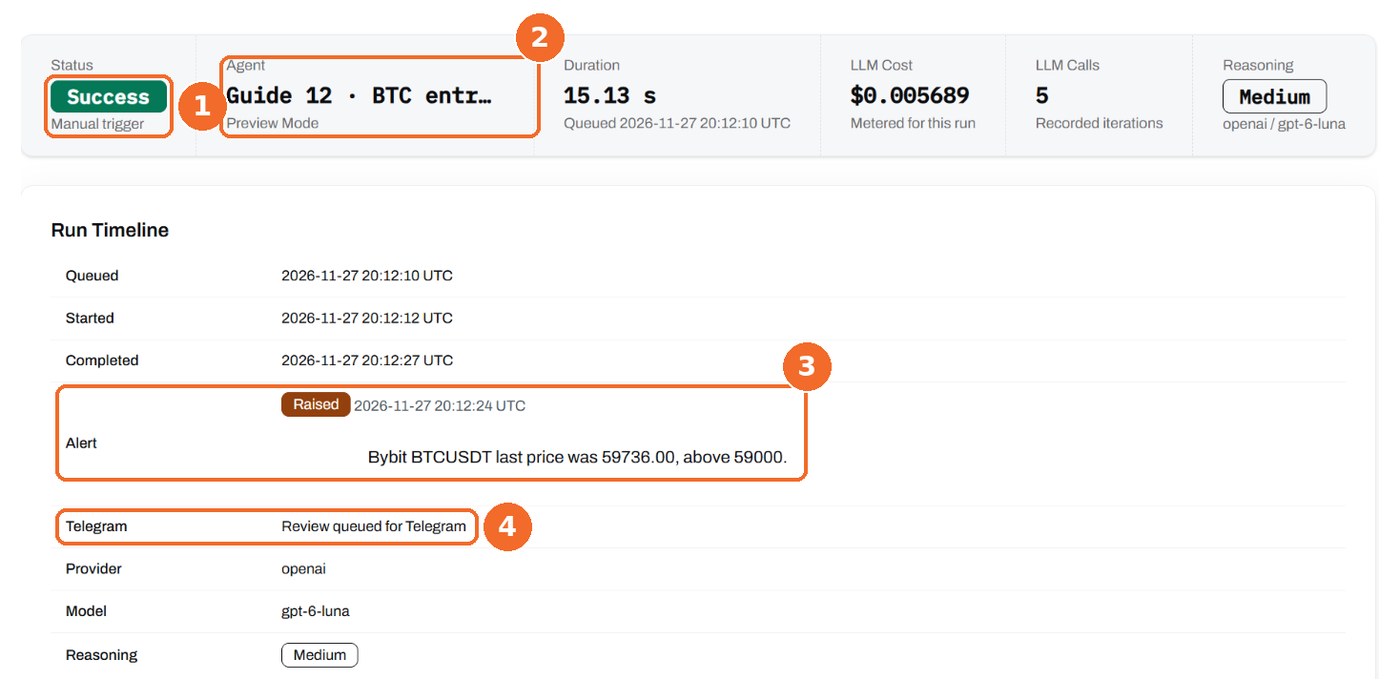
1
Status — the run finished.
2
Preview Mode — this run was in Preview, and it still sent the buy to TradersPost.
3
Alert — the price it saw and the condition: 59,736, above 59,000.
4
Telegram — the confirmation was queued.
Below, the Agent's answer: "BTCUSDT price: $59,736.00; condition met (> $59,000); one signal delivered (HTTP 200); alert raised."
Step 16 — The confirmation on Telegram
After each action you get a message. Here, the entry Agent and then the exit Agent:
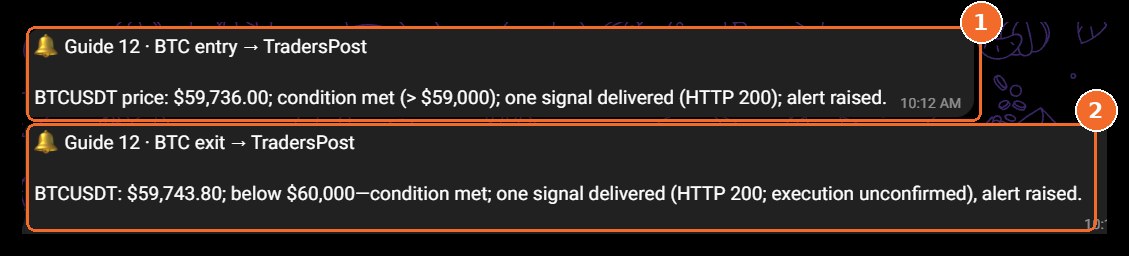
1
Entry — the price, condition met, signal delivered (HTTP 200).
2
Exit — the price, condition met, signal delivered, "execution unconfirmed".
Delivered ≠ filled. The message confirms that TradersPost received the signal. Check the fill in TradersPost (step 18).
Step 17 — Delivery history in Reactor
Settings → Integrations → Webhooks → your target → Delivery history → Payload and attempts.
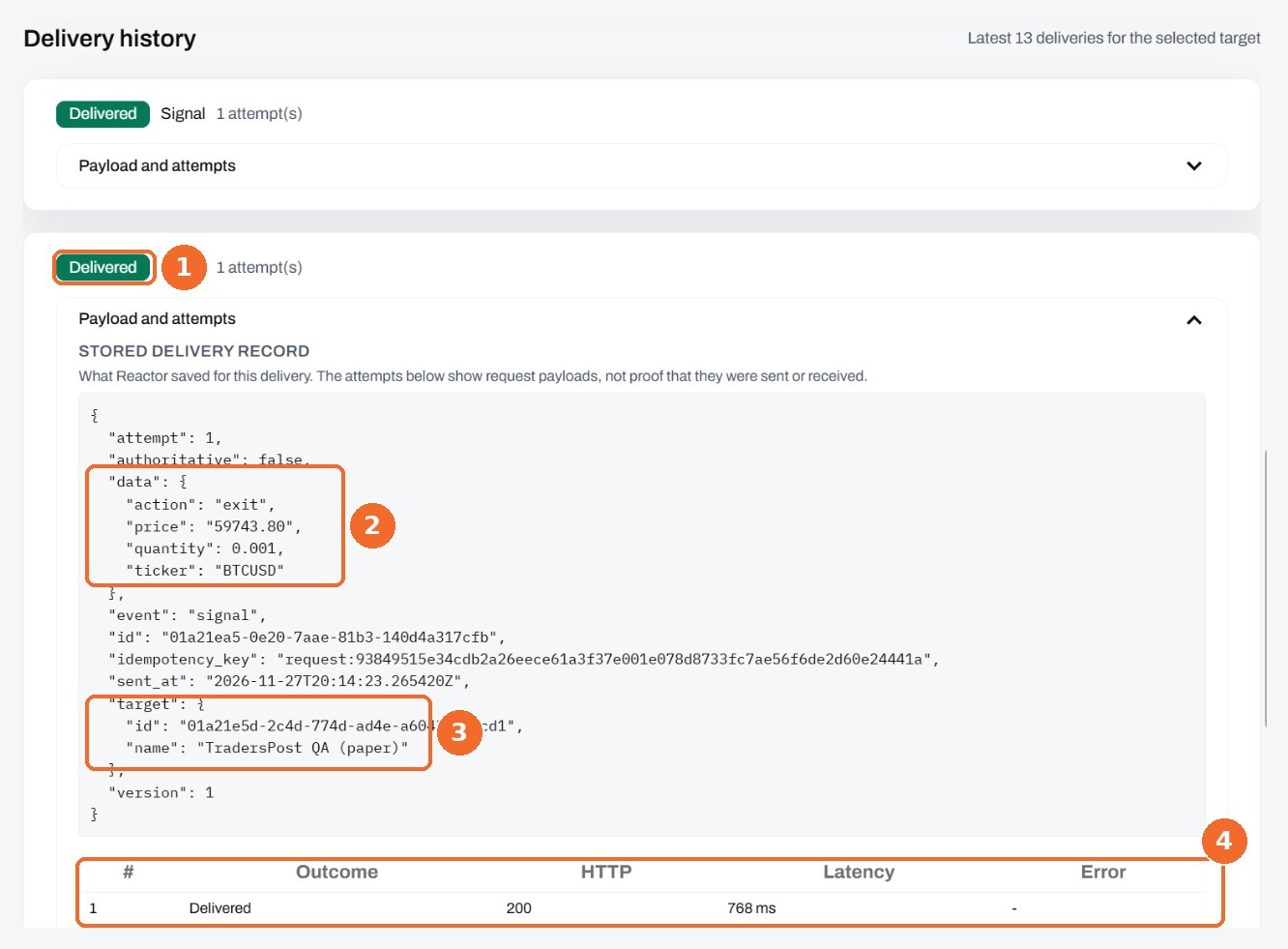
1
Delivered — the destination accepted the signal.
2
The data — action, price, quantity, ticker.
3
The target — where it went.
4
HTTP 200 — accepted, and how long it took.
Step 18 — The fill, in TradersPost
In TradersPost: Signals.
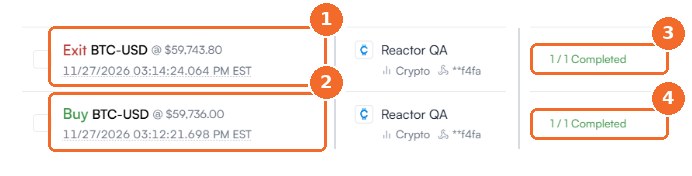
1
Exit — from the exit Agent.
2
Buy — from the entry Agent.
3
1 / 1 Completed — TradersPost handled the exit.
4
1 / 1 Completed — and the buy.
And on the broker's page (here, TradersPost Paper):
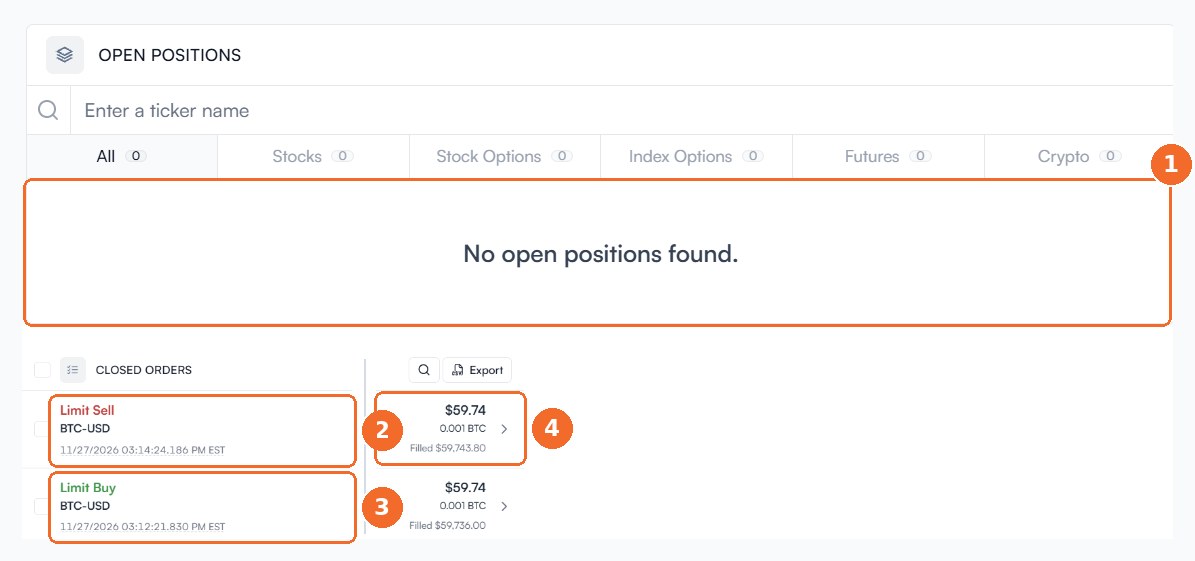
1
Open positions — none: the exit closed the buy.
2
Limit Sell — the exit order.
3
Limit Buy — the entry order.
4
Filled — the fill price. You see it only in TradersPost and at your broker, not in Reactor.
Step 19 — When you finish testing
•
Disable the Agent and set it back to Preview.
•
Check in TradersPost that no position is left open.
Keep in mind
•
Before any signal, check: which target, Paper or live at TradersPost, and the ticker, action, quantity and price.
•
Reactor can't see fills, positions or balances in accounts connected only through TradersPost. Check them in TradersPost and at your broker.
•
Profit Guard (guide 10) and Reactor's position monitoring don't cover these accounts.
•
Put the stop at TradersPost or at the broker, not only in an Agent. An exit Agent works only while it runs.
•
A rejection happens at TradersPost or at the broker, not in Reactor. Check there.
•
Disabling an Agent stops future signals. It doesn't undo a signal already sent.
•
We tested crypto (BTCUSD) on TradersPost Paper. Futures and stocks weren't tested.
Next guide
Guide 13: Reactor and Lucid: a prop account
Two Agents trade a Lucid evaluation through TradersPost: one opens trades, the other closes them. A shadow ledger tracks the position Reactor can't see.