Guide 4 · Connections
Connecting Reactor to Claude via MCP
Ask Claude — and it works with your Reactor account.
What you get
Once connected, Claude works directly with your Reactor account. Ask in plain language about accounts, positions, candles or position size, and Claude decides on its own which Reactor actions to use.
Setup takes about 5 minutes, and no API key is needed. You add Reactor to Claude, sign in with your Reactor user, and choose which accounts Claude can see. Finally, you add the Reactor Skill, which teaches Claude to use the tools correctly and safely.
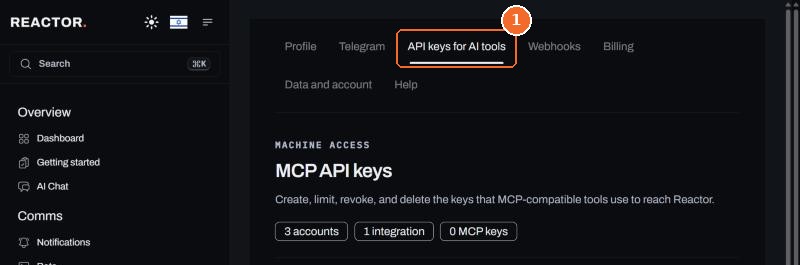
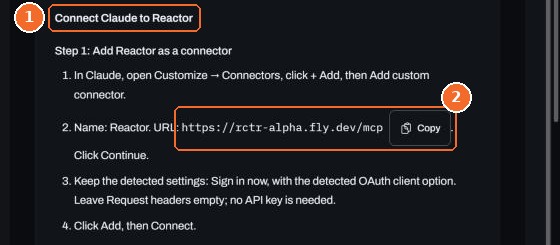
Step 1 — Copy the address from Reactor
1
API keys for AI tools — in the Settings menu.
1
Connect Claude to Reactor — all the steps are listed here too, inside Reactor.
2
Copy — copies the server address. Use the address shown in your account, not the one in a screenshot.
Step 2 — Add Reactor to Claude
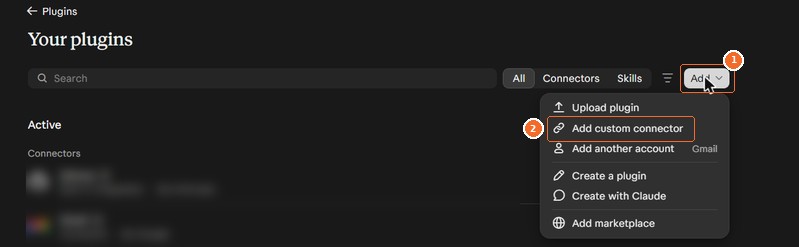
In Claude, open Plugins in the sidebar. In older versions of Claude this is under Customize → Connectors.
1
Add — opens a menu.
2
Add custom connector — a connection to an external server.
1
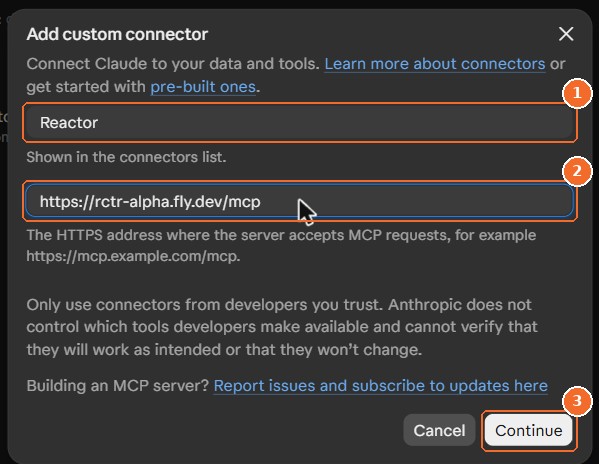
Name — any name you like, for example Reactor.
2
URL — the address you copied in step 1.
3
Continue — go on.
On the next screen, keep what Claude detected: Sign in now. Leave Request headers empty, since no key is needed. Click Add, then Connect.
Step 3 — Sign in and choose accounts
The Reactor sign-in page opens. Sign in with the user Claude should work with, and you reach the approval screen.
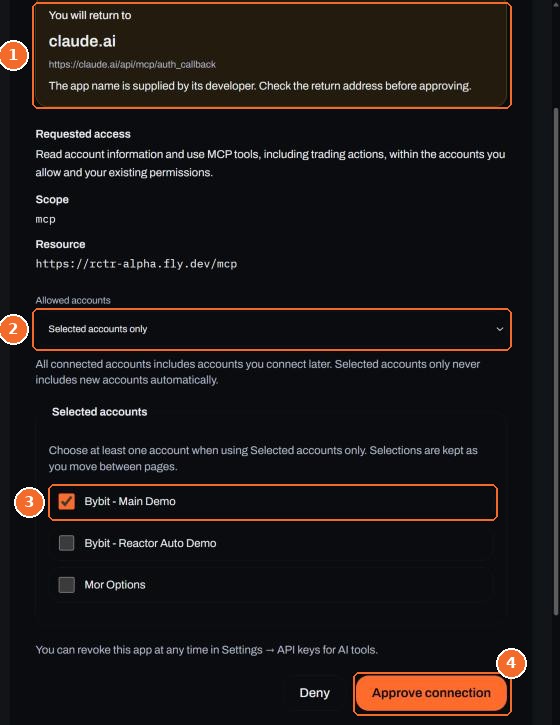
1
You will return to — check that the address is claude.ai.
2
Allowed accounts — choose Selected accounts only.
3
The accounts — tick only the accounts Claude may see and act in. We recommend starting with a demo account.
4
Approve connection — approve. In Claude, Reactor will show as Connected.
All connected accounts also includes accounts you connect in the future. Selected accounts only never adds a new account unless you choose it.
Step 4 — Add the Reactor Skill
The Skill teaches Claude how to work with Reactor's tools: check before acting, show a preview and ask for approval.
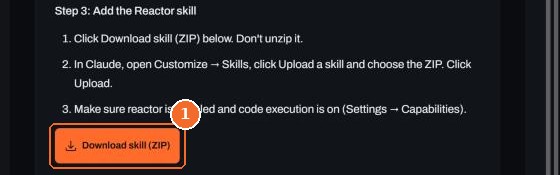
1
Download skill (ZIP) — on the same screen in Reactor. Don't unzip the file.
In Claude: Plugins → Add → Upload plugin.
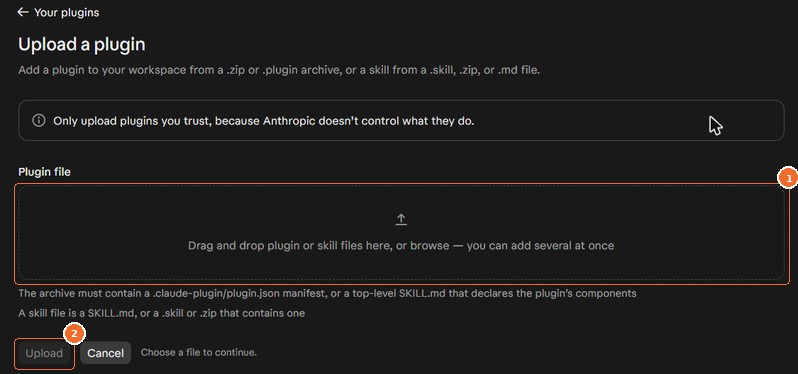
1
The file — drag the ZIP here, or pick it from your computer.
2
Upload — upload it.
Make sure the Skill named reactor is turned on, and that code execution is on under Settings → Capabilities.
Step 5 — Permissions and turning it on
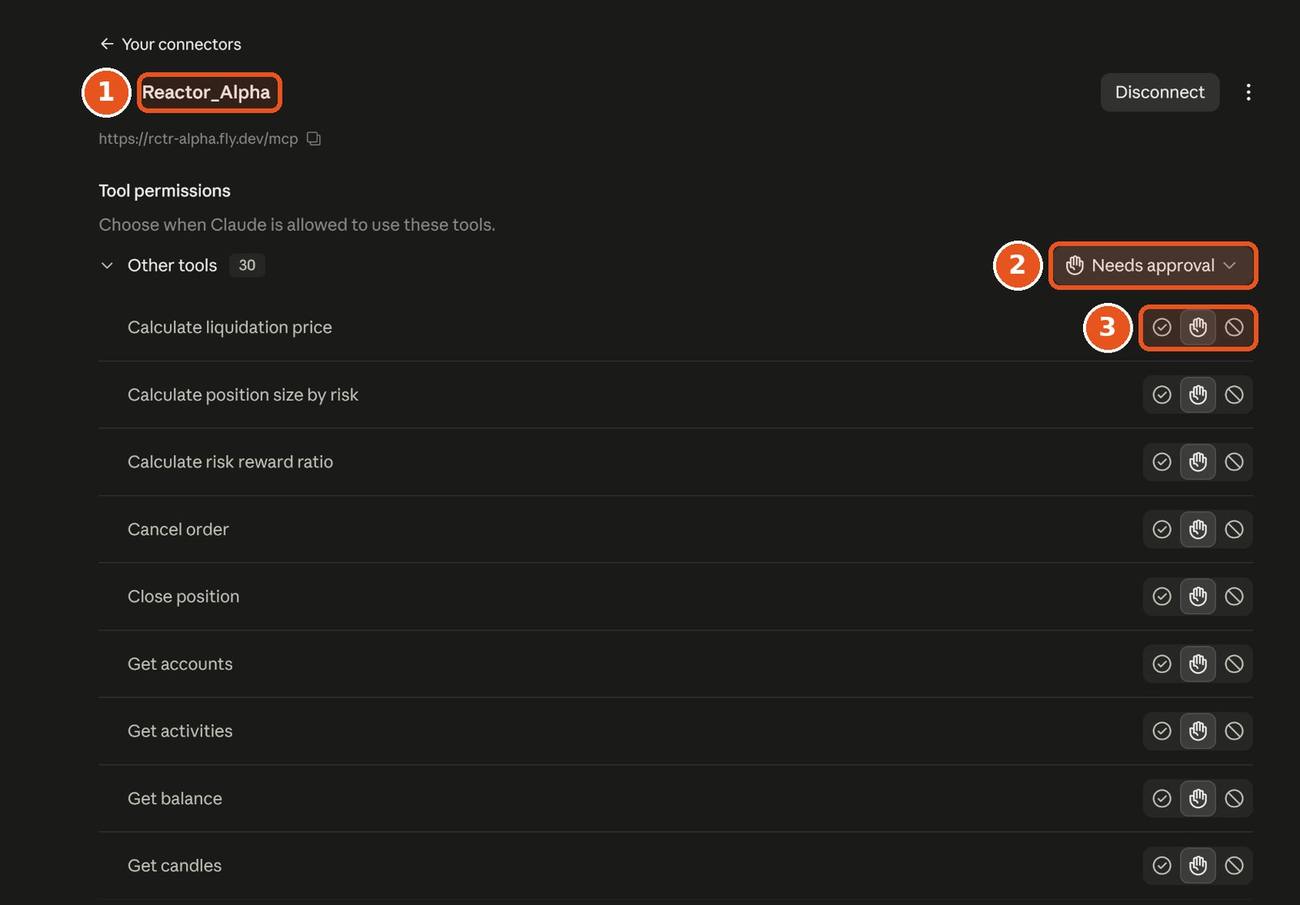
1
Reactor — the connector appears in your list.
2
Needs approval — the default: Claude asks for approval before every action.
3
Permission per action — always allow, ask every time, or block.
We recommend keeping Needs approval on actions that change something in your account, such as Cancel order and Close position.
In a new chat, open the + menu → Connectors and turn Reactor on.
Step 6 — Your first question
Try asking Claude: "Which accounts do I have connected in Reactor?" or "Give me the last 5 hourly candles for BTCUSDT". Claude will ask for approval and return an answer from Reactor.
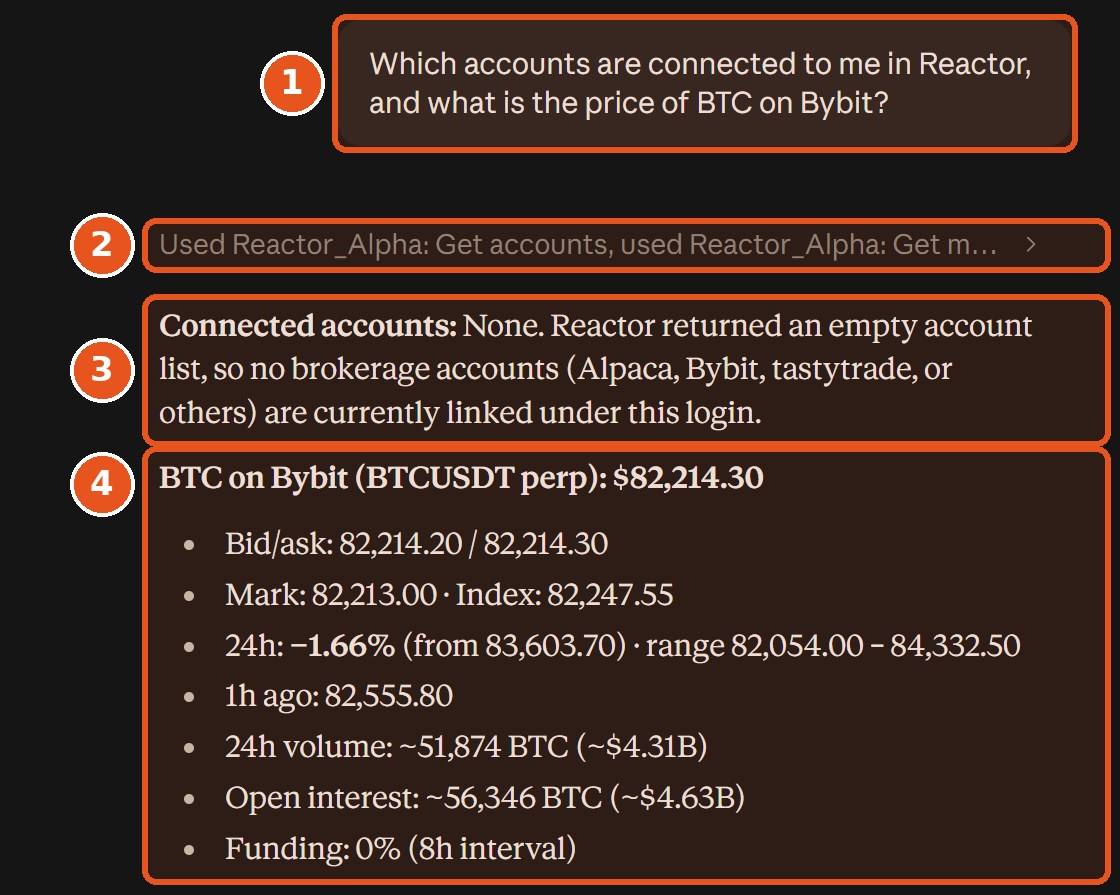
1
The question — in plain language, in a normal chat.
2
Used Reactor — Claude chose on its own which Reactor actions to use. Click to see the details.
3
Accounts — the accounts you have connected. None here yet.
4
Market data — price, daily range, volume, open interest and funding — straight from Reactor.
Market data works even without a connected account. Balances, positions and orders need a connected account.
Once you connect a trading account (Guide 6), Claude sees that account too, if you approved it in step 3:
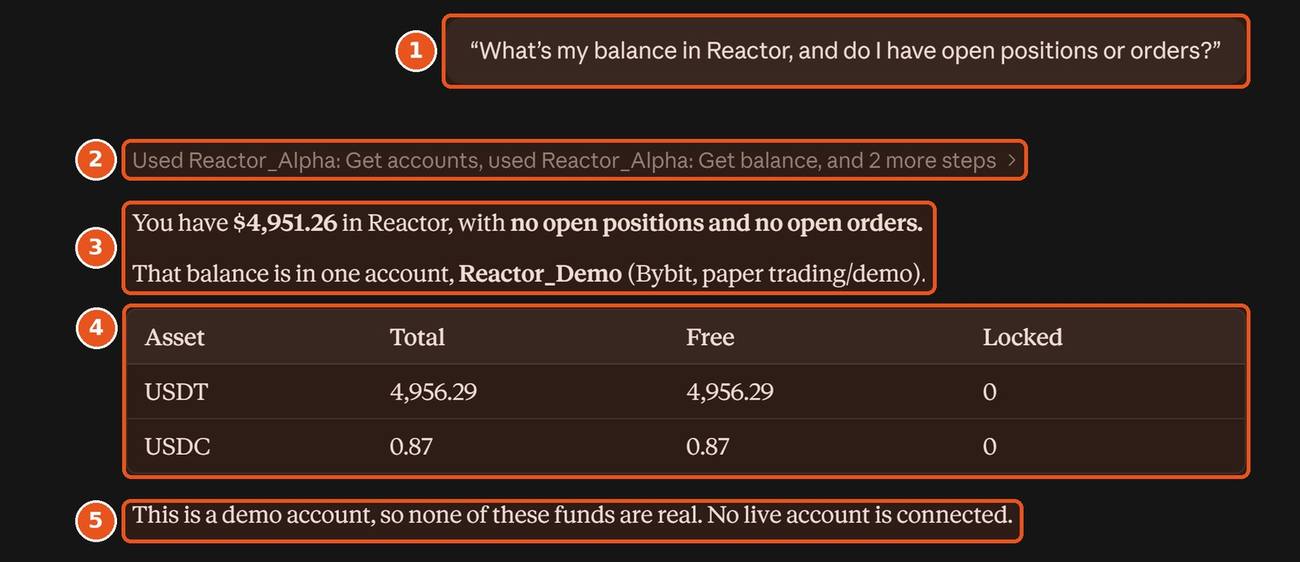
1
The question — what's the balance, and are there open positions or orders.
2
Used Reactor — Claude chose the actions on its own.
3
The answer — balance, account name and broker.
4
Breakdown by currency — how much is free and how much is in use.
5
Demo or Live — Claude knows which environment each account is in, and says so explicitly.
Managing and revoking access
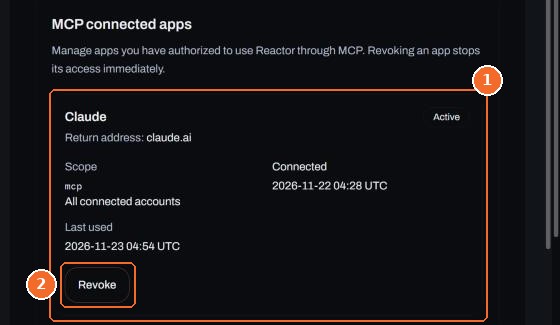
1
Claude — listed under MCP connected apps, with the accounts you approved and when it was last used.
2
Revoke — disconnects Claude immediately. To reconnect, repeat steps 2 and 3.
Claude Code, Codex and Antigravity
These tools connect with an MCP key. On the same screen in Reactor, under Create MCP key, create a key, choose an expiry and limit it to Selected accounts only. Then click Copy setup snippet next to your tool, and install the Skill folder where the page says.
Security
•
An AI connection can send orders. Ask the AI to show a preview and wait for your approval before any order.
•
Stock options orders are approved only by you, on the preview page in Reactor. No AI tool can send them.
•
Never share an MCP key or paste it into a chat. Lost or leaked key — Revoke it and create a new one.
•
An AI answer is not an execution confirmation. Check in Orders, Positions or with your broker.
Next guide
Guide 5: Connecting a Telegram bot
Reactor inside your Telegram — questions, reports and alerts from anywhere.