Guide 7 · Trading
Balances, positions and orders
See your balance and positions, place orders and close positions from the screen.
What you get
This guide shows where to see your account in Reactor: balance, open positions, orders and realized P&L. It also shows how to place an order, set Take Profit and Stop Loss, and close a position from the screen.
Every example was captured on a Bybit Demo account. Practice on Demo first.
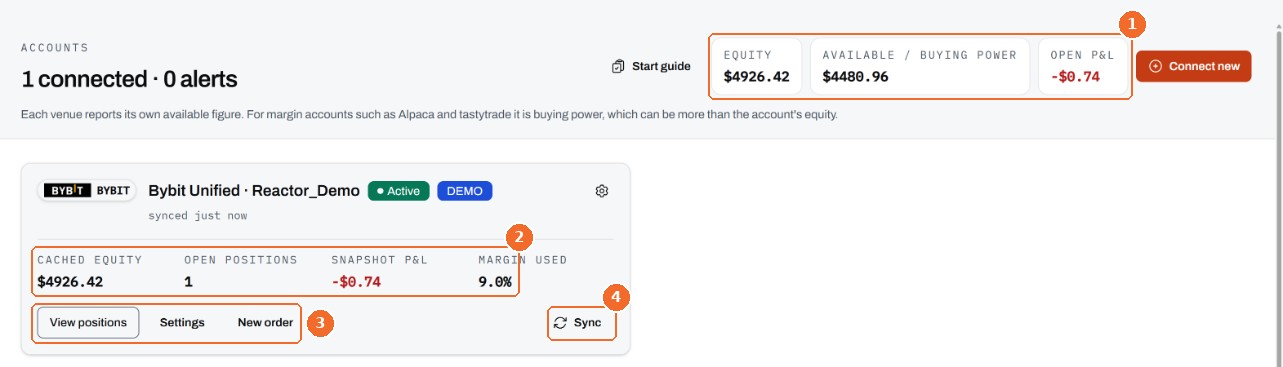
Step 1 — Balance: Accounts
In the sidebar: Trading → Accounts.
1
Equity, Available / Buying power, Open P&L — a summary across all connected accounts.
2
The card's figures — cached equity from the last sync, open positions, open P&L and margin used.
3
View positions, Settings, New order — go to the account's positions, its settings, or a new order form.
4
Sync — pulls fresh data from your broker. Sync only reads and never places orders.
Each broker reports "available" its own way. For margin accounts such as Alpaca and tastytrade it is buying power, which can be more than the account's equity.
Step 2 — All positions: Positions
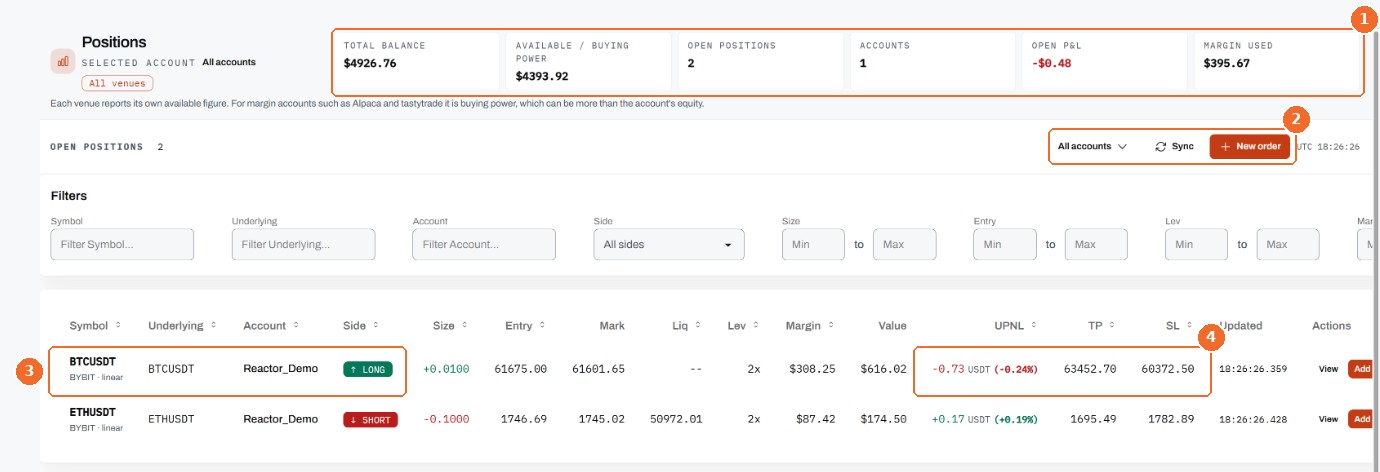
In the sidebar: Trading → Positions. The screen shows open positions across all accounts.
1
Summary row — total balance, available, open positions, accounts, open P&L and margin used.
2
Account selector, Sync, New order — filter to one account, refresh, or open a new order.
3
The position — symbol, account and side: LONG in green, SHORT in red.
4
UPNL, TP, SL — unrealized P&L, and the Take Profit and Stop Loss prices set on the position.
The other columns: size, entry, mark, liquidation price, leverage, margin and value. Above the table you can filter by symbol, account, side and ranges.
Step 3 — Position actions
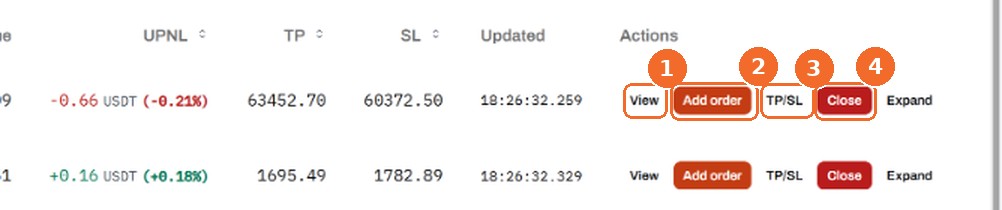
At the end of each row, under Actions:
1
View — opens the position details in a side panel.
2
Add order — opens a new order form for the same symbol.
3
TP/SL — sets or changes Take Profit and Stop Loss.
4
Close — closes all or part of the position.
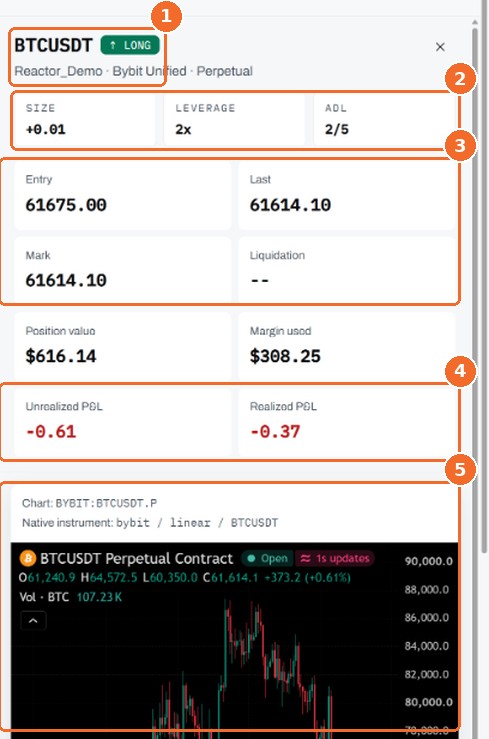
Position details
1
Symbol and side — with the account, broker and instrument type.
2
Size, Leverage, ADL — size, leverage and the exchange's ADL rank.
3
Prices — entry, last, mark and liquidation.
4
Unrealized / Realized P&L — open P&L, and what has already been realized on the position.
5
The chart — a live chart of the symbol.
Step 4 — Take Profit and Stop Loss on an open position
Click TP/SL in the position's row.
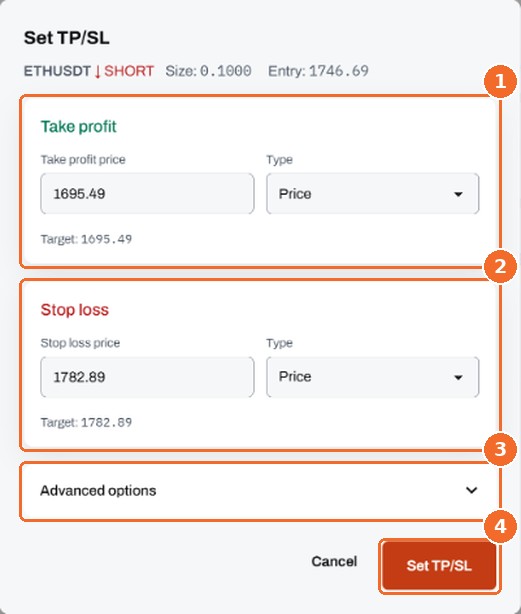
1
Take profit — your profit target. Target shows the price that will be sent.
2
Stop loss — the price where you exit at a loss.
3
Advanced options — more settings.
4
Set TP/SL — saves. TP and SL appear in Orders as conditional orders (UNTRIGGERED) until the price reaches them.
Step 5 — Closing a position
Click Close in the position's row.
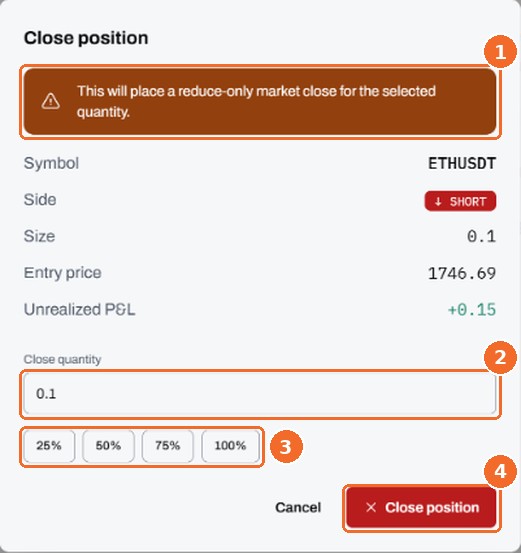
1
The warning — the close is a reduce-only market order: it only reduces the position and never opens one in the other direction.
2
Close quantity — how much to close.
3
25% to 100% — fills the quantity as a share of the position.
4
Close position — sends the close to your broker immediately.
A market close fills at the current market price, which can differ from the price shown when you click.
Step 6 — A new order
Open it from New order on Positions, on Orders, or on the account card. The account name is at the top of the form, next to the broker logo. Check it before every order.
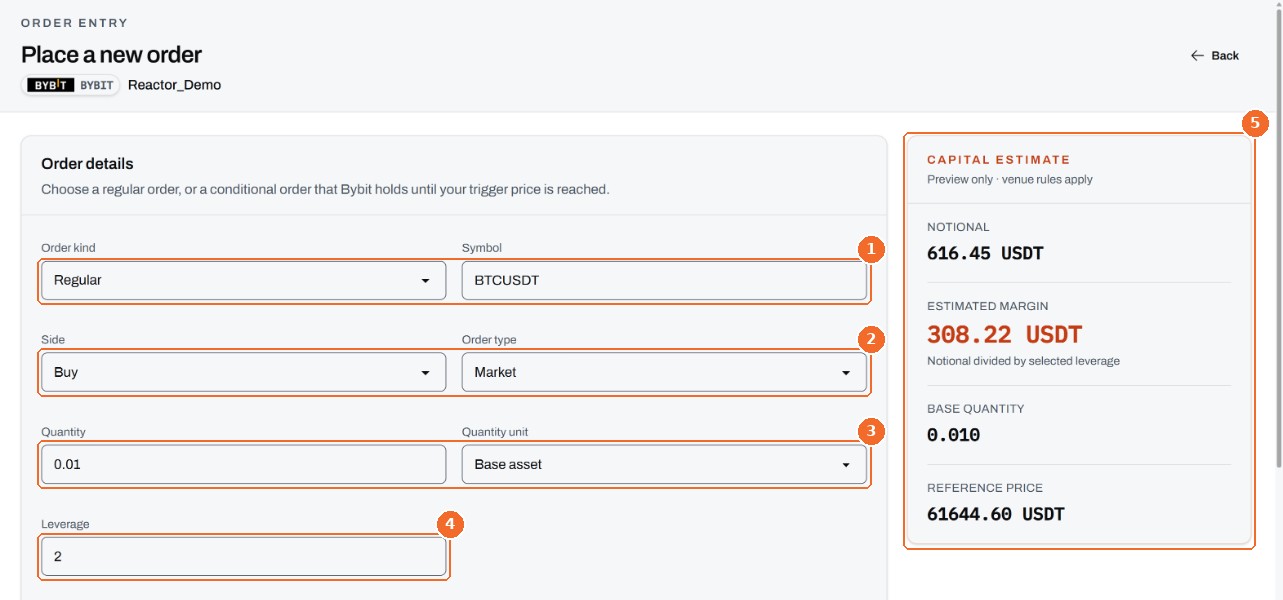
1
Order kind, Symbol — Regular is a normal order. Conditional is an order the exchange holds until your trigger price is reached.
2
Side, Order type — buy or sell, Market or Limit.
3
Quantity, Quantity unit — the amount, and the unit it's measured in. Base asset means units of the asset, for example bitcoin.
4
Leverage — leverage.
5
Capital estimate — notional, estimated margin, quantity and reference price. An estimate only; exchange rules apply.
Open Advanced options to set TP and SL with the order:
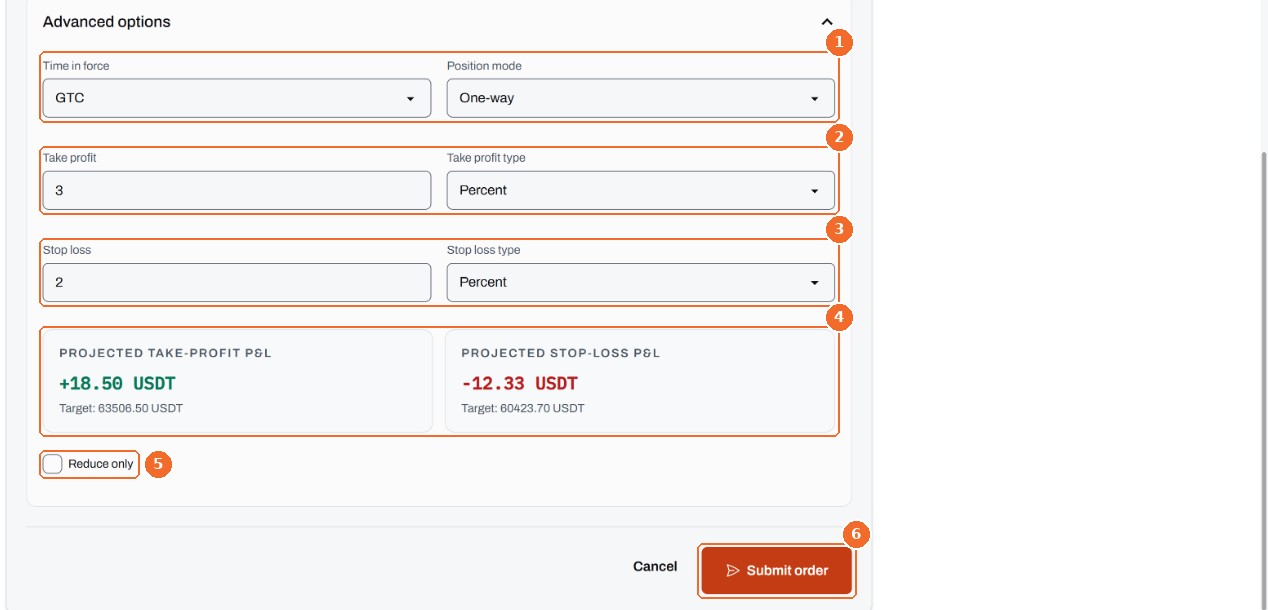
1
Time in force, Position mode — how long the order stays open (GTC: until cancelled), and the account's position mode.
2
Take profit — your profit target, as a percent or a price.
3
Stop loss — your exit at a loss, as a percent or a price.
4
Projected P&L — what you make or lose if TP or SL is reached, and at what price.
5
Reduce only — the order can only reduce an existing position.
6
Submit order — sends the order.
Submit order sends the order to your broker immediately, with no extra confirmation step. Check the account, side and quantity before you click.
Step 7 — The confirmation
After you submit, the result screen opens.
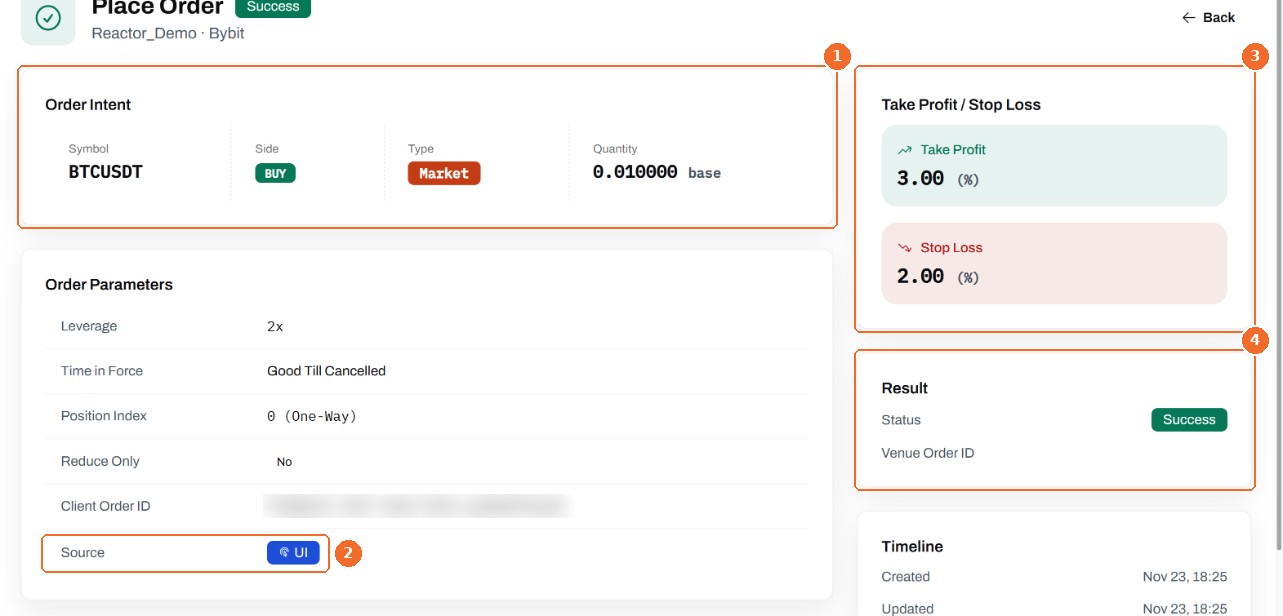
1
Order Intent — what was sent: symbol, side, type and quantity.
2
Source — where the order came from. UI means it was sent from the screen.
3
Take Profit / Stop Loss — the targets you set.
4
Result — Success means your broker accepted the order.
Step 8 — All orders: Orders
In the sidebar: Trading → Orders. Orders are grouped by symbol, with a live price.
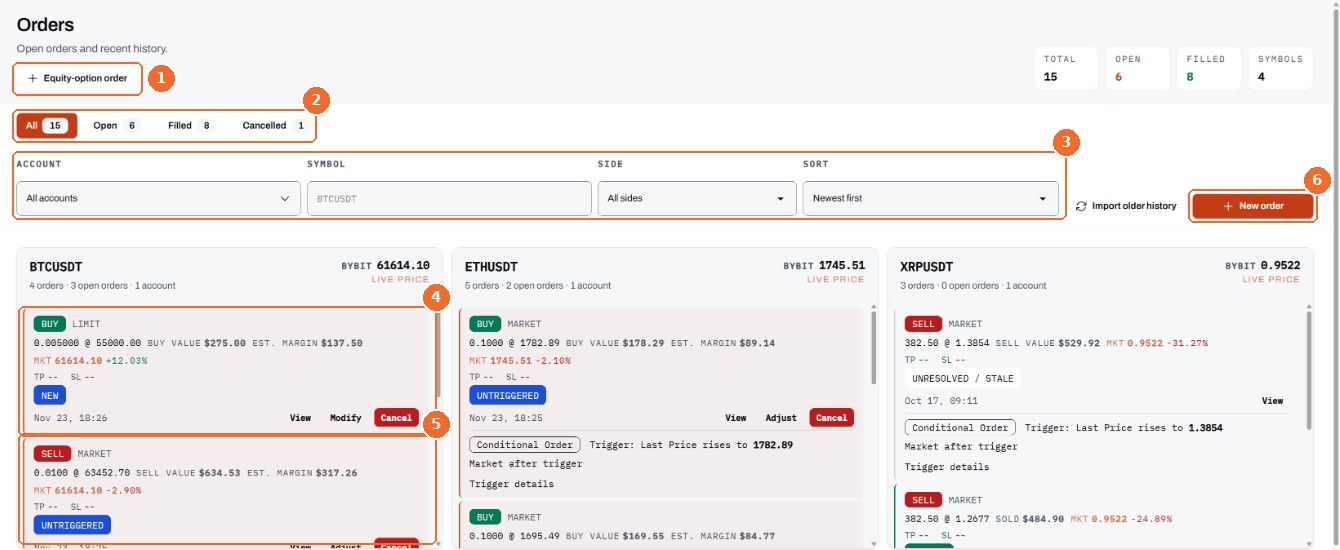
1
Equity-option order — an order for stock options. Covered in the options guide.
2
All, Open, Filled, Cancelled — filter by status.
3
Filters — account, symbol, side and sort.
4
An open order — for example a Limit order with status NEW. You can Modify or Cancel it.
5
A conditional order — a TP or SL with status UNTRIGGERED. You can Adjust or Cancel it.
6
New order — a new order.
Statuses: NEW — waiting at the exchange. UNTRIGGERED — conditional, not triggered yet. FILLED — executed. Import older history pulls older history from your broker.
Step 9 — Realized P&L
In the sidebar: Trading → Realized P&L. This is where closed trades appear.
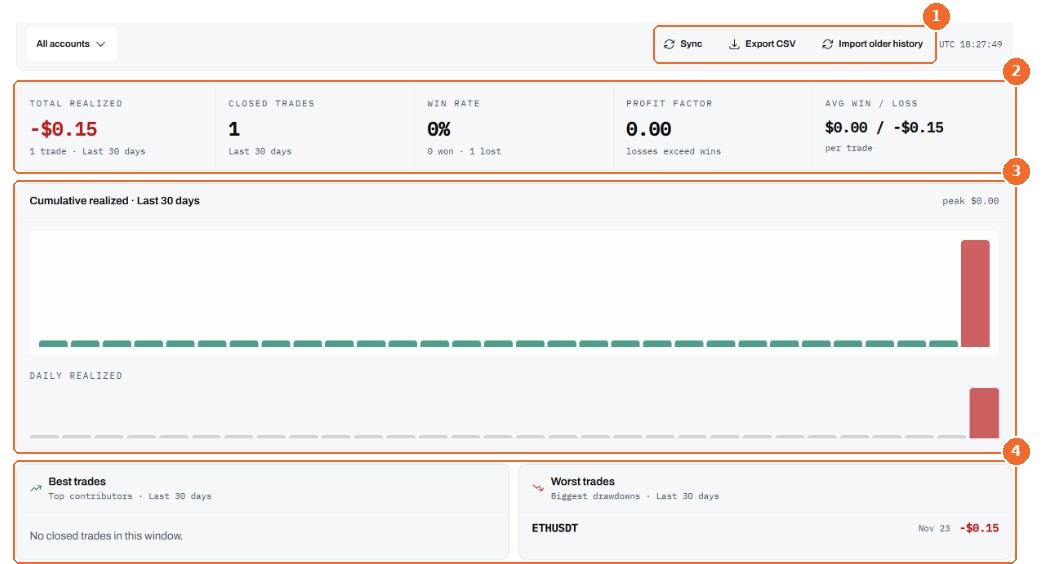
1
Sync, Export CSV, Import older history — refresh, export to a file, and pull older history.
2
The summary — realized P&L, closed trades, win rate, profit factor and average win and loss.
3
The charts — cumulative and daily realized P&L.
4
Best / Worst trades — the biggest contributors and the biggest drawdowns.
Below the charts is a table of every closed position, with filters.
Tips
•
Before every order, check the account name at the top of the form, and the DEMO or LIVE tag on the account card.
•
If a figure looks stale, click Sync.
•
Turning off an Agent doesn't cancel orders or close positions. You cancel and close them here, on Orders and Positions.
•
You can also ask Reactor in AI Chat to show positions or prepare an order. An order from Chat is sent only after you approve it.
Next guide
Guide 8: Agents and schedules
Create an Agent from a prompt, set when it runs and on which accounts, and review every run.